

Add Stamps and Watermarks to Your Screenshots with Pixtel
Say What a Screenshot Is, Right on the Screenshot
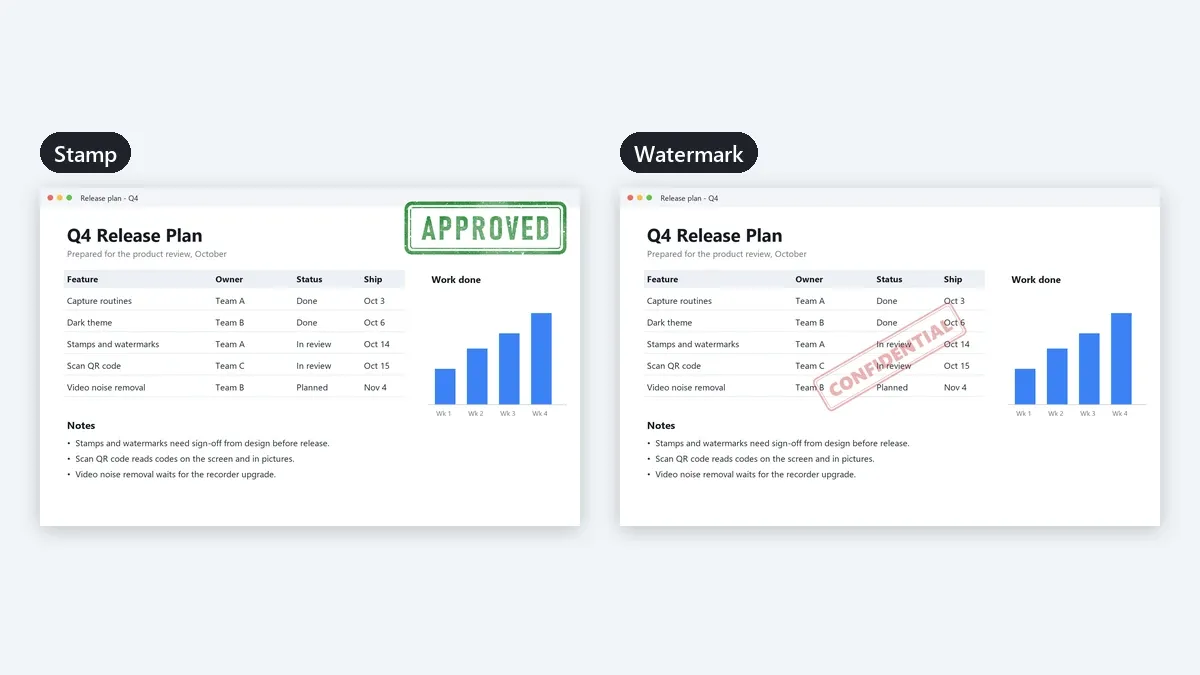
A screenshot often needs a word on it. Approved before a design goes out. Paid on a receipt. Confidential on an internal report. Draft on something that is not final yet. Your name on work you share.
Pixtel has two tools for this:
- Stamps mark a picture, like a rubber stamp on paper: Approved, Rejected, For Review, the date and time.
- Watermarks protect a picture: a copyright line, a logo, or a word repeated across it.
Both live in Preferences, where you keep your own list, and both are two clicks away whenever you need them.
Stamps
Stamps You Can Use Right Away
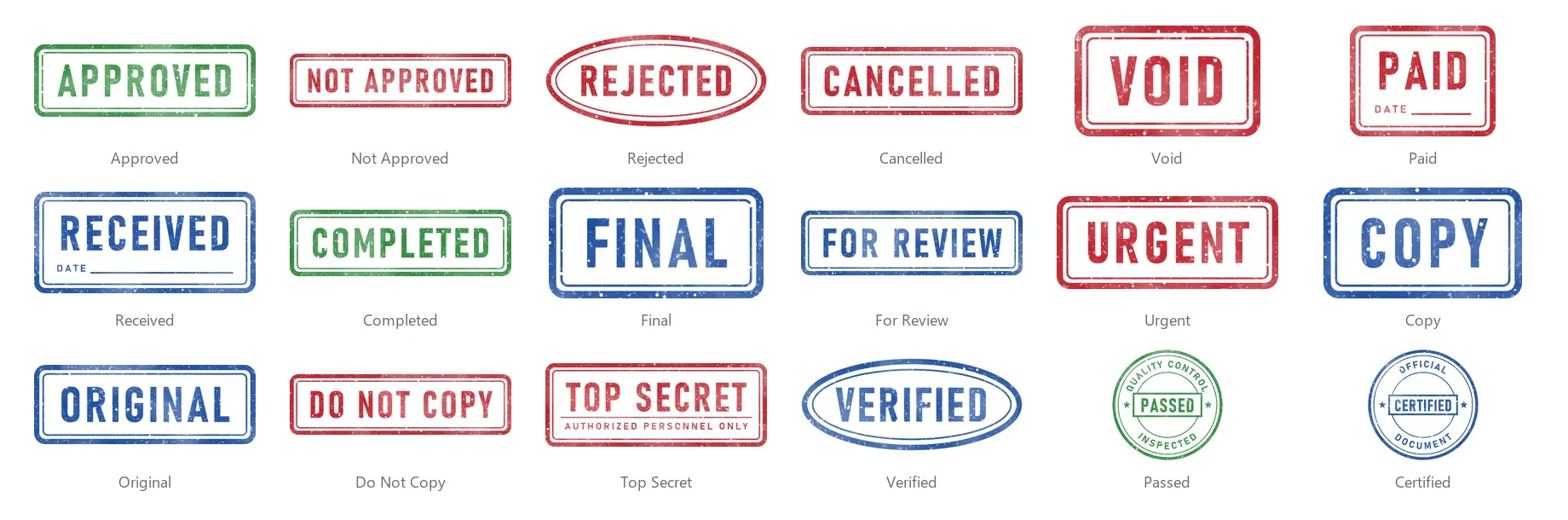
Pixtel comes with 18 picture stamps, drawn for Pixtel in the colors offices use: green for approved and done, red for rejected, void and urgent, blue for copies and records. Paid and Received have a blank date line, and Passed and Certified are round seals.
It also comes with two text stamps:
- Approved, dated: a stamp with your text and the date.
- Date and time: plain text with the date and time, where the Time Stamp used to be.
Add a Stamp
Step 1: Open the Stamp list
Use any of these:
- Edit > Stamp...
- Right-click the picture > Stamp...
- The Stamp tool on the Draw rail, under Stamps, Watermarks & Links.
Step 2: Pick a stamp
- The list shows the five stamps you use most. Every other stamp is in More stamps... below them, so a long list never makes a long menu.
- Click a stamp. It lands in the middle of the picture, selected, ready to move or resize.
Step 3: Place it
- Drag it where you want it and resize it from its corners.
- Changed your mind? Ctrl+Z takes it off.
Worn Ink or Clean
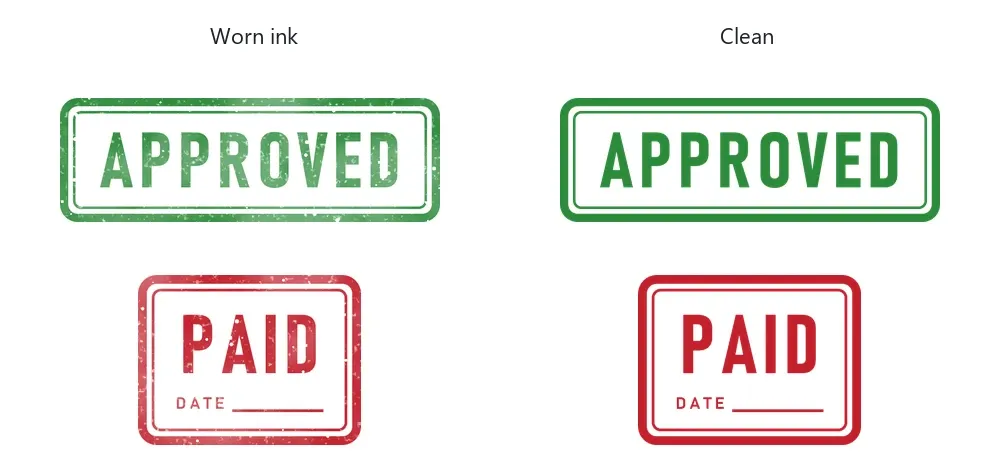
Every picture stamp comes in two versions. Worn ink has the uneven ink of a real stamp; turn it off for a clean print.
Make Your Own Stamps
Open Window > User Preferences and choose the Stamps tab (or click Manage Stamps... at the bottom of the Stamp list).
- Add a Text stamp, or a Picture stamp... from any picture file, such as your company seal or a signature.
- Duplicate a stamp to make a variation, or Delete one you do not use.
- For a picture stamp, set Worn ink and its Width as a share of the picture.
- For a text stamp, type the text and choose its Look:
- Stamp: a border, and the text fits the box as you resize it.
- Plain text: no border, and the text keeps its size.
Text stamps can hold fields that Pixtel fills in from the picture when you add the stamp: the date and time (with a Date format of your choice), your name, and the picture's name, size and category. A text stamp stays editable on the picture afterwards.
Watermarks
Watermarks You Can Use Right Away
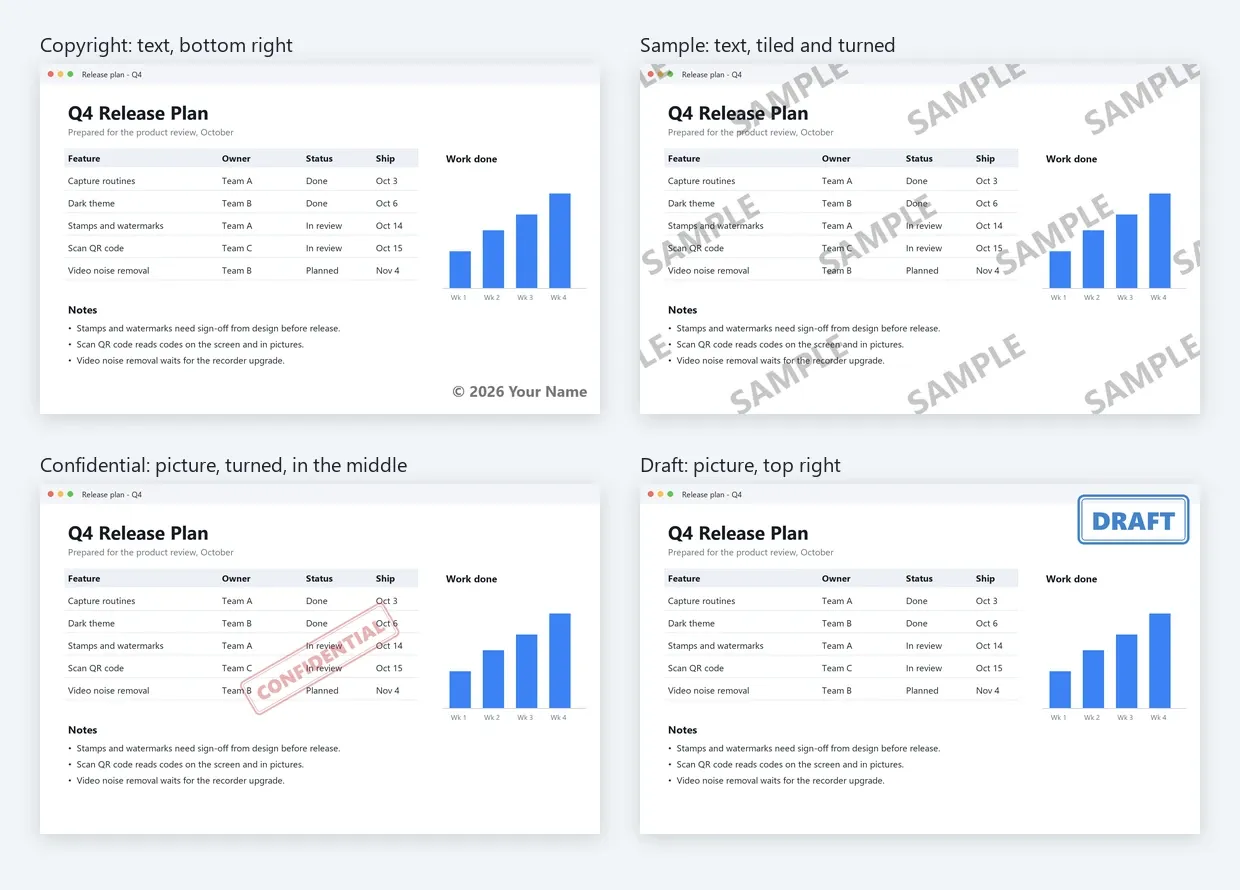
Pixtel comes with four watermarks:
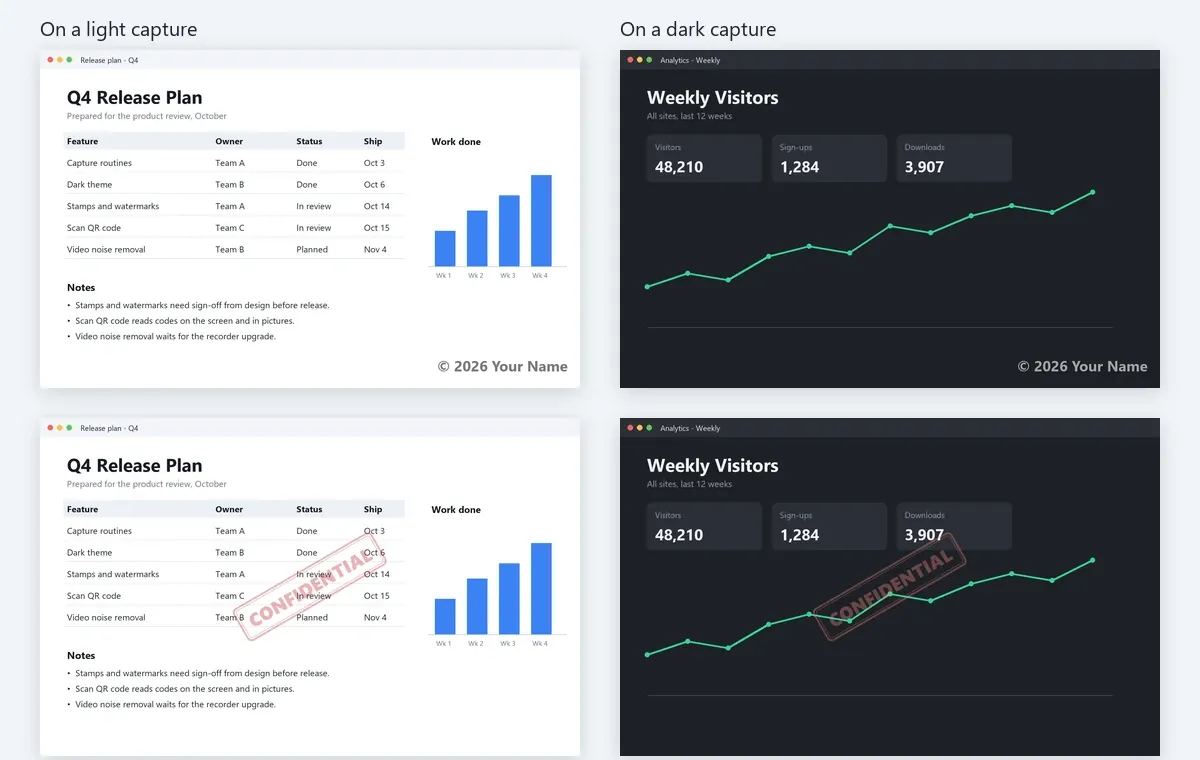
- Copyright: "© year and your name" at the bottom right.
- Sample: the word SAMPLE, turned and repeated across the whole picture.
- Confidential: a stamp-style picture, turned, in the middle.
- Draft: a stamp-style picture at the top right.
Light or Dark to Suit the Picture
A white watermark disappears on a white page; a dark one disappears on a dark screen. Pixtel's watermarks look at the picture under them:
- A text watermark set to Light or dark to suit the picture is white where the picture is dark, and dark gray where it is light.
- A picture watermark can have a second, lighter picture On dark areas. Confidential and Draft come with one.
When a watermark is repeated across the picture, each copy chooses for itself.
Add a Watermark to One Picture
- Edit > Watermark..., right-click the picture > Watermark..., or the Watermark entry on the Draw rail, under Stamps, Watermarks & Links.
- The same kind of list opens: your five most used, More watermarks..., and Manage Watermarks....
- Click one. It is added as a picture you can still move or delete; Ctrl+Z takes it off.
Add a Watermark to Everything You Export or Share
This is where watermarks save the most time. You do not have to mark each picture:
- In the Export panel, choose a Watermark. Each exported picture gets it.
- In the Share panel, choose a Watermark. Each shared picture gets it.
Your pictures in Pixtel are not changed: the watermark goes on the copies that leave. When sharing, Office documents, YouTube and Vimeo are sent without it. If a watermark cannot be added, for example because its picture file was moved, Pixtel tells you instead of sending the picture without it, so nothing goes out unmarked by mistake.
Make Your Own Watermarks
Open Window > User Preferences and choose the Watermarks tab (or Manage Watermarks...).
- Add a Text or Picture watermark, Duplicate one to make a variation, or Delete one.
- Text: type it, with fields such as the year and your name. Choose the Font, Bold, Color and a Shadow that helps it read anywhere.
- Picture: choose your logo, and optionally a lighter version On dark areas.
- Width as a share of the picture, and Opacity to make it subtle or strong.
- Position: any corner or edge, the middle, or Tiled across the whole picture.
- Margin from the edge, as a share of the picture's shorter side.
- Angle: straight, rising or falling at 30° or 45°, or vertical.
A preview shows the watermark as you change it.
Stamps and Watermarks in Capture Routines
Capture routines run the same steps after every capture, and both work there too:
- Add a Stamp step to stamp every capture, at the position and margin you choose.
- Add a Watermark step to watermark every capture. When a routine sends Pixtel (.pi) files, the watermark is drawn into the picture so it cannot be removed.
A routine uses your stamps and watermarks from Preferences, so changing a watermark there changes every routine that uses it.
Tips
- Put the stamps you use every day at the top of the list just by using them: the list keeps your five most used first.
- Use Tiled with a low opacity for drafts and samples, so no part of the picture can be cropped out clean.
- Choose Confidential in the Share panel before sending screenshots outside your team, and set it back to None afterwards.
- Keep a clean version of a stamp for printed documents, and worn ink for the look of a real stamp on screen.
✨ Capture once. Use it forever. It isn't just a tool—it's Pixtel.
🎯 Try Pixtel today and mark your work the way your office does.
Call-to-Action
Download Pixtel · Read Detailed Documentation
Related reading:
'%3e%3cpath%20d='M6.49988%200.862305L0.380969%206.98121C-0.127315%207.4895%20-0.127315%208.31107%200.380969%208.81936C0.889253%209.32764%201.71083%209.32764%202.21911%208.81936L5.19992%205.83855V15.7C5.19992%2016.4176%205.781%2017%206.49988%2017C7.21875%2017%207.79984%2016.4176%207.79984%2015.7V5.83855L10.7806%208.81936C11.0341%209.07285%2011.3669%209.20024%2011.6997%209.20024C12.0325%209.20024%2012.3653%209.07285%2012.6188%208.81936C13.1271%208.31107%2013.1271%207.4895%2012.6188%206.98121L6.49988%200.862305Z'%20fill='white'/%3e%3c/g%3e%3cdefs%3e%3cclipPath%20id='clip0_1_2'%3e%3crect%20width='13.0002'%20height='16.8995'%20fill='white'%20transform='translate(-0.000244141%200.100533)'/%3e%3c/clipPath%3e%3c/defs%3e%3c/svg%3e)