

Scan QR Codes on Your Screen with Pixtel
A QR Code on Your Screen, and Your Phone in Your Pocket
QR codes are not only on paper any more. They are on meeting slides, PDFs, web sign-up pages, event tickets and two-factor setup screens. Pointing your phone at your own monitor, then sending the link back to your computer, is slow and awkward.
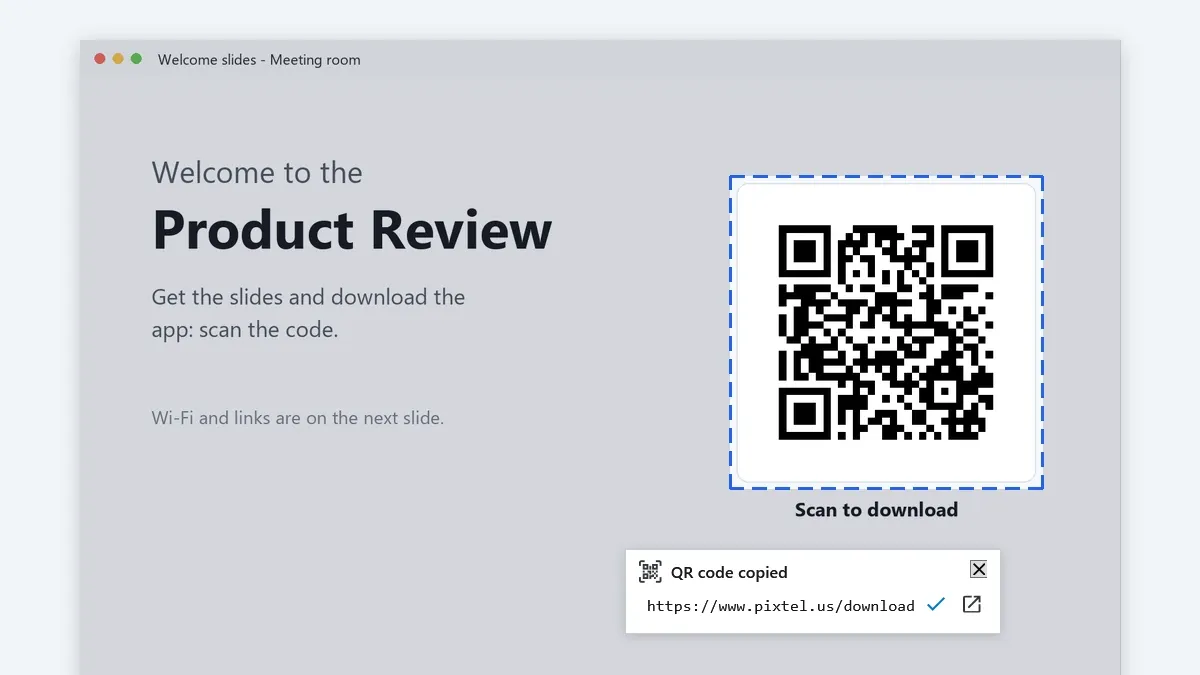
Scan QR Code in Pixtel reads the code where it is, on your screen or in a picture you have open, and copies its text straight to the clipboard of the computer you are working on.
Why It Helps
- No phone needed. The text lands on your PC's clipboard, ready to paste.
- See before you open. A QR code can hide any address. Pixtel shows you the whole text, and a web address before it is opened.
- Nothing leaves your computer. The code is read on your PC. Nothing is uploaded, and nothing is saved to your library.
Scan a Code Anywhere on the Screen
Step 1: Start Scan QR Code
Use whichever is closest:
- Tools > Scan QR Code in Pixtel.
- The Pixtel icon in the notification area: right-click it and choose Scan QR Code. This works with Pixtel's window closed.
- The Capture Widget, once you add Scan QR to it from its command list.
- A shortcut you choose in Preferences > Shortcuts > Scan QR Code.
Step 2: Select the code
- Pixtel steps aside and the screen freezes, as it does for a region capture. The hint says Select the QR code.
- Drag a box around the code. A little space around it helps, and the box can hold more than one code.
- Press Esc or right-click to cancel.
Step 3: Paste
- The text of the code is copied at once. A small card under the area shows what was read.
Scan a Code in a Picture
Already captured the code, or opened a picture that has one?
- Right-click the picture > Scan QR Code reads every code in it.
- To read one code out of several, select it with the Area tool first, then right-click the selection > Scan QR Code, just below Extract Text.
The card shows next to the pointer.
What the Card Shows
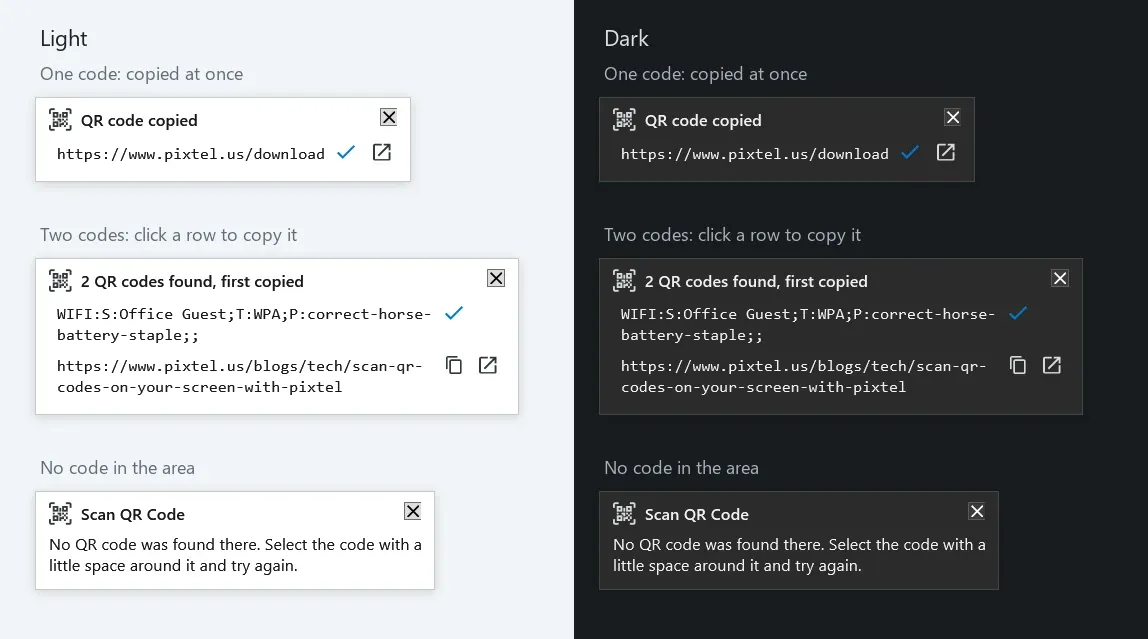
- One code: "QR code copied", the text, and a tick showing it is on your clipboard.
- Several codes: "2 QR codes found, first copied", one row per code from top to bottom. Click a row to copy that one instead.
- A web address also gets an Open button. It opens the address in your default browser, and its tooltip shows the full address first. Only web addresses (http and https) get Open. Other text, such as Wi-Fi details, plain text, phone numbers or email links, is copied only.
- Long text wraps to three lines; copying always copies all of it.
- No code found: the card says so and suggests selecting the code with a little space around it.
The card closes by itself after a few seconds, or with its X. It never takes the keyboard focus, so you can paste straight into the program you were using.
Good to Know
- What it reads: QR codes. Not other barcodes, such as product barcodes, Data Matrix or Aztec codes.
- Dark mode codes: light codes on a dark background are read too.
- Small and turned codes: codes drawn small on screen, and codes turned on their side, are read.
- Damaged codes: QR codes carry error correction, so a code with a logo in the middle or a little damage usually still reads. A code cut off by the edge of your selection does not.
- Annotations: right-clicking a picture reads it as it looks, annotations included, so a QR code you added as a picture is read. The Area selection reads the picture underneath, without annotations.
- Pick a color too: in the selection overlay, pressing C still picks the color under the cross, as in any region capture.
- Why no shortcut out of the box: a Pixtel shortcut works in every program, so it takes that key away from them, and every free Ctrl+Shift letter is already used by some program. You choose the key.
Tips
- Joining a guest Wi-Fi from a welcome slide? Scan the code and paste the password into Windows.
- Not sure where a code leads? Scan it and read the address on the card before you click Open.
- Collecting links from a long PDF? Capture the pages, then use the Area tool to scan each code in turn.
✨ Capture once. Use it forever. It isn't just a tool—it's Pixtel.
🎯 Try Pixtel today and get the link without reaching for your phone.
Call-to-Action
Download Pixtel · Read Detailed Documentation
Related reading:
'%3e%3cpath%20d='M6.49988%200.862305L0.380969%206.98121C-0.127315%207.4895%20-0.127315%208.31107%200.380969%208.81936C0.889253%209.32764%201.71083%209.32764%202.21911%208.81936L5.19992%205.83855V15.7C5.19992%2016.4176%205.781%2017%206.49988%2017C7.21875%2017%207.79984%2016.4176%207.79984%2015.7V5.83855L10.7806%208.81936C11.0341%209.07285%2011.3669%209.20024%2011.6997%209.20024C12.0325%209.20024%2012.3653%209.07285%2012.6188%208.81936C13.1271%208.31107%2013.1271%207.4895%2012.6188%206.98121L6.49988%200.862305Z'%20fill='white'/%3e%3c/g%3e%3cdefs%3e%3cclipPath%20id='clip0_1_2'%3e%3crect%20width='13.0002'%20height='16.8995'%20fill='white'%20transform='translate(-0.000244141%200.100533)'/%3e%3c/clipPath%3e%3c/defs%3e%3c/svg%3e)