

Spotlight: Highlight What Matters in Your Screenshots with Pixtel
A Busy Screenshot, and One Thing You Want People to See
A full-page screenshot shows everything: the menu, the headline, the pictures, the buttons. When you share it to point at one detail, people have to hunt for it. An arrow helps, but the rest of the page is still competing for their attention.
Spotlight in Pixtel dims the whole picture except the areas you choose. The page is still there for context, and the parts that matter are lit up.

Why It Helps
- Eyes go where you want. The bright areas stand out at once, without covering anything.
- Context stays. The dimmed page is still readable, so people know where the highlighted part sits.
- As many spots as you need. All spotlights in a picture share one dim, so the page never gets darker as you add more, and spots that overlap stay clear.
- Your other annotations stay bright. Arrows, text and shapes are always drawn on top of the dim.
Draw a Spotlight
Step 1: Choose the shape
- Open the Draw tab on the right of the editor.
- Right-click the Highlight & Erase tool, or click the small arrow next to it, and choose Spotlight Rectangle or Spotlight Ellipse.
- Next time, press H to pick up the same tool again.
Step 2: Drag over what you want to show
- Drag across the area, as you would draw a rectangle or an ellipse. Everything else dims as you drag.
- Hold Shift while you drag for a perfect square or circle, just as with the Rectangle and Ellipse shapes.
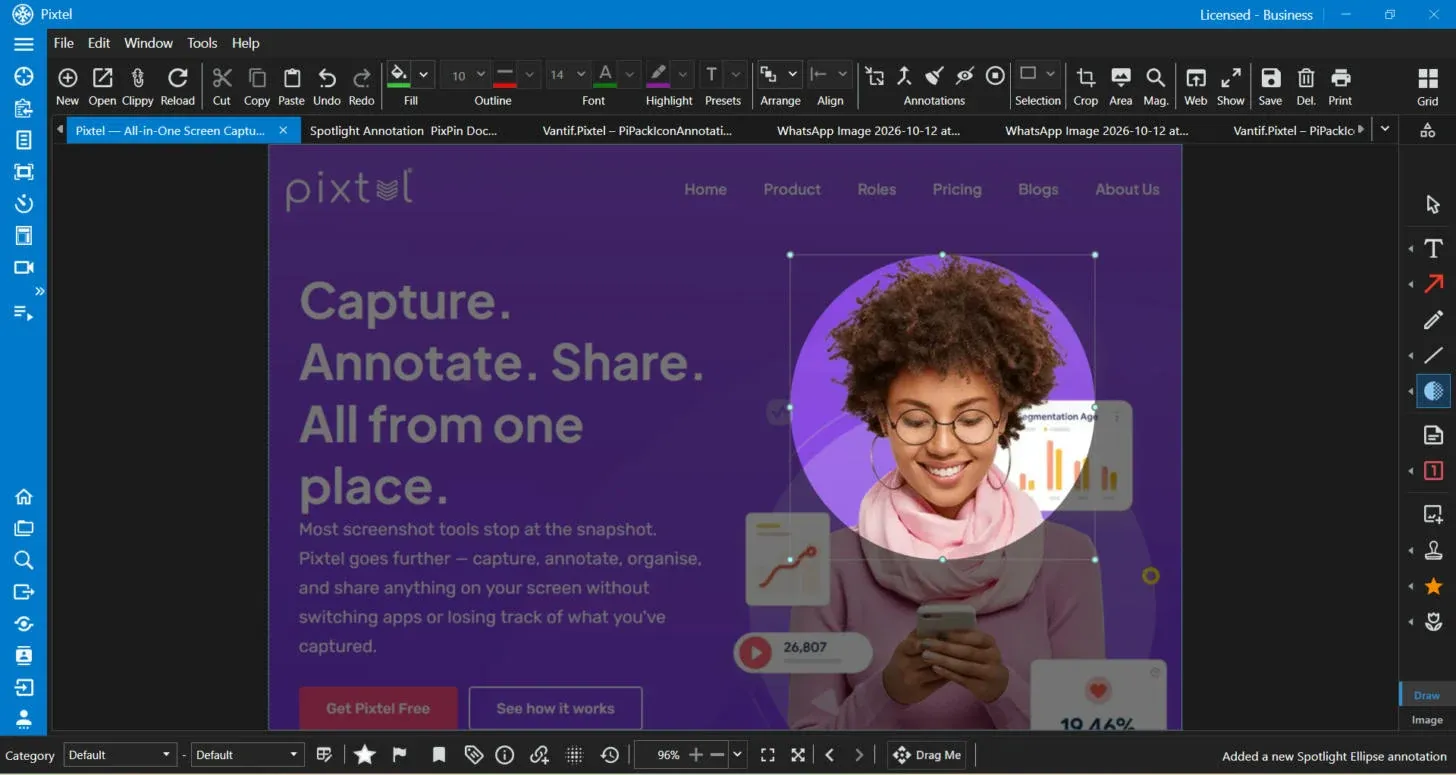
Step 3: Add more spots
- Drag again to light up another area. Rectangles and ellipses can be mixed in the same picture.
- Each new spot joins the picture's spotlight, so the dim stays the same strength however many you add.
Adjust a Spot
- Select: click inside a spot. Its frame and handles appear.
- Move: drag the spot to a new place. The dim follows as you go.
- Resize: drag a handle on its frame.
- Remove: press Delete to remove that spot only. When it is the last one, the spotlight goes too.
- Undo: every spot you draw, move, resize or remove is one step, so Ctrl+Z puts it back.

Choose How Dark the Rest Goes
Double-click inside a spot to open its properties:
- Fill sets the color of the dim. Black is where it starts; a dark brand color works well too. Picking a new color keeps the opacity you set.
- The opacity slider sets how strong the dim is. It starts at 55%: lighter keeps more of the page readable, darker makes the spots stand out more.

Pixtel Remembers Your Dim
Set the color and strength once, and Pixtel keeps them. The next picture you spotlight starts with the dim you used last, even after you close and reopen Pixtel.
- Changes made in the properties panel are remembered when you close it with Done. Cancel leaves your saved dim as it was.
- On a picture that already has a spotlight, new spots join it and share its dim.
- Under Defaults in the panel, Save as default stores the current dim, and Reset to default gives a spotlight the saved dim again.
Good to Know
- Stays editable. The spotlight is saved with the picture as an annotation, so you can come back later and move, resize or remove spots.
- Exports as you see it. Copying, saving as an image, sharing and Flatten Annotations all keep the spotlight exactly as it looks in the editor.
- Clicks pass through the dim. Clicking a dimmed area does not select the spotlight, so you can still pick the arrows and text you have drawn there.
- Always under your annotations. Even Send to Back keeps an arrow above the spotlight, so it is never dimmed.
Tips
- Writing a how-to? Spotlight the button to click, then add a numbered Counter on top for each step.
- Reviewing a design? Light up two areas at once to compare them side by side.
- Sharing a dashboard? Spotlight the one number that changed and keep the rest dim for context.
- Need to hide something too? Combine Spotlight with Blur Rectangle from the same menu.
- Detail too small to read? Add a Magnifier from the same menu to show it enlarged beside the spot.
✨ Capture once. Use it forever. It isn't just a tool—it's Pixtel.
🎯 Try Pixtel today and put the spotlight on what matters.
Call-to-Action
Download Pixtel · Read Detailed Documentation
Related reading:
'%3e%3cpath%20d='M6.49988%200.862305L0.380969%206.98121C-0.127315%207.4895%20-0.127315%208.31107%200.380969%208.81936C0.889253%209.32764%201.71083%209.32764%202.21911%208.81936L5.19992%205.83855V15.7C5.19992%2016.4176%205.781%2017%206.49988%2017C7.21875%2017%207.79984%2016.4176%207.79984%2015.7V5.83855L10.7806%208.81936C11.0341%209.07285%2011.3669%209.20024%2011.6997%209.20024C12.0325%209.20024%2012.3653%209.07285%2012.6188%208.81936C13.1271%208.31107%2013.1271%207.4895%2012.6188%206.98121L6.49988%200.862305Z'%20fill='white'/%3e%3c/g%3e%3cdefs%3e%3cclipPath%20id='clip0_1_2'%3e%3crect%20width='13.0002'%20height='16.8995'%20fill='white'%20transform='translate(-0.000244141%200.100533)'/%3e%3c/clipPath%3e%3c/defs%3e%3c/svg%3e)