

Pixtel vs Snagit: The Complete Comparison for 2026
If you're shopping for a professional screen capture tool on Windows, two names consistently come up: Snagit by TechSmith, and Pixtel. Snagit has been the market benchmark for decades. Pixtel is the modern challenger built specifically for the Windows ecosystem, free to try with a personal plan from $25/yr.
This is a detailed, feature-by-feature comparison to help you decide which tool actually fits your workflow — and your budget.
Quick Verdict
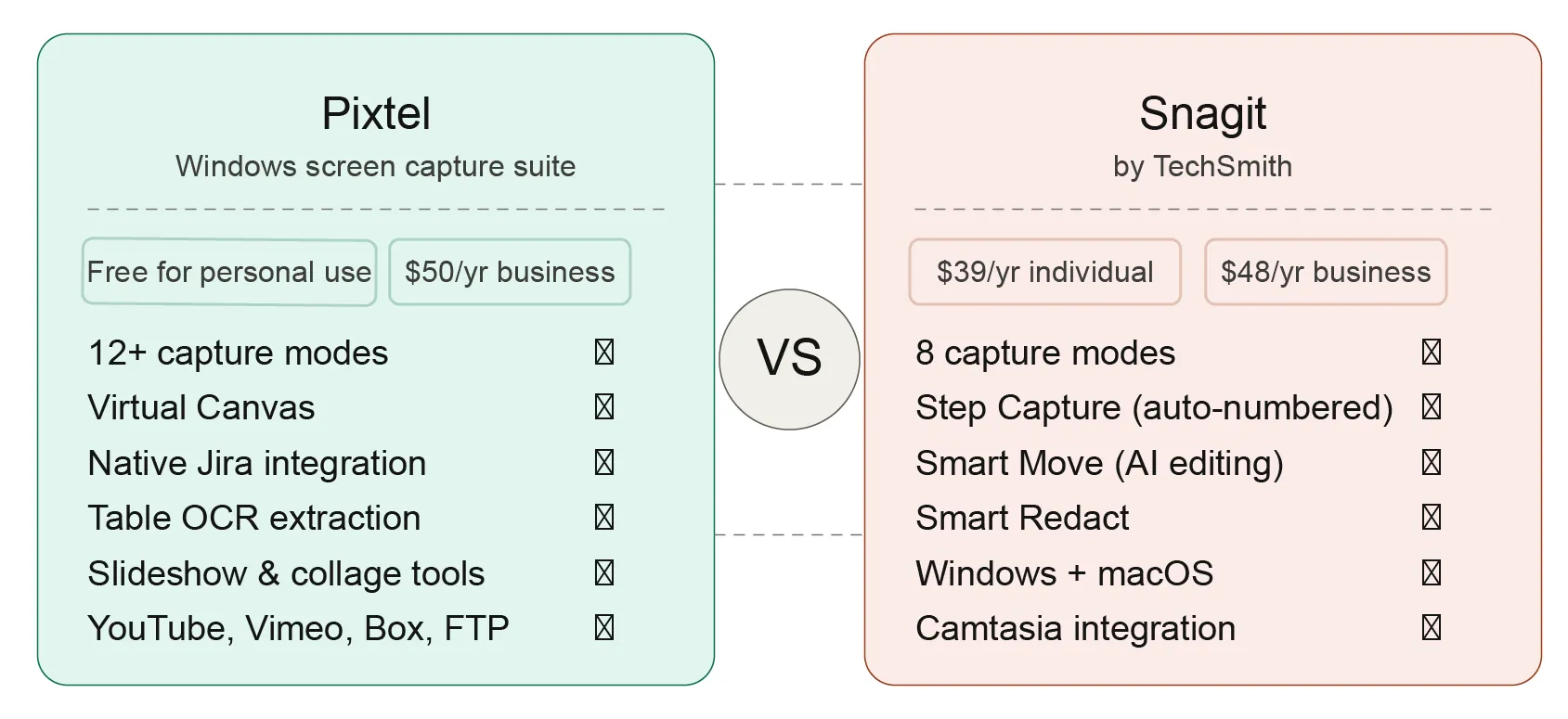
| Pixtel | Snagit | |
|---|---|---|
| Best for | Windows power users, developers, QA, designers | Documentation writers, cross-platform teams |
| Platform | Windows only | Windows + macOS |
| Pricing | Free with watermarks / $25/yr (no watermarks) / $50/yr (business) | $39/year (individual) / $48/year (business) |
| Capture modes | 12+ modes | 8 modes |
| Video recording | ✅ Yes | ✅ Yes |
| Scrolling capture | ✅ Yes | ✅ Yes |
| OCR / text extraction | ✅ Advanced (table extraction) | ✅ Basic (Grab Text) |
| Virtual Canvas | ✅ Yes (annotate outside image) | ❌ No |
| Jira integration | ✅ Native | ❌ No native integration |
| Cloud integrations | Google Drive, OneDrive, Dropbox, Box, FTP | Google Drive, Dropbox, OneDrive |
| Multiple cloud accounts | ✅ Yes (switch accounts per service) | ❌ Single account per service |
| Editor UX | Popup panels, always-visible tools, persistent settings | Tool Properties panel, "More" dropdown for less-used tools |
| Canvas space | Full — no persistent side panel | Reduced by Tool Properties panel |
| Subscription required | ❌ (personal use is free) | ✅ Subscription-only since 2025 |
Overview: What Are These Tools?
Pixtel
Pixtel is a Windows-native screen capture and management suite available on the Microsoft Store. It was built from the ground up for power users — developers, QA engineers, designers, and product managers — who handle large volumes of visual content daily. Rather than treating each capture as a one-off action, Pixtel organizes everything into a tabbed workspace, much like a browser, so captures from different apps and websites stay contextually grouped and instantly accessible.
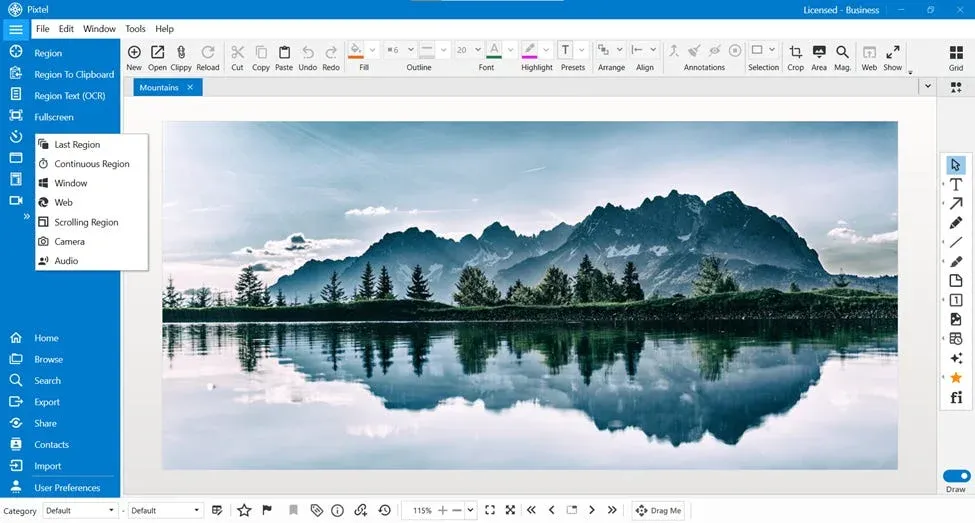
At its core, Pixtel is three things at once: a professional capture engine with over 12 modes, a full annotation and editing suite with a Virtual Canvas, and a management system that keeps your entire screenshot library organized and searchable. It connects directly to Jira, Microsoft Office, and multiple cloud platforms — so you never have to leave the app to share your work.
For personal use, Pixtel is free — all features included, with watermarks on captured images and videos. Upgrade to Personal ($25/yr) to remove watermarks.
Snagit
Snagit is TechSmith's flagship screen capture product, first released in 1990. It has earned its reputation over three decades as the go-to tool for technical writers, trainers, and documentation professionals. It runs on both Windows and macOS, and is trusted widely in enterprise environments — TechSmith claims it is used by all Fortune 500 companies.
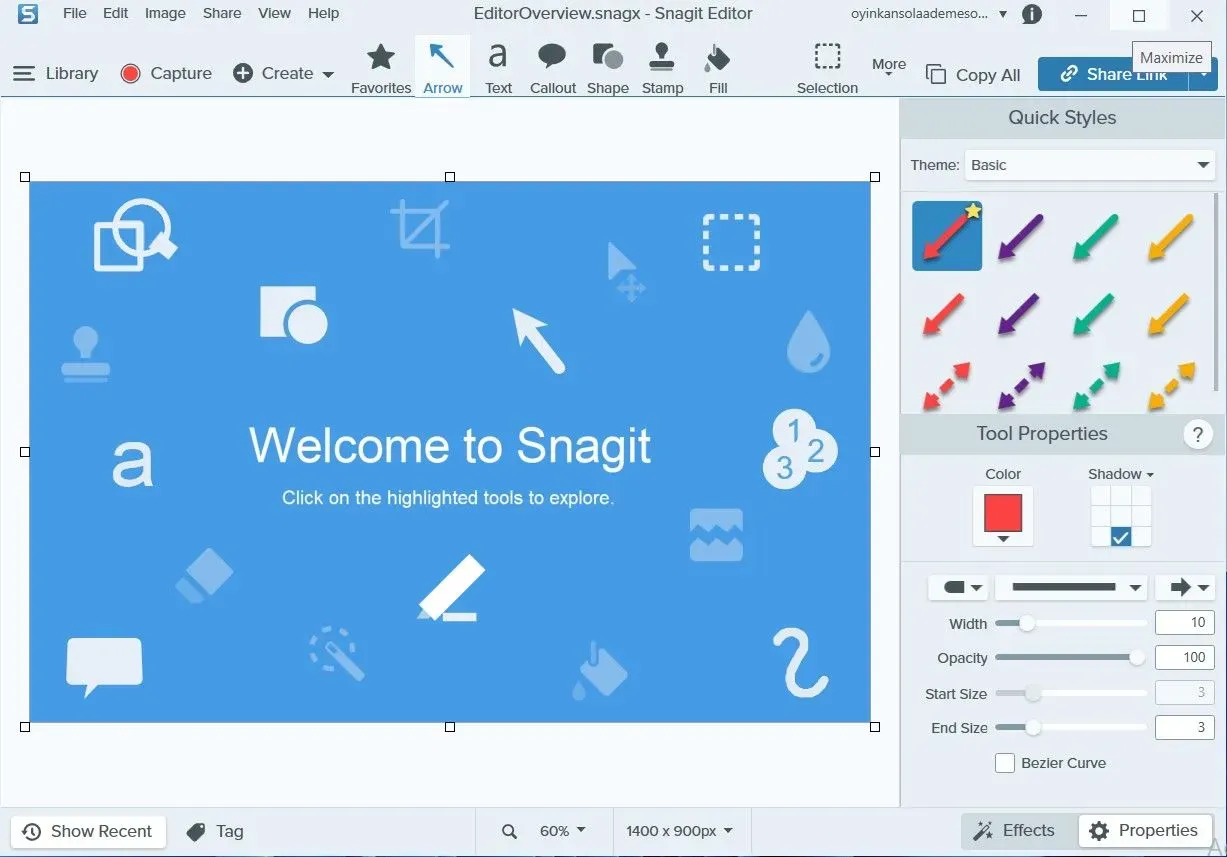
Snagit's strengths are its polished editing interface, its template library for building visual guides and process documents, and its deep integration with Camtasia (TechSmith's video editing tool). In 2025, TechSmith transitioned Snagit to a subscription-only model — perpetual licenses are no longer available for new purchases. The individual plan starts at $39/year.
Pricing: A Critical Difference
This is where the two tools diverge most sharply, and it matters for any individual or team evaluating total cost of ownership.
Pixtel Pricing
- Personal use: Free — all features included; watermarks added to captures. $25/yr (Personal) removes watermarks
- Business: $50/year per user
Snagit Pricing (2026)
- Individual: $39/year — one license, installs on 2 devices (Windows + Mac)
- Business: $48/year per user — transferable license, phone support
- Education: $20/year (student) / $39.36/year (educator)
- No perpetual option — TechSmith moved to subscription-only pricing with Snagit 2025. If you stop paying, you lose access to the software entirely.
The subscription shift has frustrated many long-time Snagit users who previously paid once and owned the software indefinitely. For new buyers, Snagit costs $39/year minimum with no free tier beyond a 15-day trial.
For individuals and small teams, Pixtel's free personal tier is a significant advantage. For business use, both tools are competitively priced within $10/year of each other.
Capture Modes: Breadth vs. Refinement
Both tools handle the core capture scenarios — region, fullscreen, window, scrolling, and timed captures. But they differ in depth and specialization.
Pixtel Capture Modes (12+)
- Region Capture — click and drag to select any screen area
- Fullscreen Capture — capture one or all monitors, with or without taskbar
- Active Window Capture — isolate the current app window
- Scrolling Window Capture — capture entire scrollable windows automatically
- Scrolling Region Capture — capture a specific scrollable area within a page
- Web Capture — capture full webpages with source URL preserved
- Region to Clipboard — capture directly to clipboard without opening the editor
- Last Region — instantly re-capture the exact same screen area
- Continuous Region Capture — capture a fixed area at set intervals automatically
- Timed Capture — countdown before capture (useful for dropdown menus and tooltips)
- Camera Capture — capture images from a connected webcam
- Screen Recording — record screen, camera, or both with audio
- Audio Capture — record microphone or system audio independently
Pixtel also preserves the source URL and application metadata for every capture, so you can return to the original page at any time using the built-in Web icon.
Snagit Capture Modes (8)
- Region Capture — custom area selection
- Fullscreen Capture — full display
- Window Capture — active window
- Scrolling Capture — entire scrollable pages and windows
- Panoramic Capture — horizontal scrolling content
- Menu Capture — capture expanded menus
- Step Capture — automatically numbers clicks into a step-by-step sequence
- Screen Recording — record screen with audio and optional webcam
Snagit's Step Capture is a unique feature Pixtel does not currently have — it automatically numbers your actions as you click through a workflow, which is valuable for creating tutorial documentation. Snagit 2026 also added scheduled and interval captures, which brings it closer to Pixtel's Continuous Region Capture.
Edge: Pixtel — more capture modes overall, with Continuous Region, Last Region, and Audio Capture unavailable in Snagit. Snagit's Step Capture is its standout differentiator.
Editor UX and Workspace
Before comparing individual tools, it's worth examining how each application is designed to be used — because the editor interface directly affects how fast and naturally you can work.
Pixtel: Everything Within Reach
Pixtel's editor is built around a single guiding principle: every command should be reachable without navigating menus. All tools are laid out around the window edges and top bar, always visible, always one click away. There are no hidden panels to expand or "More" dropdowns to dig through during an active annotation session.
Tool selection works through popup panels — click the arrow tool, for example, and a popup appears showing all available arrow styles to choose from. Pick one and draw directly on the canvas. Once the drawing is done, the top bar surfaces the relevant controls for that annotation: line width, color, opacity, and style — all as quick dropdowns. Critically, those selections are remembered for the next annotation of the same type, so you're not resetting preferences on every stroke.
For more controlled edits, double-clicking any annotation opens a properties panel specific to that element, giving precise control over every attribute. This two-tier approach — quick top-bar controls for speed, double-click properties for precision — means you can work fast without losing fine-grained control.
The result is a canvas that stays large and uncluttered. No persistent side panel consuming horizontal space. No floating toolbox blocking your view. The annotation experience stays out of your way until you need it.
Snagit: Panel-Based Workflow
Snagit uses a Tool Properties panel that displays contextual settings for whichever tool is active. When you select an annotation tool, its properties appear in this panel — which occupies a fixed portion of the editor window. Less-used tools are housed under a "More" dropdown in the toolbar, requiring extra clicks to access tools not pinned to the visible bar. Snagit does allow toolbar customization to bring frequently used tools to the surface, but this requires upfront setup and still doesn't resolve the panel footprint on the canvas.
On smaller screens or when working with wide scrolling captures, the properties panel visibly reduces the available canvas area — a friction point that users on laptops or single-monitor setups notice most.
Edge: Pixtel — the popup panel model, persistent tool settings, and double-click property access give Pixtel a faster, less cluttered editing experience. Snagit's panel layout trades canvas space for contextual visibility, which suits deliberate documentation workflows but adds friction for high-volume annotation work.
Annotation and Editing
Both tools have mature annotation toolkits. The key difference is in how far each one lets you extend beyond the original image.
Pixtel Annotation Tools
- Arrows, lines, shapes (rectangles, ellipses, polygons, freehand)
- Text boxes, callouts (14 callout types), sticky notes
- Blur (for redacting sensitive data), highlights, borders
- Stamps and rubber stamps, timestamps, clickable links
- Smart Pencil — converts rough freehand drawings into clean geometry
- Selection tools — rectangular, ellipse, lasso, polygon, curved
- Counter/step numbering — rank and sequence steps in screenshots
- Crop and Magnifier
- Image rotation and flip
- Resize and canvas resize
- Embedded Image — overlay one image on another
- Virtual Canvas — add annotations and elements completely outside the boundaries of your original capture, giving you infinite annotation space
The Virtual Canvas is Pixtel's most distinctive editing feature. Instead of being constrained by the pixel dimensions of your screenshot, you can extend your workspace infinitely in any direction, add text, shapes, icons, and additional images, and create comprehensive visual maps or comparisons that go far beyond the original capture.
Pixtel Image Editing Tools (No Photoshop Needed)
Beyond annotation, Pixtel includes a dedicated set of image manipulation tools that let you make common edits directly inside the app — no Photoshop, no Paint, no round-tripping to an external editor. This is a meaningful workflow advantage: edits stay non-destructive and your captures stay organized in the same library.
Pixtel's image editing toolkit includes:
- Brightness and Contrast — fine-tune exposure on overexposed or dark captures
- Hue, Saturation, and Color Balance — adjust colors for cleaner documentation or branded outputs
- Convert to Grayscale / Black & White — strip color for printing, accessibility, or a cleaner look
- Sharpen and Blur — sharpen detail or apply a soft blur to background elements
- Image Effects — solarize, mosaic, tile, motion blur, and more for visual emphasis
- Canvas Resize — expand the canvas without scaling the image, giving you blank space to add context
- Image Resize — scale captures to exact pixel dimensions for web or document requirements
- Flip and Rotate — correct orientation or mirror images without opening another tool
- Color Picker — sample any color from a capture for reference or documentation
- Invert Colors — useful for reviewing dark-mode UIs or creating high-contrast visuals
- Watermark — embed a custom watermark image into any capture for branding or attribution
This puts Pixtel in a different category from most screen capture tools, which stop at basic annotation. For users who regularly retouch screenshots before sharing them in reports, presentations, or bug trackers, this eliminates a whole step from the workflow.
Snagit Annotation Tools
- Arrows, lines, callouts, shapes
- Text boxes, highlights, blur
- Smart Move — select and reposition UI elements within a captured image (unique AI-assisted feature)
- Smart Redact — automatically detects and redacts sensitive text like card numbers and names
- Step tool — auto-numbered annotation sequence
- Simplify — converts a screenshot into a cleaner, simplified graphic
- Templates — pre-built layouts for process guides and documentation
- Stamps
Snagit's Smart Move feature deserves particular attention. It uses AI to recognize discrete objects within a screenshot — such as buttons, windows, or UI components — and allows you to reposition them as if they were independent layers. This is genuinely useful for cleaning up cluttered captures or adjusting layouts before sharing. Snagit 2026 also added Smart Redact, which automatically finds and blurs sensitive text.
Edge: Pixtel — the addition of a full image editing suite (brightness, contrast, grayscale, effects, canvas resize, color tools) eliminates the need to open Photoshop or Paint for post-capture adjustments. Snagit's AI-assisted features (Smart Move, Smart Redact, Simplify) are genuinely powerful for documentation workflows, but Pixtel covers more ground for everyday editing needs.
OCR and Text Extraction
Pixtel
Pixtel's OCR goes beyond simple text recognition. It can:
- Extract plain editable text from any image or screenshot
- Extract structured table data directly into spreadsheet format
- Use the Region Text Capture mode to extract text from any screen area on the fly
- Access OCR via the Area tool within the editor
This makes Pixtel particularly powerful for data workflows — extracting information from PDFs, web tables, or legacy systems without re-typing.
Snagit
Snagit's Grab Text feature extracts text from images and screenshots. The 2026 version improved accuracy, particularly on tall scrolling captures. It copies the extracted text to your clipboard for use elsewhere. It does not offer structured table extraction.
Edge: Pixtel — table data extraction is a significant advantage for users who regularly work with structured data.
Media Management
This is an area where the two tools take very different philosophical approaches.
Pixtel
Pixtel functions as a full media management system, not just a capture tool. Every screenshot, recording, and imported file is stored in a browsable library with:
- Grid view with thumbnails
- Filter by type (image, video, audio)
- Date-based browsing
- Tags and bulk operations (export, collage, delete)
- Recycle bin for accidental deletions
- Backup, restore, and data relocation tools
- Duplicate detection and cleanup
Captures are automatically organized by the application or website they came from. The tabbed interface keeps your current session organized the way a browser keeps your tabs — active, labeled, and instantly switchable.
Snagit
Snagit has a media library that stores your recent captures with thumbnail previews. You can tag and search captures, organize by date, and access your history. It is functional for individual use but is not designed to handle large volumes of captures at the scale Pixtel's management system supports.
Edge: Pixtel — significantly deeper media management, backup tools, and organizational capabilities.
Sharing and Integrations
Pixtel Integrations
- Jira — attach annotated screenshots directly to issues (native integration)
- Google Drive — upload single or bulk captures; connect multiple accounts and switch between them instantly
- OneDrive — direct Microsoft account upload; supports multiple accounts
- Dropbox — folder selection and bulk upload; supports multiple accounts
- Box — secure enterprise cloud upload; supports multiple accounts
- FTP — direct server upload; configure and switch between multiple FTP servers
- Email — send via configured email with OAuth2
- OneNote — clip directly into notebooks
- Evernote — capture to notes
- YouTube — publish screen recordings directly
- Vimeo — upload videos without switching apps
- Microsoft Office — export to Word, PowerPoint, and Excel with layout controls
- Share Link — generate a shareable URL with custom auto-delete settings
- Drag Me — drag images directly into any app without saving first
Snagit Integrations
- Google Drive — upload captures
- OneDrive — upload captures
- Dropbox — upload captures
- Camtasia — send captures directly to TechSmith's video editor (tight integration)
- Microsoft Office — export to Word and PowerPoint
- Screencast — TechSmith's own video sharing platform (25 video slots on individual plan)
- Slack — share captures
- Email — basic email sharing
Edge: Pixtel — the native Jira integration alone is a major differentiator for development and QA teams. Pixtel also covers Vimeo, YouTube, FTP, Box, Evernote, and OneNote natively. Critically, Pixtel supports multiple accounts per cloud service — you can connect several Google Drive, OneDrive, Dropbox, or Box accounts and switch between them with a single click when uploading. This is a significant workflow advantage for consultants, agencies, and anyone who manages files across multiple client or team accounts. Snagit locks each service to a single connected account. Snagit's advantage is the Camtasia pipeline for teams embedded in the TechSmith ecosystem.
Presentation and Slideshow
Pixtel
Pixtel has a built-in Slideshow Mode that lets you present your captured tabs full-screen, sequentially, without exporting anything. For informal team reviews, design walkthroughs, or quick client calls, you can go directly from a capture session into a live presentation.
Pixtel also has a native Presentation Builder that exports captures to PowerPoint templates with layout control, slide sizes, and bulk export. The Virtual Canvas doubles as a digital whiteboard for building more complex visual overviews before presenting.
The Collage and Collate tools let you combine multiple screenshots into organized layouts — useful for before/after comparisons, documentation summaries, or multi-step walkthroughs presented as a single image.
Snagit
Snagit's Templates feature lets you drop captured images into pre-formatted layouts for process guides and how-to documents. Step Capture combined with templates creates polished, numbered tutorials in minutes. In 2026, Snagit added the ability to export Step Capture guides directly to PowerPoint or Keynote as slideshows with editable text and a title slide.
Edge: Draw. Pixtel's Slideshow Mode and Collage tools give it a presentation edge for visual reviews. Snagit's templates and Step Capture are stronger for building formal, numbered process documentation.
Platform Support
Snagit runs on both Windows and macOS. This is a genuine advantage for teams that operate across both ecosystems. If your team includes Mac users, Snagit is the natural choice.
Pixtel is Windows only, available via the Microsoft Store. It is purpose-built for the Windows ecosystem and benefits from that focus — deep Windows integration, system tray access, and native Windows workflows. If your team is entirely on Windows, there is no trade-off.
Edge: Snagit for cross-platform teams. Pixtel for Windows-exclusive environments.
Performance and Resource Usage
Snagit is a mature application with a well-documented footprint. Users on older hardware have reported CPU spikes and a 1–2 second delay when triggering captures via shortcut. The editor, while feature-rich, can feel heavy when opening for quick markups.
Pixtel's Windows-native architecture keeps it lean and fast. The system tray integration means you can trigger any capture mode without interrupting your workflow, and captures open immediately in a new tab without a perceptible launch delay.
Who Should Use Pixtel?
Pixtel is the stronger choice if you:
- Work exclusively on Windows
- Are an individual or personal user and want a professional tool — free tier available, Personal plan from $25/yr removes watermarks
- Work in development, QA, or product management and need Jira integration
- Handle high volumes of screenshots and need real media management
- Need to extract structured data (tables, text) from screenshots regularly
- Want a clutter-free editor where all tools are always visible, settings persist between annotations, and the full canvas stays available
- Use multiple cloud platforms (Jira + Google Drive + OneDrive + Dropbox simultaneously)
- Need audio capture independent of video recording
- Want to capture the same region repeatedly with Last Region or Continuous Capture
- Want to edit screenshots (adjust contrast, convert to grayscale, resize canvas, apply effects) without leaving the app or opening Photoshop
Who Should Use Snagit?
Snagit is the stronger choice if you:
- Need macOS support or work on a mixed Windows/Mac team
- Are a technical writer, trainer, or educator who creates formal how-to documentation
- Rely heavily on step-by-step guides and want auto-numbered captures
- Want AI-assisted editing — Smart Move, Smart Redact, and Simplify
- Are already invested in the TechSmith ecosystem (Camtasia users especially)
- Need Screencast for hosting and sharing video content
- Work in an enterprise environment with volume licensing requirements
Feature Comparison: Full Table
| Feature | Pixtel | Snagit |
|---|---|---|
| Platform | Windows | Windows + macOS |
| Personal use pricing | Free | $39/year |
| Business pricing | $50/year | $48/year |
| Perpetual license | N/A (free personal) | ❌ Subscription only since 2025 |
| Capture modes | 12+ | 8 |
| Region capture | ✅ | ✅ |
| Fullscreen capture | ✅ | ✅ |
| Active window capture | ✅ | ✅ |
| Scrolling capture | ✅ | ✅ |
| Last Region (repeat capture) | ✅ | ❌ |
| Continuous/interval capture | ✅ | ✅ (added 2026) |
| Timed/delayed capture | ✅ | ✅ |
| Menu/tooltip capture | ✅ (via timed) | ✅ (dedicated mode) |
| Step Capture (auto-numbered) | ❌ | ✅ |
| Camera capture | ✅ | ❌ |
| Screen recording | ✅ | ✅ |
| Audio capture | ✅ (independent) | ✅ (with video) |
| Virtual Canvas | ✅ | ❌ |
| Editor workspace | Full canvas, popup panels | Panel-based, reduces canvas |
| Tool settings persistence | ✅ Auto-saved per tool | ❌ Resets between sessions |
| Double-click annotation properties | ✅ | ❌ |
| Image editing suite | ✅ (brightness, contrast, grayscale, effects, resize, color tools) | ❌ Limited |
| Convert to grayscale / B&W | ✅ | ❌ |
| Canvas resize | ✅ | ❌ |
| Image effects (solarize, mosaic, blur, etc.) | ✅ | ❌ |
| Color picker | ✅ | ❌ |
| Invert colors | ✅ | ❌ |
| Watermark (custom image) | ✅ | ❌ |
| Smart Move (AI editing) | ❌ | ✅ |
| Smart Redact | Manual blur | ✅ Auto |
| Callout types | 14 | Standard set |
| Smart Pencil | ✅ | ❌ |
| Sticky notes | ✅ | ❌ |
| OCR text extraction | ✅ Advanced | ✅ Basic |
| Table data extraction | ✅ | ❌ |
| Templates | ❌ | ✅ |
| Slideshow / presentation mode | ✅ Native | ✅ (via export) |
| Collage / image layouts | ✅ | ❌ |
| Media library / management | ✅ Full system | ✅ Basic |
| Backup and restore | ✅ | ❌ |
| Jira integration | ✅ Native | ❌ |
| Multiple cloud accounts | ✅ Per service | ❌ Single account |
| Google Drive | ✅ | ✅ |
| OneDrive | ✅ | ✅ |
| Dropbox | ✅ | ✅ |
| Box | ✅ | ❌ |
| FTP | ✅ | ❌ |
| ✅ | ✅ | |
| OneNote | ✅ | ❌ |
| Evernote | ✅ | ❌ |
| YouTube upload | ✅ | ❌ |
| Vimeo upload | ✅ | ❌ |
| Camtasia integration | ❌ | ✅ |
| Share Link (URL sharing) | ✅ | ✅ (via Screencast) |
| Drag Me (drag-drop sharing) | ✅ | ❌ |
| Export to Word | ✅ | ✅ |
| Export to PowerPoint | ✅ | ✅ |
| Export to Excel | ✅ | ❌ |
| Free trial | Free forever (watermarks on free tier) | 15-day trial |
The Bottom Line
Snagit remains an excellent tool — particularly for cross-platform teams, technical writers who need templates and step-capture workflows, and organizations already using Camtasia. Its transition to subscription-only pricing is worth factoring in for budget-conscious buyers, especially individuals who previously owned it outright.
For Windows-focused professionals, Pixtel outperforms on almost every practical dimension — more capture modes, richer integrations, deeper media management, and a built-in image editing suite that eliminates the need for Photoshop. The free tier is available with no time limit — watermarks are added to captures, removed from $25/yr. For development and QA teams specifically, the combination of native Jira integration, 12+ capture modes, table OCR, and full media management makes Pixtel the more complete daily workflow tool.
If you're on Windows and evaluating both, Pixtel's free tier has no time limit — unlike Snagit's 15-day trial, you can evaluate it at your own pace. Watermarks are removed from $25/yr.
Try Pixtel Free Today
👉 Download Pixtel
🎥 Follow us on YouTube
📘 Read Detailed Documentation
Related Articles
- Pixtel vs. Snipping Tool: Why Professionals Need a Better Screen Capture Tool →
- Top 10 Screen Capture Tools for Better Productivity in 2026 →
- Master Bug Reporting: Best Practices with Pixtel & Jira →
- Mastering Scrolling Captures in Pixtel →
- Unlocking Trapped Data: The Power of Advanced OCR in Screen Management →
'%3e%3cpath%20d='M6.49988%200.862305L0.380969%206.98121C-0.127315%207.4895%20-0.127315%208.31107%200.380969%208.81936C0.889253%209.32764%201.71083%209.32764%202.21911%208.81936L5.19992%205.83855V15.7C5.19992%2016.4176%205.781%2017%206.49988%2017C7.21875%2017%207.79984%2016.4176%207.79984%2015.7V5.83855L10.7806%208.81936C11.0341%209.07285%2011.3669%209.20024%2011.6997%209.20024C12.0325%209.20024%2012.3653%209.07285%2012.6188%208.81936C13.1271%208.31107%2013.1271%207.4895%2012.6188%206.98121L6.49988%200.862305Z'%20fill='white'/%3e%3c/g%3e%3cdefs%3e%3cclipPath%20id='clip0_1_2'%3e%3crect%20width='13.0002'%20height='16.8995'%20fill='white'%20transform='translate(-0.000244141%200.100533)'/%3e%3c/clipPath%3e%3c/defs%3e%3c/svg%3e)