

Master Bug Reporting: Best Practices with Pixtel & Jira

A good bug report is precise, visual, and immediately actionable. A bad one is a vague text description that forces developers to play detective before they can even reproduce the issue.
Pixtel's native Jira integration bridges the gap between spotting a bug and filing a clear, developer-ready ticket — without the usual multi-app handoff that slows teams down.
Why Visual Evidence Changes Everything
Words alone rarely convey the full picture of a UI glitch, a broken state, or an unexpected layout shift. A screenshot or short recording showing the exact problem in context eliminates the back-and-forth of "can you describe what you saw?" and gets engineering to the root cause faster.
The problem with most visual bug workflows is the overhead: capture → save to desktop → open browser → navigate to Jira → create ticket → upload file → write description from memory. Every extra step is a chance for context to be lost and for time to be wasted.
Setting Up the Jira Integration
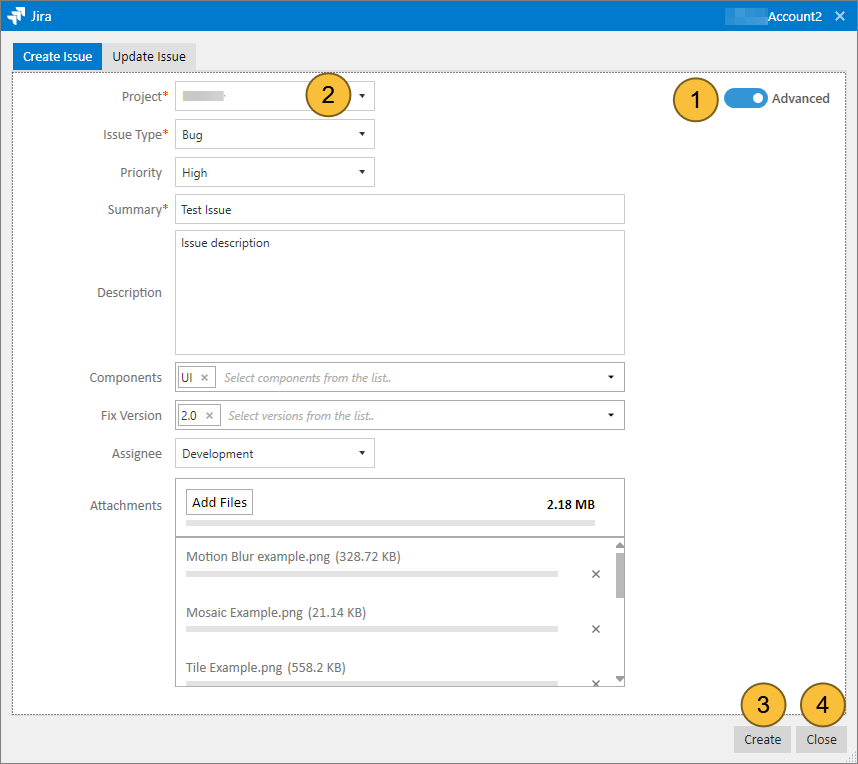
Configuring Pixtel to connect to your Jira instance takes under two minutes:
- Open any capture in Pixtel and click the Share icon in the left-side menu (or go to Window → Share).
- In the Share interface, navigate to the Applications section and select Jira.
- Enter your Jira instance URL and authenticate with your credentials.
- Set default values for Project, Issue Type, and Priority to speed up future ticket creation.
- From this point, any annotated capture can be pushed directly to a new or existing Jira issue without leaving Pixtel.
Best Practices for High-Quality Bug Reports
Show the bug in context
Use Pixtel's Scrolling Capture or Timed Capture to capture the full state of the UI — not just the broken element in isolation. Timed Capture is especially useful for documenting hover states, dropdowns, and animations that disappear the moment you click away.
Annotate before you file
A raw screenshot forces the developer to guess what to look at. Spend 30 seconds adding a callout arrow or a highlight to the exact element that's broken. Pixtel's vector annotations stay re-editable, so if you need to update or clarify the markup later, you're not starting over.
Extract error text with OCR
If the bug involves a console error, a stack trace, or a system log, use Pixtel's Advanced OCR to extract the exact text from the screen. Paste it directly into the Jira ticket description so engineers can search for it, copy it into debugging tools, and resolve the issue without manual retyping.
Keep Jira defaults configured
Set your most commonly used project, issue type, and priority as defaults in the Pixtel Share interface. This removes repetitive form-filling from every ticket and keeps report formatting consistent across the team.
Link related issues
If the bug connects to an existing Jira issue or is a regression from a previous fix, link it in the ticket. Pixtel attaches the annotated image automatically — add the cross-reference and relevant sprint context in the description.
Update issues as you learn more
Bug reports are living documents. If reproduction steps become clearer, or a second annotated capture shows additional context, attach it to the existing Jira issue rather than filing a duplicate.
The Workflow in Practice
Without Pixtel:
- Take screenshot with Snipping Tool
- Open Paint to add annotation
- Save to desktop
- Open browser → navigate to Jira
- Create ticket, upload file, write description from memory
With Pixtel:
- Capture the bug (keyboard shortcut)
- Add annotation on the canvas
- Click Share → Jira → create ticket
The annotation and the ticket are created in the same uninterrupted workflow. No context switching, no file management.
Related reading:
- Pixtel vs. Snipping Tool: Why Built-in Tools Fall Short →
- Unlocking Trapped Data: The Power of Advanced OCR →
- Transforming Screenshots into Actionable Tasks →
Capture once and use it forever. It isn't just a tool — it's Pixtel.
'%3e%3cpath%20d='M6.49988%200.862305L0.380969%206.98121C-0.127315%207.4895%20-0.127315%208.31107%200.380969%208.81936C0.889253%209.32764%201.71083%209.32764%202.21911%208.81936L5.19992%205.83855V15.7C5.19992%2016.4176%205.781%2017%206.49988%2017C7.21875%2017%207.79984%2016.4176%207.79984%2015.7V5.83855L10.7806%208.81936C11.0341%209.07285%2011.3669%209.20024%2011.6997%209.20024C12.0325%209.20024%2012.3653%209.07285%2012.6188%208.81936C13.1271%208.31107%2013.1271%207.4895%2012.6188%206.98121L6.49988%200.862305Z'%20fill='white'/%3e%3c/g%3e%3cdefs%3e%3cclipPath%20id='clip0_1_2'%3e%3crect%20width='13.0002'%20height='16.8995'%20fill='white'%20transform='translate(-0.000244141%200.100533)'/%3e%3c/clipPath%3e%3c/defs%3e%3c/svg%3e)