

Pixtel vs PicPick: Which All-in-One Screenshot Tool Wins in 2026?
Of all the screenshot tools on Windows, PicPick is the one that comes closest to Pixtel's philosophy: capture, edit, and share — all in one place, without switching apps. It bundles a capture engine, a ribbon-style image editor, cloud sharing, and a set of design utilities into a single free application. For designers, developers, and technical writers who want more than a basic capture tool, PicPick has been a credible option for years.
But the two tools make different choices in almost every area that matters for a professional workflow — media management, integrations, editor UX, pricing, and depth of capability. This comparison looks at both tools honestly to help you decide which one belongs in your daily workflow.
Quick Verdict
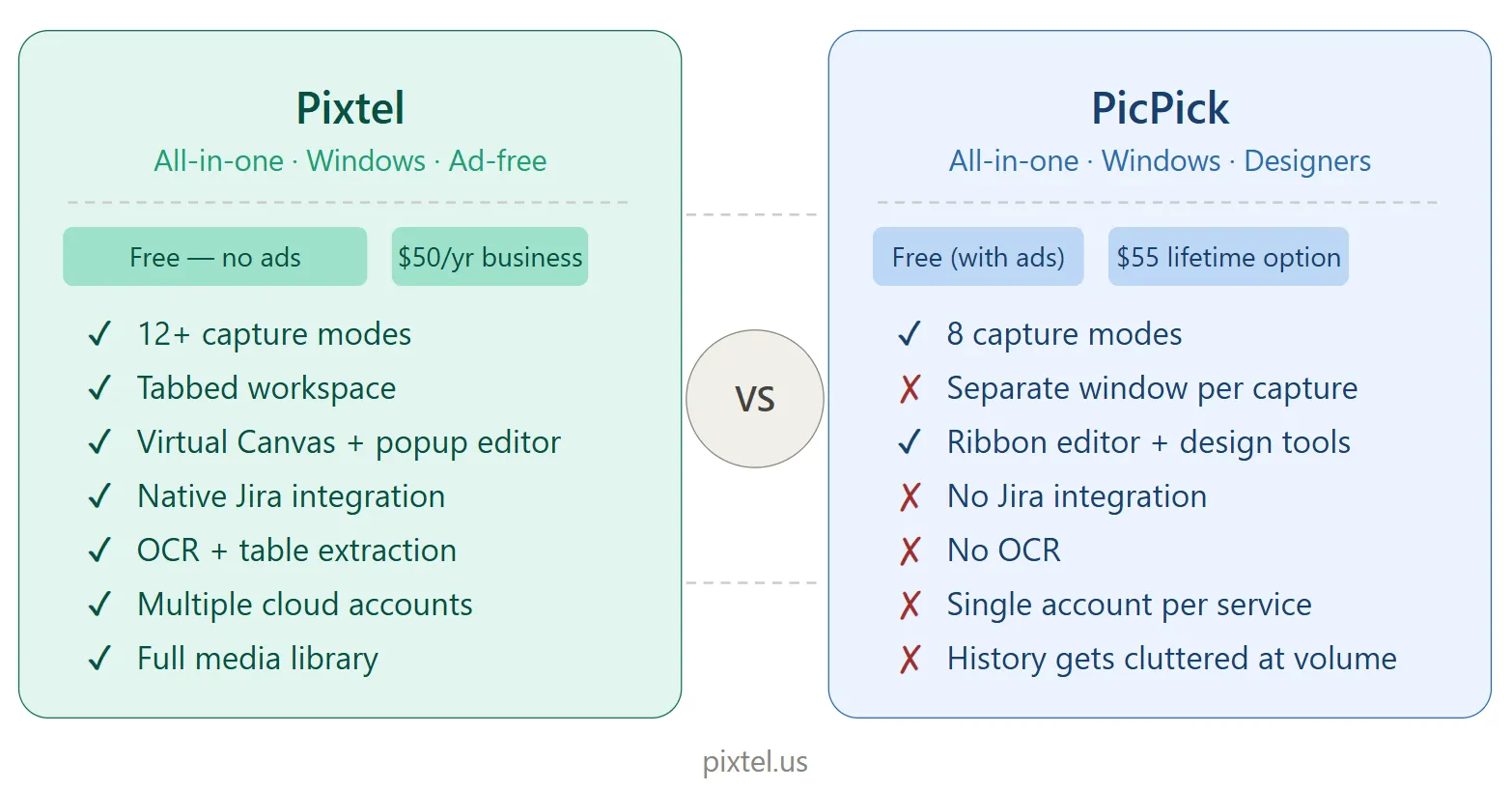
| Pixtel | PicPick | |
|---|---|---|
| Best for | Professionals needing capture + management + deep integrations | Designers and developers wanting a capable all-in-one with design utilities |
| Platform | Windows | Windows only |
| Pricing (personal) | Free (watermarks on captures) — no ads, no manual updates | Free — with ads, manual updates only |
| Pricing (business) | $50/year per user | $24/year per user or $55 lifetime |
| Capture modes | 12+ | 8 |
| Screen recording | ✅ Yes | ✅ Yes (added recently) |
| GIF recording | ✅ Yes | ✅ Yes |
| Scrolling capture | ✅ All browsers | ⚠️ Hit or miss across apps |
| OCR / text extraction | ✅ Advanced (table extraction) | ❌ No |
| Virtual Canvas | ✅ Yes | ❌ No |
| Image editing suite | ✅ Full | ✅ Full (ribbon-style) |
| Design utilities | Color picker | Color picker, pixel ruler, protractor, crosshair, whiteboard |
| Jira integration | ✅ Native | ❌ No |
| Cloud integrations | Jira, Google Drive, OneDrive, Dropbox, Box, FTP + more | Google Drive, Dropbox, OneDrive, Box, FTP |
| Multiple cloud accounts | ✅ Yes | ❌ No |
| Tabbed workspace | ✅ Yes | ❌ Each capture opens separately |
| Media management library | ✅ Full system | ⚠️ Basic history — gets cluttered at volume |
| Editor UX | Popup panels, always-visible tools, persistent settings | Ribbon-style editor, separate window per capture |
| Free version ads | ❌ No ads | ✅ Ad-supported |
| Active development | ✅ Yes | ✅ Yes |
Overview: What Are These Tools?
Pixtel
Pixtel is a Windows-native screen capture and media management suite available on the Microsoft Store. Built for professionals — developers, QA engineers, product managers, designers, and technical writers — it pairs 12+ capture modes with a full annotation and image editing suite, a Virtual Canvas, and deep integrations with tools like Jira, Google Drive, OneDrive, Dropbox, Box, and Microsoft Office.
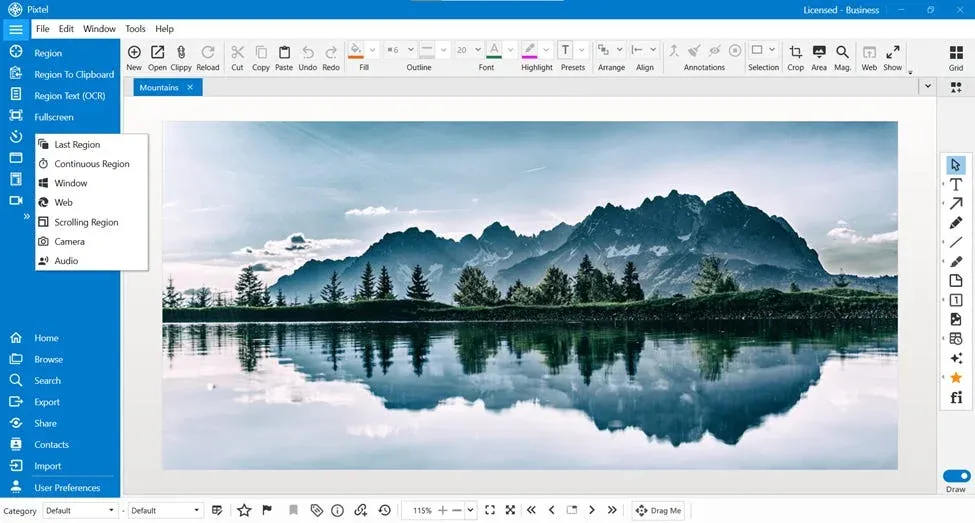
Every capture opens as a new tab in a persistent workspace. Captures are automatically organized in a browsable media library. The editor keeps all tools visible and accessible without navigating menus, and tool settings persist between sessions. For personal use, Pixtel is free — no ads, no manual update reminders — with watermarks on captured images and videos. Upgrade to Personal ($25/yr) to remove watermarks.
PicPick
PicPick is a free Windows screenshot and image editing tool developed by NGWIN. It combines 8 capture modes, a full ribbon-style image editor, cloud sharing to Google Drive, Dropbox, OneDrive, Box, and FTP, and a suite of design utilities including a color picker, pixel ruler, protractor, crosshair, and whiteboard overlay.
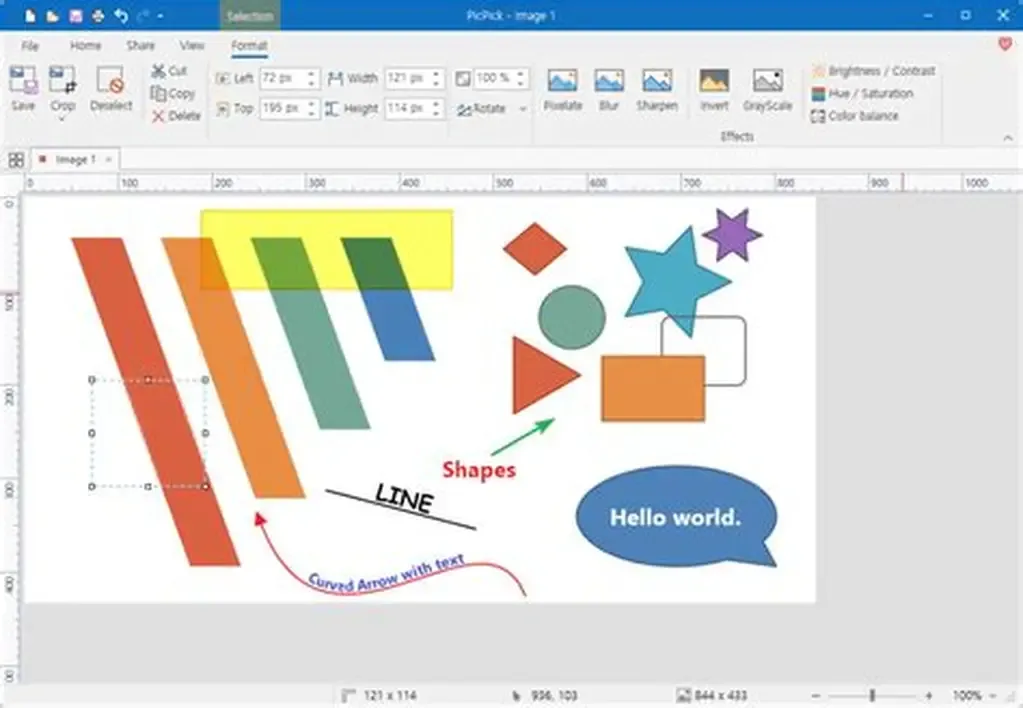
PicPick has earned a strong reputation among designers and developers who want a capable all-in-one tool without a subscription. Its ribbon-style editor is mature and feature-rich, and its design utilities — particularly the pixel ruler and color picker with HEX/RGB/HTML output — are genuinely useful for UI work.
Its personal use version is free, but carries ads and requires manual updates. Business use requires a paid license starting at $24/year per user, or a $55 lifetime option. Screen recording was added more recently and remains less mature than its capture and editing capabilities.
Pricing: The Free Tier Difference
Both tools offer free personal use — but the free experience is not the same.
Pixtel Free (Personal)
- Full feature set
- No ads
- Automatic updates
- No watermarks
- No time limit
PicPick Free (Personal)
- Full feature set
- Ad-supported — ads appear within the interface
- Manual updates only — you must check for and install updates yourself
- Non-commercial use only
Business Pricing
| Pixtel | PicPick | |
|---|---|---|
| Annual per user | $50 | $24 |
| Lifetime option | N/A (free for personal) | $55 |
| Team pricing | $50/user/year | From $12/user/year (volume) |
PicPick's business pricing is notably lower than Pixtel's — and the lifetime license at $55 is attractive for individual professionals who want to pay once. For teams evaluating total cost of ownership, the pricing difference is worth factoring in alongside the feature gaps.
Capture Modes
Pixtel (12+ modes)
- Region Capture — click and drag to select any area
- Fullscreen Capture — all monitors, with or without taskbar
- Active Window Capture — isolate the current app window
- Scrolling Window Capture — capture entire scrollable windows automatically
- Scrolling Region Capture — capture a specific scrollable area within a page
- Web Capture — full webpage capture with source URL preserved
- Region to Clipboard — capture directly to clipboard without opening editor
- Clipboard as New Tab — open clipboard image directly as a new editor tab
- Last Region — instantly re-capture the exact same screen area
- Continuous Region Capture — capture a fixed area at set intervals
- Timed Capture — countdown before capture for menus and tooltips
- Camera Capture — capture from a connected webcam
- Screen Recording — record screen, camera, or both with audio
- Audio Capture — record microphone or system audio independently
PicPick (8 modes)
- Fullscreen — entire monitor or all monitors
- Active Window — current app window
- Window Control — hover to detect and capture a specific UI element (button, panel, menu)
- Region — click and drag with pixel magnifier for precise edges
- Freehand — irregular freeform selection
- Fixed Region — define a pixel-exact area once and reuse it for repeatable captures
- Scrolling Window — captures long scrollable pages and documents
- Screen Recording — record to MP4 or GIF with audio
PicPick's Window Control mode is a standout — hovering over any UI element highlights its boundary, letting you click to capture precisely that element. This is useful for UI documentation and design work where you need to isolate a button or panel without manual cropping.
PicPick's Fixed Region mode (capture the same defined area repeatedly) is equivalent to Pixtel's Last Region. Both tools cover this need.
PicPick's scrolling capture is functional but reviewers note it is hit or miss across different applications — working well for web browsers but less reliably for native apps, PDFs, and chat logs. Pixtel's scrolling capture is more consistent across application types.
Pixtel's Continuous Region Capture, Timed Capture, Camera Capture, Audio Capture, and Clipboard as New Tab are not available in PicPick.
Edge: Pixtel — more capture modes, more consistent scrolling capture, and exclusive modes like Continuous Region, Timed Capture, and Audio Capture.
Image Editing
This is where the comparison is most closely contested. Both tools have genuine, full-featured image editors — this is what sets them apart from simpler tools like Lightshot or Greenshot.
Pixtel Image Editor
Annotation tools:
- Arrows, lines, shapes (rectangles, ellipses, polygons, freehand)
- Text boxes, callouts (14 callout types), sticky notes
- Blur for redacting sensitive data, highlights, borders
- Stamps, rubber stamps, timestamps, clickable links
- Smart Pencil — converts rough freehand drawings into clean geometry
- Counter/step numbering for sequential screenshots
- Crop, Magnifier, Embedded Image
- Virtual Canvas — extend annotation space infinitely beyond the image boundary
Image editing tools:
- Brightness and Contrast
- Hue, Saturation, Color Balance
- Grayscale / Black & White conversion
- Sharpen and Blur
- Image Effects (solarize, mosaic, tile, motion blur)
- Canvas Resize and Image Resize
- Flip, Rotate, Color Picker, Invert Colors
- Watermark — embed a custom watermark image into any capture for branding or attribution
Editor UX: All tools are always visible around the window. Clicking any annotation tool opens a popup panel showing all style variants. The top bar surfaces relevant controls as quick dropdowns and saves those settings for the next annotation. Double-clicking any element opens a precise properties panel. The canvas stays full and uncluttered — no persistent side panel eating into the workspace.
PicPick Image Editor
PicPick's ribbon-style editor is mature and comprehensive:
Annotation tools:
- Arrows, lines, shapes (rectangles, ellipses, freehand)
- Text boxes, speech-bubble callouts
- Blur and mosaic/pixelate for redaction
- Numbered step stamps and cursor stamps
- Pencil, brush, marker, airbrush, calligraphy tools
- Freehand selection, crop, fill, eraser
Image editing tools:
- Brightness and Contrast
- Hue and Saturation, Color Balance
- Grayscale, Invert Colors
- Blur, Sharpen, Mosaic
- Frame and drop shadow effects
- Watermark
- Resize, rotate, flip
The ribbon layout is familiar and accessible — users who have spent time in Microsoft Office will feel at home immediately. Every tool is one or two clicks away from the ribbon.
PicPick's numbered step stamps and cursor stamps are particularly well-implemented for tutorial and documentation work. The variety of drawing tools (pencil, airbrush, calligraphy) gives illustrators more freehand flexibility than most screenshot tools offer.
What PicPick's editor lacks: Virtual Canvas (annotations are constrained to the original image boundary), sticky notes, Smart Pencil, and the 14 distinct callout variants that Pixtel provides. The editor also opens each capture in a separate window rather than a tabbed workspace, which creates friction when working across multiple captures simultaneously.
Edge: Draw — both tools have genuinely capable image editors. PicPick's ribbon layout and drawing tool variety (airbrush, calligraphy, marker) are strengths; Pixtel's Virtual Canvas, popup-panel UX, persistent tool settings, custom watermark support, and tabbed workspace are its differentiators. The better choice depends on workflow preference.
Design Utilities
This is PicPick's most distinctive category — and where it genuinely has no direct equivalent in Pixtel.
PicPick Design Utilities
- Color Picker — identify any on-screen pixel color; outputs HEX, RGB, HTML, C++, and Delphi formats with a built-in magnifier
- Color Palette — Photoshop-style color picker supporting RGB and HSV; save swatches to a personal palette
- Pixel Ruler — measure on-screen elements precisely; horizontal and vertical orientation, supports pixels, inches, centimetres, and multiple DPI settings
- Protractor — measure angles on screen
- Crosshair — align and position elements accurately
- Whiteboard — overlay a drawing surface on top of your screen for live annotations during presentations
These utilities make PicPick particularly valuable for UI designers, frontend developers, and anyone who regularly needs to measure, align, or color-sample screen elements without launching Photoshop or Figma.
Pixtel
Pixtel includes a Color Picker within the editor for sampling colors from captures. It does not currently include a pixel ruler, protractor, crosshair, or whiteboard overlay.
Edge: PicPick — the design utility suite is a genuine differentiator for UI designers and frontend developers. If pixel rulers, color palettes, and on-screen measurement tools are part of your daily workflow, PicPick's utility set is hard to match in a single free tool.
OCR and Text Extraction
Pixtel includes advanced OCR that extracts plain text from any image or screenshot, and can extract structured table data directly into spreadsheet format. The Region Text Capture mode lets you pull text from any area of your screen on the fly — useful for copying content from PDFs, legacy systems, or locked-down web pages.
PicPick has no OCR capability. Text extraction from screenshots requires a separate tool.
Edge: Pixtel — PicPick has no equivalent feature.
Cloud Integrations and Sharing
Pixtel
- Jira — native integration for attaching annotated screenshots directly to issues
- Google Drive — single or bulk upload; multiple accounts supported
- OneDrive — direct upload; multiple accounts supported
- Dropbox — folder selection, bulk upload; multiple accounts supported
- Box — enterprise cloud upload; multiple accounts supported
- FTP — multiple server configurations
- Email — via configured email with OAuth2
- OneNote — clip directly into notebooks
- Evernote — capture to notes
- YouTube — publish screen recordings directly
- Vimeo — upload videos without switching apps
- Microsoft Office — export to Word, PowerPoint, and Excel
- Share Link — private shareable URL with configurable auto-delete
- Drag Me — drag images directly into any app without saving
Pixtel supports multiple accounts per cloud service — connect several Google Drive, OneDrive, Dropbox, or Box accounts and switch between them with a single click. Essential for consultants and agencies managing files across multiple client environments.
PicPick
- Google Drive — upload captures
- OneDrive — upload captures
- Dropbox — upload captures
- Box — upload captures
- FTP — direct server upload
- Email — basic email attachment
- Facebook, Twitter, Skype — social sharing
- Microsoft Office — send to Word, PowerPoint, or Excel
- Web URL — generate a shareable link via configured host
PicPick's cloud coverage matches Pixtel on the major platforms (Google Drive, OneDrive, Dropbox, Box). What it lacks: native Jira integration, multiple accounts per service, OneNote, Evernote, YouTube, Vimeo, and Pixtel's private Share Link with expiry control.
Edge: Pixtel — native Jira integration and multiple cloud account support are the key differentiators for professional and team workflows.
Workspace and Media Management
This is one of the most meaningful practical differences between the two tools for high-volume users.
Pixtel
Pixtel uses a tabbed workspace — every capture opens as a new tab, similar to how a browser manages pages. Captures from a session stay organized, labeled, and instantly switchable without losing context. The underlying media library provides:
- Browsable thumbnail grid
- Filter by type (image, video, audio)
- Date-based browsing and search
- Tags and bulk operations
- Recycle bin, backup, restore, and duplicate detection
- Automatic organization by source application or website
PicPick
PicPick opens each capture in a separate editor window. There is no tabbed workspace. Working across multiple captures simultaneously means managing multiple open windows, which creates visual clutter and context-switching friction.
PicPick maintains a capture history accessible from the system tray, but reviewers consistently flag that this history gets cluttered quickly at high capture volumes and is not a browsable library with thumbnails, search, or bulk management. Finding a screenshot from three days ago means digging through a chronological list or browsing a folder in Windows Explorer.
Edge: Pixtel — the tabbed workspace and full media library are significant daily workflow advantages for anyone taking screenshots at volume. PicPick's separate-window-per-capture model is functional for occasional use but creates friction at scale.
Screen Recording
Both tools now include screen recording, but with different maturity levels.
Pixtel offers screen recording with support for screen-only, webcam-only, or both simultaneously, with system audio and microphone capture. Recordings open directly in the media library alongside screenshots.
PicPick added screen recording more recently. It exports to MP4 or animated GIF, and supports microphone and system audio capture. It is functional but reviewers note it is less polished than PicPick's capture and editing features — reflecting its status as a newer addition to the tool.
Edge: Pixtel — more mature recording implementation with webcam overlay support and direct media library integration.
Who Should Use Pixtel?
Pixtel is the right choice if you:
- Work in development or QA and need native Jira integration
- Take screenshots at high volume and need a real media library and tabbed workspace
- Need private, controlled sharing with link expiry settings
- Use multiple cloud accounts across Google Drive, OneDrive, or Dropbox
- Need OCR or table data extraction from screenshots
- Want a clutter-free editor with always-visible tools and persistent annotation settings
- Need timed capture for dropdown menus or tooltips
- Need audio capture independent of video recording
- Want captures from multiple sessions organized and searchable without managing folders manually
Who Should Use PicPick?
PicPick is the right choice if you:
- Are a UI designer or frontend developer who regularly uses a pixel ruler, color palette, protractor, or crosshair
- Want a whiteboard overlay for live presentation annotations
- Prefer a ribbon-style editor similar to Microsoft Office
- Need a one-time payment (the $55 lifetime license is unique in this category)
- Want detailed freehand drawing tools — airbrush, calligraphy, marker
- Need cursor and step stamps for tutorial documentation
- Are comfortable managing captures as individual files rather than a library
- Occasionally need screenshots and don't require Jira, multi-account cloud, or OCR
Feature Comparison: Full Table
| Feature | Pixtel | PicPick |
|---|---|---|
| Platform | Windows | Windows |
| Personal pricing | Free (watermarks on captures, no ads) | Free (with ads) |
| Business pricing | $50/yr per user | $24/yr or $55 lifetime |
| Auto updates (free) | ✅ | ❌ Manual only |
| Active development | ✅ | ✅ |
| Region capture | ✅ | ✅ |
| Fullscreen capture | ✅ | ✅ |
| Window capture | ✅ | ✅ |
| Window control (UI element) | ❌ | ✅ |
| Freehand capture | ✅ | ✅ |
| Fixed/repeat region | ✅ (Last Region) | ✅ (Fixed Region) |
| Scrolling capture | ✅ Consistent | ⚠️ Hit or miss |
| Continuous/interval capture | ✅ | ❌ |
| Timed/delayed capture | ✅ | ✅ |
| Camera capture | ✅ | ❌ |
| Screen recording | ✅ Mature | ✅ Recent addition |
| GIF recording | ✅ | ✅ |
| Audio capture (independent) | ✅ | ❌ |
| Clipboard as new tab | ✅ | ❌ |
| Virtual Canvas | ✅ | ❌ |
| Callout types | 14 | Basic speech bubble |
| Sticky notes | ✅ | ❌ |
| Smart Pencil | ✅ | ❌ |
| Step / counter stamps | ✅ | ✅ |
| Cursor stamps | ❌ | ✅ |
| Freehand drawing tools | Basic | ✅ Pencil, brush, marker, airbrush, calligraphy |
| Blur / redaction | ✅ | ✅ |
| Image editing suite | ✅ Full | ✅ Full |
| Brightness / contrast | ✅ | ✅ |
| Grayscale / B&W | ✅ | ✅ |
| Canvas resize | ✅ | ✅ |
| Image effects | ✅ | ✅ |
| Watermark (custom image) | ✅ | ✅ |
| Color picker | ✅ (in editor) | ✅ (system-wide utility) |
| Pixel ruler | ❌ | ✅ |
| Protractor | ❌ | ✅ |
| Crosshair | ❌ | ✅ |
| Whiteboard overlay | ❌ | ✅ |
| Editor UX | Popup panels, persistent settings | Ribbon-style, separate windows |
| Tabbed workspace | ✅ | ❌ |
| OCR text extraction | ✅ Advanced | ❌ |
| Table data extraction | ✅ | ❌ |
| Media library | ✅ Full system | ⚠️ History list, gets cluttered |
| Backup and restore | ✅ | ❌ |
| Jira integration | ✅ Native | ❌ |
| Google Drive | ✅ | ✅ |
| OneDrive | ✅ | ✅ |
| Dropbox | ✅ | ✅ |
| Box | ✅ | ✅ |
| Multiple cloud accounts | ✅ | ❌ |
| FTP | ✅ | ✅ |
| ✅ | ✅ | |
| Microsoft Office export | ✅ | ✅ |
| OneNote | ✅ | ❌ |
| Evernote | ✅ | ❌ |
| YouTube upload | ✅ | ❌ |
| Vimeo upload | ✅ | ❌ |
| Private share link | ✅ With expiry | ❌ |
| Drag Me | ✅ | ❌ |
| Collage / image layouts | ✅ | ❌ |
| Slideshow / presentation mode | ✅ | ❌ |
| Free version ads | ❌ | ✅ |
The Bottom Line
PicPick is one of the most capable free screenshot tools on Windows and has earned its reputation among designers and developers. Its ribbon-style image editor is mature, its design utilities — pixel ruler, protractor, whiteboard, and color palette — are genuinely useful for UI work, and its $55 lifetime business license is one of the most attractive pricing options in the category.
But for professionals who use screenshots as a core part of a structured workflow — filing bug reports, managing a capture library, collaborating across cloud platforms, or integrating directly with Jira — PicPick's gaps matter. No tabbed workspace, no Jira integration, no multiple cloud accounts, no OCR, no media library that scales, and a free tier supported by ads all represent real friction that compounds over a working day.
For Windows professionals in 2026, Pixtel covers everything PicPick does in terms of capture and editing capability — and adds a tabbed workspace, full media management, native Jira integration, OCR with table extraction, multiple cloud account support, and a completely ad-free free tier. For UI designers who rely on pixel rulers, protractors, and whiteboard overlays, PicPick holds a genuine edge in that specific utility layer.
The right answer depends on your primary use case: if design measurement tools are central to your work, PicPick deserves serious consideration. For everything else in a professional screenshot workflow, Pixtel is the more complete solution.
Try Pixtel Free Today
👉 Download Pixtel
🎥 Follow us on YouTube
📘 Read Detailed Documentation
Related Articles
- Pixtel vs Snagit: The Complete Comparison for 2026 →
- Pixtel vs Greenshot: Which Free Windows Screenshot Tool Wins in 2026? →
- Pixtel vs ShareX: Which Windows Screenshot Tool Is Right for You? →
- Pixtel vs Lightshot: Which Screenshot Tool Should You Use in 2026? →
- Top 10 Screen Capture Tools for Better Productivity in 2026 →
'%3e%3cpath%20d='M6.49988%200.862305L0.380969%206.98121C-0.127315%207.4895%20-0.127315%208.31107%200.380969%208.81936C0.889253%209.32764%201.71083%209.32764%202.21911%208.81936L5.19992%205.83855V15.7C5.19992%2016.4176%205.781%2017%206.49988%2017C7.21875%2017%207.79984%2016.4176%207.79984%2015.7V5.83855L10.7806%208.81936C11.0341%209.07285%2011.3669%209.20024%2011.6997%209.20024C12.0325%209.20024%2012.3653%209.07285%2012.6188%208.81936C13.1271%208.31107%2013.1271%207.4895%2012.6188%206.98121L6.49988%200.862305Z'%20fill='white'/%3e%3c/g%3e%3cdefs%3e%3cclipPath%20id='clip0_1_2'%3e%3crect%20width='13.0002'%20height='16.8995'%20fill='white'%20transform='translate(-0.000244141%200.100533)'/%3e%3c/clipPath%3e%3c/defs%3e%3c/svg%3e)