
Pixtel vs. Snipping Tool: Why Professionals Need a Better Screen Capture Tool

Windows Snipping Tool ships on every Windows machine and does its job: take a quick rectangular clip, maybe add a highlight, done. For most occasional users, that's enough.
But if you're a developer filing Jira tickets, a QA engineer documenting test failures, or a designer presenting annotated mockups, you've likely run into its ceiling. This article breaks down exactly where Snipping Tool falls short and where Pixtel picks up.
Feature Comparison at a Glance
| Feature | Snipping Tool | Pixtel |
|---|---|---|
| Region / window capture | ✅ | ✅ |
| Full-screen capture | ✅ | ✅ |
| Scrolling capture (full-page) | ❌ | ✅ |
| Timed / scheduled capture | ❌ | ✅ |
| Video + audio recording | ❌ | ✅ |
| Built-in annotation tools | Basic (pen, highlighter) | Full suite (shapes, callouts, arrows, sticky notes, icons) |
| Vector-based annotations | ❌ | ✅ (infinitely scalable, re-editable) |
| Virtual Canvas (annotate outside image bounds) | ❌ | ✅ |
| OCR / text extraction from captures | ✅ | ✅ |
| Multi-capture tabbed workspace | ❌ | ✅ |
| Jira integration | ❌ | ✅ |
| Cloud upload | ❌ | ✅ |
| Export to PPTX | ❌ | ✅ |
| Organization / auto-tagging by app | ❌ | ✅ |
| Price | Free (built-in) | Free (personal) · $50/year (business) |
Where Snipping Tool Works Fine
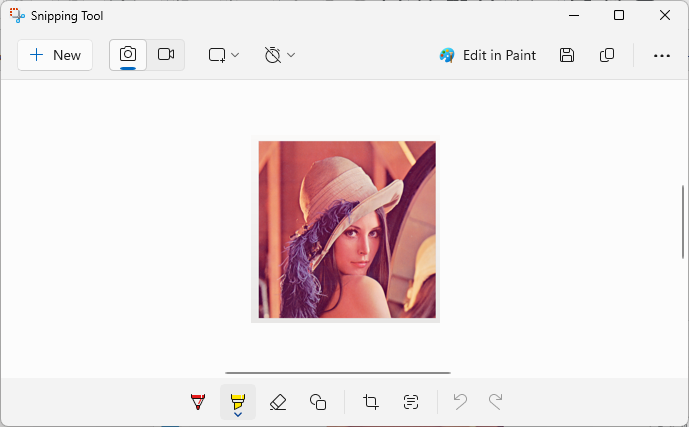
Be honest: if you need to grab a quick clip to paste into an email or Slack, Snipping Tool is hard to beat. It's already running, opens with Win + Shift + S, and gets out of your way. For one-off captures without any editing, it's perfectly adequate.
Best for:
- Quick personal screenshots
- Pasting into Office documents
- Users who capture fewer than a handful of times per day
Where Professionals Hit the Wall
1. Scrolling Content
Snipping Tool captures only what's visible. Documenting a long error log, a full terms-of-service page, or an entire Figma component sheet requires multiple shots and manual stitching elsewhere. Pixtel's Scrolling Window and Scrolling Region modes handle this in a single click — automatically scrolling, capturing, and stitching into one continuous image.
2. Annotations That Stay Editable
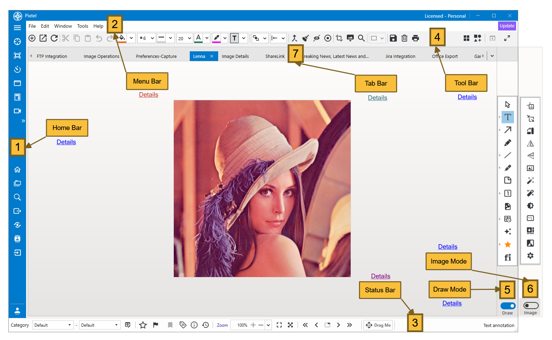
Snipping Tool's pen and highlighter flatten into the image the moment you save. Come back the next day to adjust an arrow or recolor a callout and you're starting over. Pixtel stores every annotation as a vector layer — arrows, shapes, callout bubbles, and icon overlays all stay live and repositionable. This matters especially when documentation goes through rounds of review.
3. Working Across Multiple Captures
Snipping Tool is single-file by design. Pixtel operates like a browser — each capture opens in a tab, and you can tile or compare multiple captures in one workspace. For QA workflows where you're cross-referencing multiple states of a UI, this alone saves significant time.
4. Extracting Text From Screens
If your screen shows a table from a legacy application, a PDF viewer, or a video frame, Snipping Tool gives you a pixel image and nothing more. Pixtel's OCR engine can extract the text or parse the table directly into clipboard-ready data — no retyping needed.
5. Going From Capture to Report
Snipping Tool has no path to a deliverable beyond saving a PNG. Pixtel connects captures to Jira tickets, uploads to cloud storage, drops into PPTX templates, and runs a slideshow presentation from your open tabs. The workflow from "spotted a bug" to "Jira ticket with annotated screenshot attached" takes seconds.
Workflow Example: Bug Report
With Snipping Tool:
- Press
Win + Shift + S, capture the bug - Open Paint or Photos to annotate
- Save to desktop
- Switch to browser, open Jira
- Upload the file manually
- Write the description from memory
With Pixtel:
- Trigger capture (keyboard shortcut)
- Annotate in the same workspace
- Push directly to Jira via the built-in integration
The difference isn't features — it's friction removed from a task you repeat dozens of times a day.
Pricing
| Snipping Tool | Pixtel | |
|---|---|---|
| Personal use | Free | Free |
| Business / team use | Free | $50/year |
For a tool that eliminates manual re-work across a development or QA team, $50/year per seat is a straightforward ROI.
The Bottom Line
If you're still using Snipping Tool for professional documentation workflows, you're likely spending more time on administrative overhead than you realize. Pixtel doesn't replace the built-in shortcut for simple grabs — it takes over when simple isn't enough.
👉 Download Pixtel free and run it alongside Snipping Tool for a week. The comparison becomes obvious.
Related reading:
- Master Bug Reporting: Best Practices with Pixtel & Jira →
- Mastering Scrolling Captures in Pixtel →
- Top 10 Screen Capture Tools for 2026 →
When simple isn't enough — it's Pixtel.
'%3e%3cpath%20d='M6.49988%200.862305L0.380969%206.98121C-0.127315%207.4895%20-0.127315%208.31107%200.380969%208.81936C0.889253%209.32764%201.71083%209.32764%202.21911%208.81936L5.19992%205.83855V15.7C5.19992%2016.4176%205.781%2017%206.49988%2017C7.21875%2017%207.79984%2016.4176%207.79984%2015.7V5.83855L10.7806%208.81936C11.0341%209.07285%2011.3669%209.20024%2011.6997%209.20024C12.0325%209.20024%2012.3653%209.07285%2012.6188%208.81936C13.1271%208.31107%2013.1271%207.4895%2012.6188%206.98121L6.49988%200.862305Z'%20fill='white'/%3e%3c/g%3e%3cdefs%3e%3cclipPath%20id='clip0_1_2'%3e%3crect%20width='13.0002'%20height='16.8995'%20fill='white'%20transform='translate(-0.000244141%200.100533)'/%3e%3c/clipPath%3e%3c/defs%3e%3c/svg%3e)