

Pixtel vs OBS Studio: Which Screen Capture Tool Is Right for You in 2026?
OBS Studio is one of the most downloaded free software tools on the internet — and for live streaming and advanced video production, it genuinely earns that reputation. Gamers, streamers, podcasters, and video educators have made it their go-to for broadcasting to Twitch, YouTube, and beyond.
But if you're searching for a screenshot tool and landing on OBS Studio comparisons, something important needs to be said upfront: OBS Studio is not a screenshot tool. It has no annotation editor. It has no media library. It cannot organize your captures, share to Jira, or export to Microsoft Office. Taking a basic screenshot inside OBS requires configuring hotkeys and navigating a right-click menu on the scene preview. Annotating that screenshot requires opening a completely separate application.
OBS is a broadcasting studio. Pixtel is a professional screen capture, annotation, and media management suite. These tools are built for fundamentally different jobs — and understanding that distinction is the most useful thing this comparison can offer.
This article covers both honestly: where OBS genuinely excels, what it cannot do, and how Pixtel fills the gap for professionals whose daily work depends on screenshots, not streams.
Quick Verdict
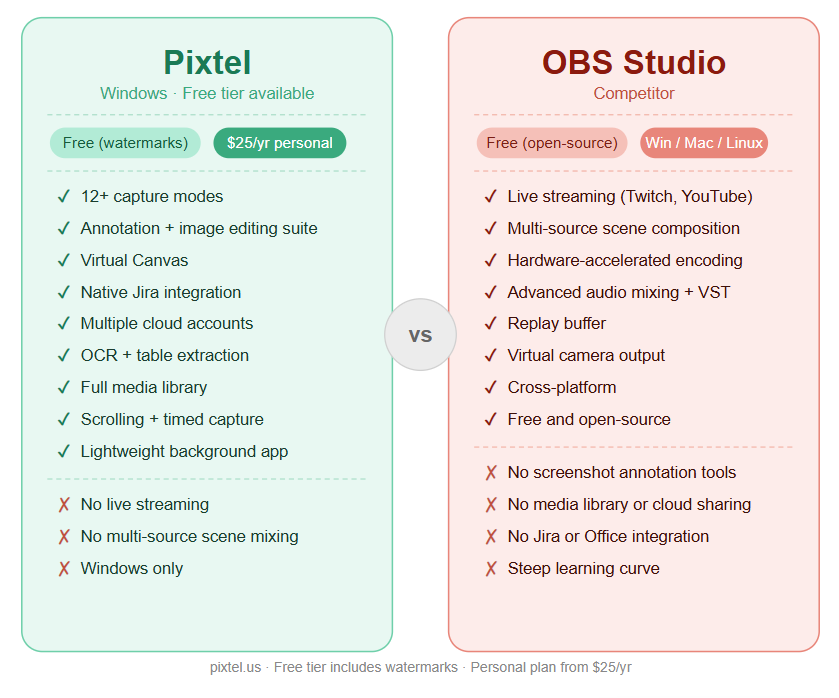
| Pixtel | OBS Studio | |
|---|---|---|
| Best for | Professionals needing screenshot capture, annotation, and sharing | Streamers, broadcasters, and video creators needing multi-source recording |
| Platform | Windows | Windows, macOS, Linux |
| Pricing | Free with watermarks / $25/yr (no watermarks) / $50/yr (business) | Free (open-source) |
| Active development | ✅ Yes | ✅ Yes |
| Screen recording | ✅ Yes | ✅ Yes (primary use case) |
| Live streaming | ❌ No | ✅ Yes (primary use case) |
| Screenshot capture | ✅ 12+ modes | ⚠️ Basic (hotkey only, no capture modes) |
| Annotation tools | ✅ Full suite | ❌ None |
| Image editing suite | ✅ Yes | ❌ None |
| Virtual Canvas | ✅ Yes | ❌ None |
| OCR / text extraction | ✅ Advanced (table extraction) | ❌ None |
| Media library | ✅ Full system | ❌ None |
| Cloud integrations | ✅ 15+ curated (Jira, Drive, OneDrive, Dropbox) | ❌ None |
| Jira integration | ✅ Native | ❌ None |
| Multi-source video mixing | ❌ No | ✅ Yes |
| Scene/source composition | ❌ No | ✅ Yes |
| Learning curve | Low — works immediately | High — requires configuration |
| Free personal use | ✅ (watermarks on free tier) | ✅ Yes |
Overview: What Are These Tools?
Pixtel
Pixtel is a Windows-native screen capture and media management suite available on the Microsoft Store. It is built for professionals — developers, QA engineers, product managers, designers, and technical writers — who rely on screenshots as a core part of their daily workflow.
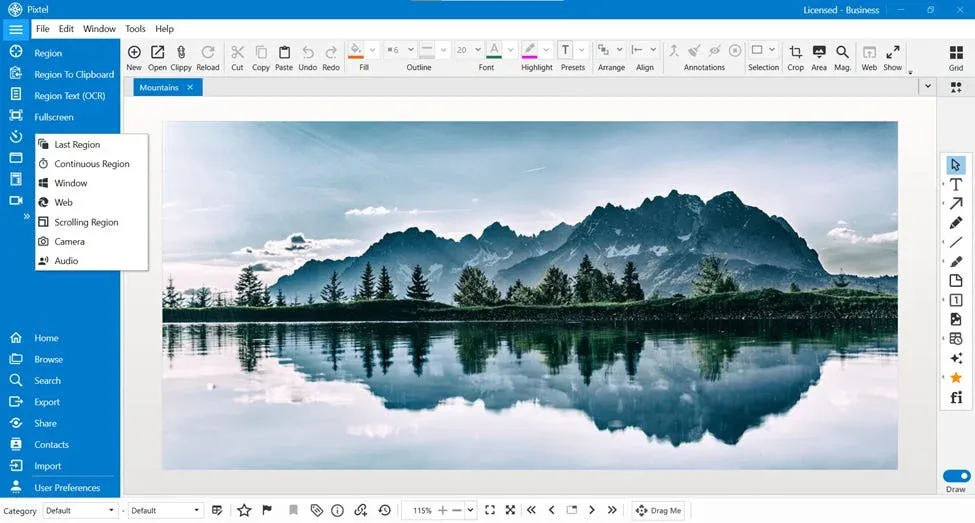
Every feature in Pixtel is designed to be immediately accessible: 12+ capture modes are a single click away, annotation tools open as popup panels around the always-visible editor, and captures are automatically organized in a full media library. Integrations with Jira, Google Drive, OneDrive, Dropbox, Box, and Microsoft Office work without any pipeline configuration or plugin installation.
For personal use, Pixtel is free — all features included, with watermarks on captured images and videos. Upgrade to Personal ($25/yr) to remove watermarks.
OBS Studio
OBS Studio (Open Broadcaster Software) is a free, open-source software for video recording and live streaming. Originally developed for gamers streaming on Twitch, it has grown into a full-featured broadcast production tool used across gaming, education, podcasting, and professional video.
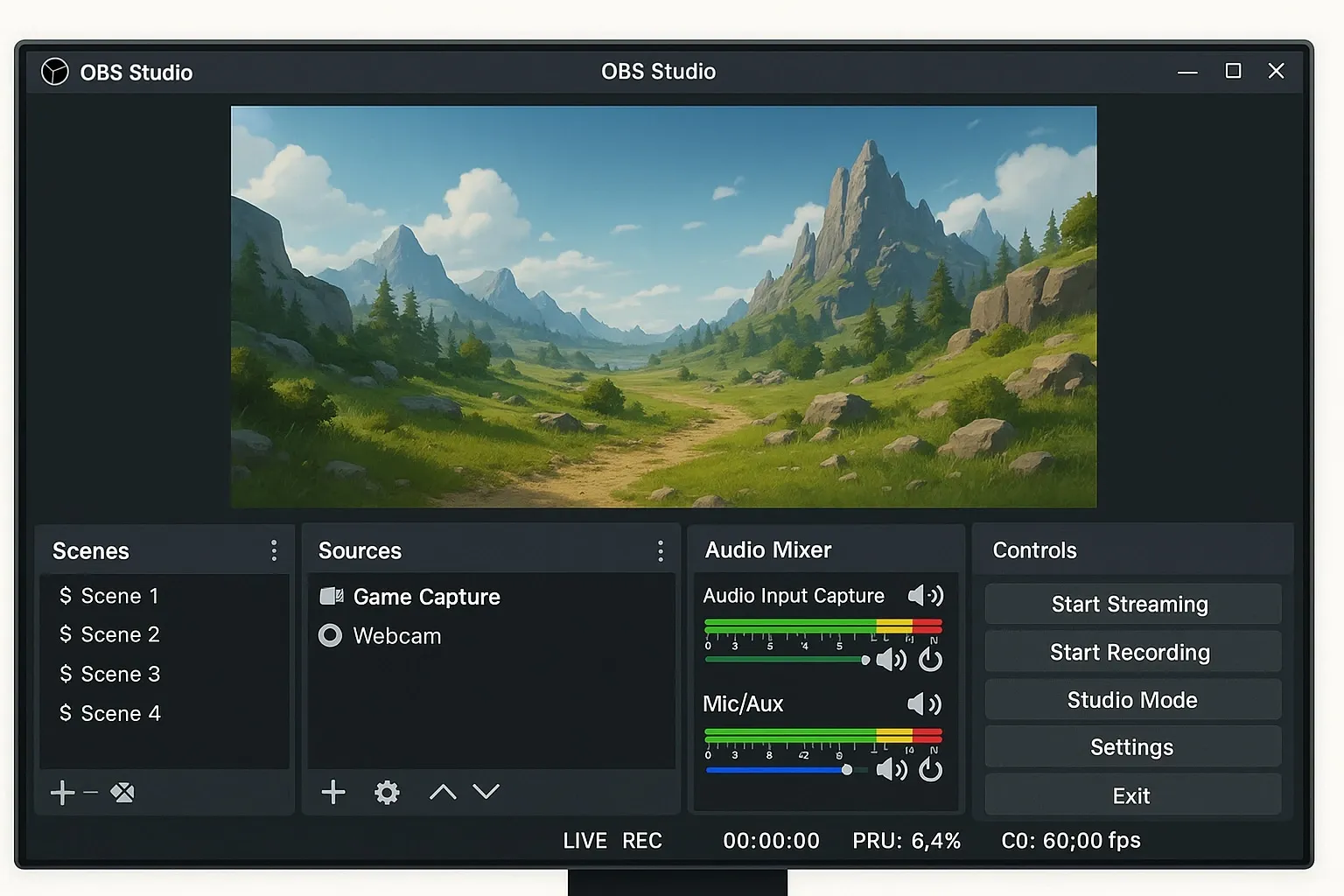
OBS's core strength is its scene and source composition system. Users build "scenes" — combinations of video sources like display captures, webcam feeds, media files, browser windows, and game captures — which can be switched between live. Audio mixing, visual overlays, transitions, and real-time filters round out a production toolkit that rivals paid broadcasting software.
Its limitation in the context of this comparison is equally clear: OBS is a video-first, streaming-first application. Screenshot capture is a secondary afterthought — accessible only through hotkeys or right-clicking the preview panel. Annotation, image editing, cloud sharing, and media management do not exist in OBS at all. Everything beyond raw capture requires exporting a file and opening it in another application.
The Core Distinction: Broadcasting vs. Professional Screen Capture
This comparison is most useful when the fundamental difference is clear.
OBS Studio is the right tool when you need to:
- Live-stream to Twitch, YouTube, Facebook Live, or any RTMP endpoint
- Compose a multi-source scene: game feed + webcam overlay + custom graphics
- Record long-form video content with professional audio and visual mixing
- Run a broadcast production with scene transitions and real-time source switching
Pixtel is the right tool when you need to:
- Capture screenshots across 12+ modes and annotate them immediately
- Share captures to Jira, Google Drive, OneDrive, Dropbox, Office, or email
- Manage a growing library of screenshots and screen recordings
- Extract text from screenshots via OCR
- Produce polished visuals for documentation, bug reports, or client communication
The overlap between these two use cases is narrow. Many professionals end up with both tools — OBS for the rare full-length recording or stream, Pixtel for the dozens of screenshots and short recordings that make up daily workflow. If you're looking for one tool to do both jobs, you'll find that OBS cannot do Pixtel's job, and Pixtel was not designed to replace a broadcast studio.
Screenshot Capture
Pixtel (12+ modes)
- Region Capture — click and drag to select any area
- Fullscreen Capture — all monitors, with or without taskbar
- Active Window Capture — isolate the current app window
- Scrolling Window Capture — capture entire scrollable windows automatically
- Scrolling Region Capture — capture a specific scrollable section within a page
- Web Capture — full webpage capture with source URL preserved
- Region to Clipboard — capture directly to clipboard without opening the editor
- Last Region — instantly re-capture the exact same screen area
- Continuous Region Capture — capture a fixed area at set intervals
- Timed Capture — countdown before capture for menus and tooltips
- Camera Capture — capture from a connected webcam
- Screen Recording — record screen, camera, or both with audio
- Audio Capture — record microphone or system audio independently
- Clipboard as New Tab — open any clipboard image directly as a new tab in the editor for instant annotation or sharing
Every capture mode opens directly in the Pixtel editor with no additional steps. Captures are automatically organized in the media library.
OBS Studio
OBS Studio does not have dedicated screenshot capture modes. Screenshots can be taken by:
- Assigning a hotkey in Settings → Hotkeys → "Screenshot Output" or "Screenshot Selected Source"
- Right-clicking the preview panel and selecting "Screenshot (Preview)" or "Screenshot (Scene)"
The result is a PNG file saved to the configured output folder. There is no popup editor, no annotation prompt, no media library entry, and no sharing workflow. The screenshot is simply a file on disk.
For users who need to capture screenshots frequently, this workflow — configure hotkey → capture → navigate to output folder → open in a separate application to annotate → share — adds meaningful friction to every step.
Edge: Pixtel — not comparable for screenshot-focused workflows. OBS's screenshot functionality is a basic utility feature; Pixtel is built around it.
Screen Recording
Pixtel
Pixtel supports screen recording as one of its capture modes, including:
- Record full screen, a specific region, or an active window
- Record with system audio, microphone audio, or both
- Webcam overlay during recording
- Audio-only recording as a standalone mode
- Recordings open directly in the Pixtel media library upon completion
Recordings in Pixtel are designed for professional communication — documentation videos, bug reproduction clips, quick walkthroughs — rather than for long-form broadcast content.
OBS Studio
Screen recording is OBS Studio's primary strength. Its recording capabilities include:
- Multi-source scene recording: mix display capture, webcam, game capture, browser sources, and media files in a single composition
- Hardware-accelerated encoding via NVIDIA NVENC, AMD VCE, Intel QSV, and Apple VideoToolbox
- Output to MP4, MKV, FLV, and other formats with full codec control (H.264, H.265, AV1)
- Replay Buffer — save the last N seconds of footage on demand without continuous recording
- Advanced audio mixing with per-source levels, filters, and VST plugin support
- Virtual camera output — use OBS as a webcam source in video calls
For users producing polished long-form recordings — course content, technical walkthroughs, professional tutorials — OBS's recording depth is unmatched in the free software category.
Edge: OBS Studio for production-quality, multi-source video recording. Edge: Pixtel for quick, workflow-integrated screen recordings that are captured, organized, and shared without leaving the app.
Annotation and Image Editing
Pixtel
Pixtel's annotation toolkit covers the full professional range:
- Arrows, lines, shapes (rectangles, ellipses, polygons, freehand)
- Text boxes, callouts (14 callout types), sticky notes
- Blur for redacting sensitive data, highlights, borders
- Stamps, rubber stamps, timestamps, clickable links
- Smart Pencil — converts rough freehand sketches to clean geometry
- Counter/step numbering for sequential screenshots
- Crop, Magnifier, Embedded Image
- Virtual Canvas — extend annotation space infinitely beyond image boundaries without manual resizing
Beyond annotation, Pixtel includes a complete image editing suite — no Photoshop or Paint needed:
- Brightness and Contrast adjustment
- Hue, Saturation, and Color Balance
- Convert to Grayscale / Black & White
- Sharpen and Blur
- Image Effects (solarize, mosaic, tile, motion blur)
- Canvas Resize and Image Resize
- Flip, Rotate, Color Picker, Invert Colors
- Watermark — embed a custom watermark image into any capture for branding or attribution
OBS Studio
OBS Studio has no annotation tools, no image editor, and no mechanism to mark up a screenshot. This is not a limitation or oversight — it is simply outside OBS's design scope. OBS is a broadcast production tool, not a documentation tool.
Users who need to annotate an OBS screenshot must export it and open it in a separate application: Paint, Paint.NET, Photoshop, Snipping Tool, or another editor.
Edge: Pixtel — OBS offers nothing in this category. For any workflow involving annotated screenshots, Pixtel is the appropriate tool.
OCR and Text Extraction
Pixtel includes advanced OCR that extracts plain text from any image, and can extract structured table data directly into spreadsheet format. The Region Text Capture mode pulls text from any area of the screen on the fly — useful for copying text from PDFs, web applications, video frames, or any interface where copy-paste is unavailable.
OBS Studio includes no OCR functionality. Extracting text from a recorded frame requires exporting the video, extracting a still, and running it through a separate OCR application.
Edge: Pixtel — not applicable for OBS. OCR is a core Pixtel feature.
Upload Destinations and Integrations
Pixtel
- Jira — native integration to attach annotated screenshots directly to issues
- Google Drive — single or bulk upload; multiple accounts supported
- OneDrive — direct upload; multiple accounts supported
- Dropbox — folder selection, bulk upload; multiple accounts supported
- Box — enterprise cloud upload; multiple accounts supported
- FTP — multiple server configurations supported
- Email — via configured email with OAuth2
- OneNote — clip directly into notebooks
- Evernote — capture to notes
- YouTube — publish screen recordings directly
- Vimeo — upload videos without switching apps
- Microsoft Office — export to Word, PowerPoint, and Excel with layout controls
- Share Link — generate a shareable URL with custom auto-delete settings
- Drag Me — drag images directly into any app without saving
Pixtel supports multiple accounts per cloud service — connect several Google Drive, OneDrive, Dropbox, or Box accounts and switch between them when uploading. Essential for consultants, agencies, or anyone managing files across multiple client environments.
OBS Studio
OBS Studio has no built-in sharing or cloud integration for screenshots or recordings. It outputs files to a local folder. Uploading those files to Google Drive, Jira, Dropbox, or any other destination requires doing so manually outside of OBS.
OBS does support direct streaming to YouTube, Twitch, Facebook Live, and dozens of other RTMP-compatible platforms — but this is live stream output, not screenshot or recording file sharing.
Edge: Pixtel — not applicable for OBS. All cloud sharing, team integration, and file distribution requires leaving OBS entirely.
Media Management
Pixtel includes a full media management system:
- Browsable library with thumbnail grid view
- Filter by type (image, video, audio)
- Date-based browsing and search
- Tags and bulk operations (export, collage, delete)
- Recycle bin for accidental deletions
- Backup, restore, and data relocation tools
- Duplicate detection and cleanup
- Automatic organization by source application or website
OBS Studio has no media library for captured content. Recordings and screenshots are saved to the configured output folder on the file system. Navigating, organizing, or finding past captures requires Windows Explorer. For professionals who take dozens of screenshots daily, this quickly becomes unmanageable without a separate file organization system.
Edge: Pixtel — not comparable. OBS's output management is a folder on disk; Pixtel's is a full searchable library.
Performance and System Impact
OBS Studio is a powerful application with a corresponding resource footprint. Running OBS in the background — especially with active scene preview, multiple sources, and hardware encoding — consumes meaningful CPU and GPU resources. This is acceptable when actively streaming or recording, but leaving OBS running as a background utility for occasional screenshot capture is not an efficient use of system resources.
Pixtel is designed to be lightweight and persistent. It runs from the system tray with minimal resource usage, and any capture mode — including scrolling capture, recording, and region capture — can be triggered instantly via hotkeys without OBS's scene configuration overhead. Captures open immediately in a new editor tab. The full media library, annotation suite, and sharing integrations are available within seconds of any capture.
Edge: Pixtel for day-to-day background use. OBS's resource profile is appropriate for production work, not for a persistent screenshot utility.
Learning Curve and Setup
OBS Studio has one of the steeper learning curves of any free Windows application. First-time users are greeted with a scene/source composition system that is powerful but unfamiliar. Getting a basic recording set up — adding a display source, configuring audio, setting output format and location, enabling hardware encoding — involves multiple settings panels. Hotkeys, output format, replay buffer, and audio mixing all require their own configuration passes. The community has produced extensive documentation precisely because the default experience is difficult to navigate without it.
Pixtel requires no configuration to start working. Install from the Microsoft Store, open the app, and every capture mode is immediately available. The editor is always visible, tools are laid out around the window, and annotation panels open as popups. There are no pipelines to configure and no sources to add. For a professional who needs to capture a screenshot and share it to Jira in under a minute, Pixtel works on the first launch.
Edge: Pixtel for immediate productivity. OBS rewards investment in configuration; Pixtel starts delivering value instantly.
Who Should Use Pixtel?
Pixtel is the right choice if you:
- Need professional screenshot capture across 12+ modes with an immediate annotation editor
- Work in development or QA and need native Jira integration for bug reports and issue tracking
- Manage screenshots at high volume and need a real searchable media library
- Need to edit images (adjust brightness, convert to grayscale, resize canvas) without leaving the app
- Use multiple cloud accounts across Google Drive, OneDrive, Dropbox, or Box
- Want a clean, popup-panel editor where tools are always visible and settings persist between annotations
- Need OCR and table data extraction from screenshots
- Want to present or slideshow captures within the app
- Prefer a lightweight background utility that's always ready with a hotkey
Who Should Use OBS Studio?
OBS Studio is the right choice if you:
- Live-stream to Twitch, YouTube, Facebook Live, or any RTMP platform
- Need multi-source scene composition — combining game capture, webcam, overlays, and media sources in a single broadcast
- Produce long-form, production-quality video recordings with hardware-accelerated encoding
- Require advanced audio mixing with per-source levels, VST plugins, and real-time filters
- Want a Replay Buffer to capture the last N seconds of gameplay or content on demand
- Use a virtual camera to present OBS scenes as a webcam source in video calls
- Need to output to specific video codecs and containers (H.265, AV1, MKV) for post-production workflows
Feature Comparison: Full Table
| Feature | Pixtel | OBS Studio |
|---|---|---|
| Platform | Windows | Windows, macOS, Linux |
| Pricing | Free with watermarks / $25/yr / $50/yr (business) | Free |
| Active development | ✅ | ✅ |
| Region capture | ✅ | ❌ |
| Fullscreen capture | ✅ | ✅ (via Display Capture source) |
| Window capture | ✅ | ✅ (via Window Capture source) |
| Scrolling capture | ✅ | ❌ |
| Last Region | ✅ | ❌ |
| Continuous/interval capture | ✅ | ❌ |
| Timed/delayed capture | ✅ | ❌ |
| Camera capture | ✅ | ✅ |
| Screenshot hotkey | ✅ | ⚠️ Basic (saves PNG to folder only) |
| Screen recording | ✅ | ✅ (primary feature) |
| Multi-source scene recording | ❌ | ✅ |
| Live streaming | ❌ | ✅ |
| Replay Buffer | ❌ | ✅ |
| Virtual camera output | ❌ | ✅ |
| Hardware-accelerated encoding | ❌ | ✅ (NVENC, QSV, VCE) |
| Audio capture (independent) | ✅ | ❌ |
| Advanced audio mixing | ❌ | ✅ |
| VST plugin support | ❌ | ✅ |
| Annotation tools | ✅ Full suite | ❌ None |
| Virtual Canvas | ✅ | ❌ |
| Callout variants | 14 | ❌ |
| Sticky notes | ✅ | ❌ |
| Smart Pencil | ✅ | ❌ |
| Step numbering | ✅ | ❌ |
| Image editing suite | ✅ Full | ❌ None |
| Brightness / contrast | ✅ | ❌ |
| Grayscale / B&W | ✅ | ❌ |
| Canvas resize | ✅ | ❌ |
| Image effects | ✅ | ❌ |
| Watermark (custom image) | ✅ | ❌ |
| OCR text extraction | ✅ Advanced | ❌ None |
| Table data extraction | ✅ | ❌ |
| Media library | ✅ Full system | ❌ None |
| Backup and restore | ✅ | ❌ |
| Jira integration | ✅ Native | ❌ None |
| Google Drive | ✅ (multiple accounts) | ❌ |
| OneDrive | ✅ (multiple accounts) | ❌ |
| Dropbox | ✅ (multiple accounts) | ❌ |
| Box | ✅ | ❌ |
| ✅ | ❌ | |
| OneNote | ✅ | ❌ |
| Microsoft Office export | ✅ | ❌ |
| YouTube upload | ✅ (recordings) | ✅ (live stream) |
| Slideshow / presentation mode | ✅ | ❌ |
| Collage / image layouts | ✅ | ❌ |
| Learning curve | Low | High |
| System tray / background use | ✅ Lightweight | ⚠️ Resource-intensive |
| Free personal use | ✅ (watermarks on free tier) | ✅ |
The Bottom Line
OBS Studio is an exceptional piece of software — free, open-source, cross-platform, and genuinely powerful for what it does. If your goal is live streaming or producing multi-source video content, OBS is among the best tools available at any price.
But if you searched for "OBS Studio vs screenshot tool" or landed here looking for a better way to capture, annotate, and share screenshots on Windows, OBS is not the answer. It cannot annotate. It cannot manage a screenshot library. It cannot share to Jira or Google Drive from within the app. It cannot extract text from a screenshot. These are not missing features — they are simply outside OBS's design scope as a broadcast studio.
Pixtel is purpose-built for the daily screenshot workflows that professionals depend on: capturing exactly what they need across 12+ modes, annotating it without opening a second application, sharing it to the right destination in a click, and keeping every capture organized and retrievable in a full media library.
For most Windows professionals, the practical conclusion is simple: these tools don't compete — they complement. Use OBS when the job is streaming or long-form video production. Use Pixtel when the job is the work that happens the other 90% of the day.
Try Pixtel Free Today
👉 Download Pixtel
🎥 Follow us on YouTube
📘 Read Detailed Documentation
Related Articles
- Pixtel vs Snagit: The Complete Comparison for 2026 →
- Pixtel vs ShareX: Which Windows Screenshot Tool Wins in 2026? →
- Pixtel vs Greenshot: Which Free Windows Screenshot Tool Wins in 2026? →
- Top 10 Screen Capture Tools for Better Productivity in 2026 →
- Unlocking Trapped Data: The Power of Advanced OCR in Screen Management →
'%3e%3cpath%20d='M6.49988%200.862305L0.380969%206.98121C-0.127315%207.4895%20-0.127315%208.31107%200.380969%208.81936C0.889253%209.32764%201.71083%209.32764%202.21911%208.81936L5.19992%205.83855V15.7C5.19992%2016.4176%205.781%2017%206.49988%2017C7.21875%2017%207.79984%2016.4176%207.79984%2015.7V5.83855L10.7806%208.81936C11.0341%209.07285%2011.3669%209.20024%2011.6997%209.20024C12.0325%209.20024%2012.3653%209.07285%2012.6188%208.81936C13.1271%208.31107%2013.1271%207.4895%2012.6188%206.98121L6.49988%200.862305Z'%20fill='white'/%3e%3c/g%3e%3cdefs%3e%3cclipPath%20id='clip0_1_2'%3e%3crect%20width='13.0002'%20height='16.8995'%20fill='white'%20transform='translate(-0.000244141%200.100533)'/%3e%3c/clipPath%3e%3c/defs%3e%3c/svg%3e)