

Pixtel vs Camtasia: Which Screen Capture Tool Is Right for You in 2026?
Camtasia has been the benchmark for screen recording and tutorial video production for over two decades. For instructional designers, corporate trainers, and educators who need to produce polished, edited video content — complete with a multi-track timeline, transitions, zoom effects, captions, and SCORM export — it remains a genuinely capable tool in a category it largely defined.
But Camtasia is a video production suite, not a daily productivity tool. Its launch times are slow. It is resource-heavy, particularly on older PCs with large projects. It moved to a subscription-only model in late 2024, with meaningful tiers starting at $179.88/year and AI features gated behind plans reaching $499/year. It has no native Jira integration, no multi-account cloud management, no OCR, and no media library for screenshots. And for professionals whose daily work involves dozens of quick screenshots, annotations, and short recordings — rather than the occasional polished tutorial — Camtasia introduces more overhead than the work demands.
Pixtel occupies a different position. It is built for the daily screenshot and recording workflows that happen constantly across development, QA, product management, design, and technical writing — with a high-performance recording engine, 12+ capture modes, a full annotation and image editing suite, OCR, a local media library, and direct integrations with Jira, Google Drive, OneDrive, and Microsoft Office. All at a fraction of Camtasia's annual cost.
This comparison looks at both tools honestly: where Camtasia genuinely excels, where Pixtel leads, and how to decide which one — or which combination — fits your actual workflow.
Quick Verdict
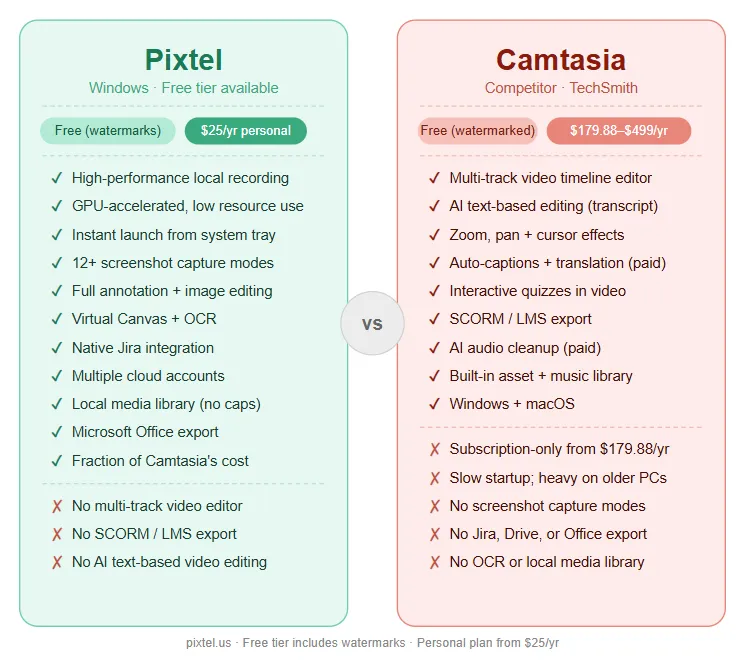
| Pixtel | Camtasia | |
|---|---|---|
| Best for | Daily screenshot + recording + annotation workflows for Windows professionals | Producing polished instructional videos, tutorials, and training courses |
| Platform | Windows | Windows + macOS |
| Pricing | Free with watermarks / $25/yr personal / $50/yr business | Free (watermarked) / $179.88/yr Essentials / $249/yr Create / $499/yr Pro |
| Subscription model | ✅ Optional (free tier available) | ⚠️ Subscription-only since Fall 2024 |
| Recording engine | ✅ High-performance, hardware-accelerated, low resource use | ⚠️ Heavy — can lag on older PCs with large projects |
| Startup speed | ✅ Instant (system tray) | ⚠️ Slow — noted repeatedly in user reviews |
| Screenshot capture | ✅ 12+ modes | ⚠️ Basic (via Snagit integration, not built-in) |
| Annotation tools | ✅ Full suite (always-visible editor) | ✅ Good (in video timeline only) |
| Image editing suite | ✅ Full | ❌ No |
| Virtual Canvas | ✅ Yes | ❌ No |
| OCR / text extraction | ✅ Advanced (table extraction) | ❌ No |
| Video timeline editor | ❌ No | ✅ Yes (multi-track, primary strength) |
| AI transcription / editing | ❌ No | ✅ Yes (Create / Pro tiers) |
| SCORM / LMS export | ❌ No | ✅ Yes |
| Interactive quizzes in video | ❌ No | ✅ Yes |
| Media library | ✅ Full local system | ❌ No |
| Jira integration | ✅ Native | ❌ No |
| Multiple cloud accounts | ✅ Yes | ❌ No |
| Microsoft Office export | ✅ Yes | ❌ No (YouTube / Vimeo / Screencast only) |
| Learning curve | Low | Low–Medium |
| Free personal use | ✅ (watermarks on free tier) | ✅ (watermarks, limited trial) |
Overview: What Are These Tools?
Pixtel
Pixtel is a Windows-native screen capture and media management suite available on the Microsoft Store. It is built for professionals — developers, QA engineers, product managers, designers, and technical writers — who use screenshots and recordings as a core part of their daily workflow.
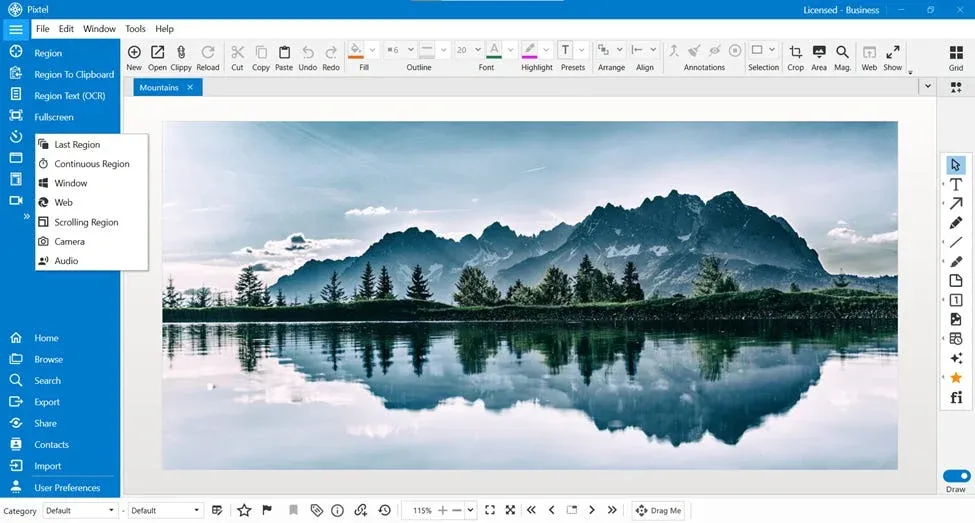
Pixtel's recording engine is built on a high-performance, hardware-accelerated video and audio capture platform that delivers smooth output with low CPU and memory overhead — even during long sessions. Recordings and screenshots are stored locally in a full media library, immediately available without upload delays. The annotation editor is always visible, tools open as popup panels, and settings persist between captures.
Beyond recording, Pixtel covers 12+ screenshot capture modes, a complete image editing suite, Virtual Canvas, OCR with table extraction, and direct integrations with Jira, Google Drive, OneDrive, Dropbox, Box, and Microsoft Office.
For personal use, Pixtel is free — all features included, with watermarks on captured images and videos. Upgrade to Personal ($25/yr) to remove watermarks.
Camtasia
Camtasia, made by TechSmith, is a screen recorder and video editor designed for producing polished instructional content — tutorials, training courses, product demos, and educational videos. Its primary differentiator is the integration of screen recording with a full multi-track video editor in a single application: record your screen, webcam, and audio, then polish the result with transitions, cursor effects, animated callouts, zoom-and-pan, captions, and AI-powered text-based editing.
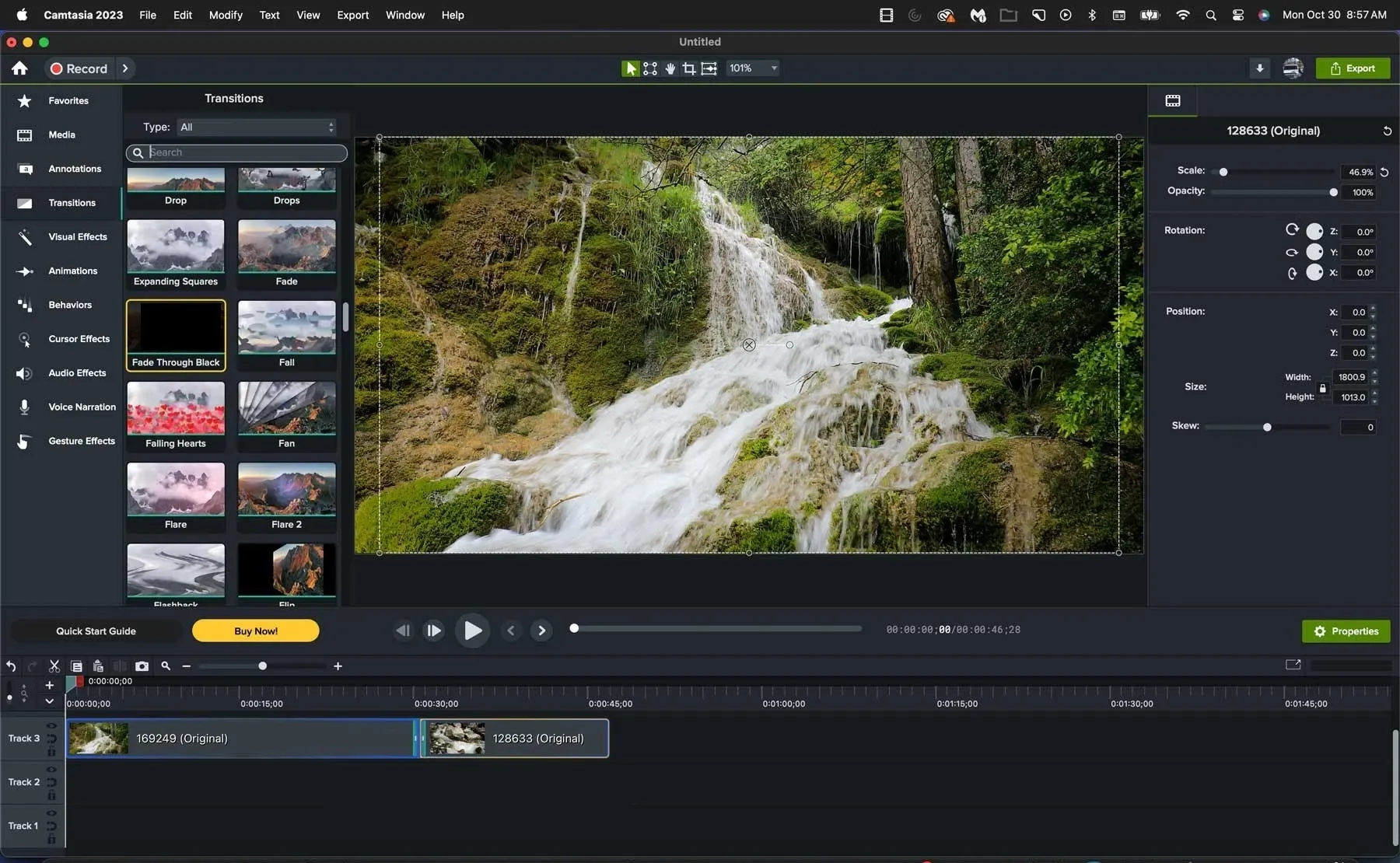
Camtasia's text-based editing feature deserves specific mention: Camtasia transcribes your recording audio and lets you edit the video by editing the transcript — delete a word in the transcript and the corresponding video clip is removed. For instructional designers and course creators who spend hours trimming recordings, this is a genuine workflow transformation.
In 2026, Camtasia is subscription-only, with plans starting at $179.88/year for Essentials and reaching $499/year for the Pro tier with AI features, collaboration tools, and translated captions. TechSmith discontinued perpetual licenses in Fall 2024. User reviews consistently cite two limitations alongside Camtasia's strengths: slow startup times and performance issues (crashes, lag) with large or high-resolution projects.
The Core Distinction: Daily Capture vs. Video Production
The most useful framing for this comparison is purpose:
Camtasia is the right tool when you need to:
- Produce a polished, edited tutorial or training video — a finished product meant to be published or distributed
- Edit your recording with a multi-track timeline, add zoom effects, cursor smoothing, transitions, and professional captions
- Export to SCORM for an LMS or embed interactive quizzes in a course video
- Use AI text-based editing to cut mistakes by editing a transcript rather than scrubbing a timeline
Pixtel is the right tool when you need to:
- Capture screenshots across 12+ modes and annotate them immediately — every day, dozens of times
- Record short-to-medium screen recordings that go directly to Jira, Google Drive, or a colleague — without a video editing session
- Manage a growing library of screenshots and recordings in one organized, searchable local system
- Extract text from screenshots via OCR
- Share annotated captures to cloud destinations, Office documents, or Jira issues without leaving the app
Many professionals find they need both capabilities, and the tools are genuinely complementary. But for users currently paying for Camtasia primarily to take and share screen recordings — without using the video editor — Pixtel delivers that workflow at a fraction of the cost with meaningfully better daily ergonomics.
Recording Performance
Pixtel
Pixtel's recording engine delivers high-performance video and audio capture with minimal system impact. It supports hardware-accelerated encoding for smooth frame delivery, maintains stability across long-session recordings, and keeps CPU and memory usage lean enough to run comfortably in the background while other applications remain fully usable. Recording starts instantly from the system tray — no editor launch, no project setup.
Capture options include full screen, custom region, active window, and webcam, with system audio, microphone, or independent audio-only recording. Output is saved directly to local storage in standard formats and appears immediately in the media library — no rendering wait, no upload queue.
Camtasia
Camtasia records screen, webcam, system audio, and microphone on separate tracks — a genuine advantage for post-production editing, since each element can be adjusted, trimmed, or replaced independently on the timeline. Cursor movement is also captured as metadata, allowing cursor path editing and cursor effects to be applied after recording.
The trade-off is resource footprint. Camtasia is a full video production application, and it carries that overhead. Users consistently report slow startup times — sometimes a significant wait before the recorder is ready — and performance issues, including crashes and lag, when editing large projects or high-resolution recordings. For a professional who needs to start a screen recording in under five seconds, Camtasia's launch time alone can be a daily friction point.
Edge: Pixtel for fast, lightweight, low-overhead daily recording. Edge: Camtasia for multi-track recording where separate audio, video, and cursor tracks enable deep post-production editing.
Screenshot Capture
Pixtel (12+ modes)
- Region Capture — click and drag to select any area
- Fullscreen Capture — all monitors, with or without taskbar
- Active Window Capture — isolate the current app window
- Scrolling Window Capture — capture entire scrollable windows automatically
- Scrolling Region Capture — capture a specific scrollable section within a page
- Web Capture — full webpage capture with source URL preserved
- Region to Clipboard — capture directly to clipboard without opening the editor
- Last Region — instantly re-capture the exact same screen area
- Continuous Region Capture — capture a fixed area at set intervals
- Timed Capture — countdown before capture for menus and tooltips
- Camera Capture — capture from a connected webcam
- Clipboard as New Tab — open any clipboard image directly as a new tab for instant annotation or sharing
Every capture opens immediately in the Pixtel editor with no additional steps.
Camtasia
Camtasia does not include its own screenshot capture modes. TechSmith's companion tool Snagit handles screenshot capture, and Camtasia 2026 introduced a direct routing from Snagit into Camtasia Editor — but Snagit is a separate application requiring its own license ($62.99 one-time or bundled). Out of the box, Camtasia itself has no scrolling capture, no region capture modes, no timed capture, and no screenshot media library.
For teams using Camtasia primarily for video production who also need screenshot capability, TechSmith's Camtasia + Snagit bundle is a considered purchase. For teams that need both capabilities in a single product at a lower price, Pixtel covers both.
Edge: Pixtel — not comparable as a standalone screenshot tool. Camtasia delegates this entirely to Snagit.
Video Editing
Camtasia
This is Camtasia's defining strength and the clearest area where it leads Pixtel:
- Multi-track timeline editor — separate tracks for screen recording, webcam, audio, music, and annotations, each editable independently
- Text-based editing (AI) — edit your recording by editing the transcript; delete a sentence and the corresponding video is cut automatically
- Zoom and pan effects — smooth animated zoom into any region of the recording
- Cursor effects and path editing — smooth cursor movement, spotlight, highlight, and click effects applied after recording
- Transitions and animations — built-in library of professional transitions and animated callout styles
- Captions and auto-transcription — automatic captions with translation to multiple languages (Create / Pro tiers)
- AI audio cleanup — silence removal, filler word removal, noise reduction
- Interactive quizzes — embed multiple-choice or true/false quizzes directly in video
- SCORM export — publish videos with quiz data to any LMS (Moodle, TalentLMS, Docebo, and others)
- Asset library — built-in library of music, sound effects, intro/outro templates, and icons
- YouTube / Vimeo / Screencast — direct publish to video hosting platforms
For anyone producing online courses, software training modules, or instructional content intended to be published and consumed as a finished video, Camtasia's editor is the right tool. Its text-based editing feature alone changes the economics of long-form recording production — what previously required scrubbing through a timeline can be done by editing a document.
Pixtel
Pixtel does not include a video timeline editor. Recordings are captured and stored in the media library and can be shared directly to cloud destinations or uploaded to YouTube or Vimeo — but there is no post-capture editing beyond what the system's default video player offers. Pixtel is designed for the capture-annotate-share workflow, not for video production.
Edge: Camtasia — and it is not close. For video production, Camtasia is the purpose-built tool.
Annotation and Image Editing
Pixtel
Pixtel's annotation toolkit covers the full professional range:
- Arrows, lines, shapes (rectangles, ellipses, polygons, freehand)
- Text boxes, callouts (14 callout types), sticky notes
- Blur for redacting sensitive data, highlights, borders
- Stamps, rubber stamps, timestamps, clickable links
- Smart Pencil — converts rough freehand to clean geometry
- Counter/step numbering for sequential screenshots
- Crop, Magnifier, Embedded Image
- Virtual Canvas — extend annotation space infinitely beyond image boundaries
Beyond annotation, Pixtel includes a complete image editing suite — no Photoshop or Paint needed:
- Brightness and Contrast adjustment
- Hue, Saturation, and Color Balance
- Convert to Grayscale / Black & White
- Sharpen, Blur, and Image Effects
- Canvas Resize and Image Resize
- Flip, Rotate, Color Picker, Invert Colors
- Watermark — embed a custom watermark image into any capture
All tools are permanently visible around the editor window, opening as popup panels. Settings persist between annotations.
Camtasia
Camtasia includes a strong annotation system within its video editor — animated callouts, arrows, text, highlight boxes, blur, step numbering, and cursor spotlight effects — all applied on the video timeline as editable elements. For video production, this is a well-designed system that lets annotations be precisely timed and animated.
For static image annotation, Camtasia's tools are not designed to operate outside the video editor context. There is no standalone image editor, no Virtual Canvas, and no image editing suite (brightness, contrast, grayscale, canvas resize). Annotating a screenshot in Camtasia means importing it as a media element and working within the timeline — a heavier workflow than Pixtel's immediate popup-panel editor.
Edge: Pixtel for static image annotation and editing — the always-visible toolset and full image editing suite are built for this workflow. Edge: Camtasia for timed, animated video annotations within a polished production.
OCR and Text Extraction
Pixtel includes advanced OCR that extracts plain text from any image, and can extract structured table data directly into spreadsheet format. The Region Text Capture mode pulls text from any area of the screen on the fly — useful for copying content from PDFs, video frames, locked interfaces, or any area where copy-paste is unavailable.
Camtasia includes AI-powered audio transcription of video recordings (Create / Pro tiers), which enables text-based editing of the video timeline. It does not offer OCR for screenshots or static screen content.
Edge: Pixtel for text extraction from screen content. Camtasia's transcription is a different, video-specific capability.
Integrations and Sharing
Pixtel
- Jira — native integration to attach annotated screenshots and recordings directly to issues
- Google Drive — single or bulk upload; multiple accounts supported
- OneDrive — direct upload; multiple accounts supported
- Dropbox — folder selection, bulk upload; multiple accounts supported
- Box — enterprise cloud upload; multiple accounts supported
- FTP — multiple server configurations supported
- Email — via configured email with OAuth2
- OneNote — clip directly into notebooks
- Evernote — capture to notes
- YouTube — publish screen recordings directly
- Vimeo — upload videos without switching apps
- Microsoft Office — export to Word, PowerPoint, and Excel with layout controls
- Share Link — generate a shareable URL
- Drag Me — drag images directly into any app without saving
Pixtel supports multiple accounts per cloud service — connect several Google Drive, OneDrive, Dropbox, or Box accounts and switch between them when uploading.
Camtasia
Camtasia's sharing options are centered on video hosting:
- YouTube — direct publish
- Vimeo — direct publish
- Screencast (TechSmith's own platform) — private hosting with viewer comments and reactions
- LMS / SCORM — export to any SCORM-compatible learning management system
Camtasia does not offer native Jira integration, direct upload to Google Drive or OneDrive, multi-account cloud management, Microsoft Office export, or FTP. Sharing a Camtasia-produced video to a development team's Jira board requires exporting the video and attaching it manually.
Edge: Pixtel for day-to-day integration breadth with development and productivity tools. Edge: Camtasia for video publishing and LMS distribution.
Media Management
Pixtel includes a full local media management system:
- Browsable library with thumbnail grid view
- Filter by type (image, video, audio)
- Date-based browsing and search
- Tags and bulk operations (export, collage, delete)
- Recycle bin for accidental deletions
- Backup, restore, and data relocation tools
- Duplicate detection and cleanup
- Automatic organization by source application or website
Everything is on your own machine — no storage caps, no data leaving your environment unless you explicitly share it.
Camtasia manages projects (recording sessions and their edited timelines) within the application, but has no library for screenshots or standalone recordings. Individual video exports go to a local folder or are published directly to YouTube/Vimeo/Screencast. For professionals who take a high volume of screenshots daily, Camtasia provides no organizational system.
Edge: Pixtel — particularly for screenshot-heavy workflows. Camtasia is designed around the production project, not the individual capture.
Pricing Comparison
| Pixtel | Camtasia | |
|---|---|---|
| Free tier | All features, watermarks | Watermarked exports |
| Entry paid | $25/yr personal (no watermarks) | $179.88/yr Essentials |
| Mid tier | $50/yr business | $249/yr Create (AI features) |
| Pro tier | — | $499/yr Pro (AI avatars, translated captions, collaboration) |
| 5-person team / year | $250/yr | $899–$2,495/yr |
| 10-person team / year | $500/yr | $1,799–$4,990/yr |
| License model | Annual subscription | Subscription-only since Fall 2024 |
| Perpetual license | ❌ | ❌ (discontinued Fall 2024) |
Camtasia's pricing reflects its position as a professional video production suite — and for instructional designers or course creators who use its editing depth daily, that investment can be justified. For professionals who primarily need to capture, annotate, and share screenshots and short recordings, paying $179–$499/year per seat for a tool whose video editor goes largely unused is a significant inefficiency.
Who Should Use Pixtel?
Pixtel is the right choice if you:
- Capture and share screenshots as a core daily workflow — not an occasional task
- Work in development or QA and need native Jira integration for bug reports and issue tracking
- Need fast, lightweight recording that starts instantly from the system tray
- Want to annotate and edit images without opening a second application
- Manage a high volume of screenshots and recordings and want a searchable local media library
- Use multiple cloud accounts across Google Drive, OneDrive, or Dropbox
- Need OCR and table data extraction from screenshots
- Want professional-grade capability at a significantly lower per-seat cost
- Need Microsoft Office export for documentation or presentations
Who Should Use Camtasia?
Camtasia is the right choice if you:
- Produce polished, edited tutorial or training videos as a regular output — not just quick recordings
- Need a multi-track video editor with zoom-and-pan, cursor effects, transitions, and animated callouts
- Use AI text-based editing to trim recordings by editing a transcript
- Need SCORM export for distributing content to an LMS with quiz completion tracking
- Embed interactive quizzes inside video content
- Use AI audio cleanup — filler word removal, silence removal, noise reduction — on long recordings
- Need AI-generated captions and translation across multiple languages
- Are on macOS as well as Windows
Feature Comparison: Full Table
| Feature | Pixtel | Camtasia |
|---|---|---|
| Platform | Windows | Windows + macOS |
| Pricing | Free / $25/yr / $50/yr | Free (watermarked) / $179.88–$499/yr |
| Subscription model | Optional | Required (since Fall 2024) |
| Screen recording | ✅ | ✅ |
| Recording engine | ✅ High-performance, low resource | ⚠️ Heavy; slow startup, lags on older PCs |
| Separate audio/video tracks | ❌ | ✅ |
| Cursor path editing | ❌ | ✅ |
| Webcam overlay | ✅ | ✅ |
| System + mic audio | ✅ | ✅ |
| Audio-only capture | ✅ | ❌ |
| Region capture | ✅ | ❌ |
| Scrolling capture | ✅ | ❌ |
| Timed/delayed capture | ✅ | ❌ |
| 12+ screenshot modes | ✅ | ❌ |
| Annotation tools | ✅ Full always-visible suite | ✅ Good (in video timeline) |
| Virtual Canvas | ✅ | ❌ |
| 14 callout types | ✅ | ❌ |
| Sticky notes | ✅ | ❌ |
| Smart Pencil | ✅ | ❌ |
| Image editing suite | ✅ Full | ❌ |
| Brightness / contrast | ✅ | ❌ |
| Canvas resize | ✅ | ❌ |
| Video timeline editor | ❌ | ✅ |
| Zoom and pan effects | ❌ | ✅ |
| Cursor effects / smoothing | ❌ | ✅ |
| Transitions and animations | ❌ | ✅ |
| AI text-based editing | ❌ | ✅ (Create / Pro) |
| AI audio cleanup | ❌ | ✅ (Create / Pro) |
| Auto-captions + translation | ❌ | ✅ (Create / Pro) |
| Interactive quizzes | ❌ | ✅ |
| SCORM / LMS export | ❌ | ✅ |
| Built-in asset library | ❌ | ✅ |
| OCR text extraction | ✅ Advanced | ❌ |
| Table data extraction | ✅ | ❌ |
| Media library | ✅ Full local system | ❌ |
| Backup and restore | ✅ | ❌ |
| Jira integration | ✅ Native | ❌ |
| Google Drive | ✅ (multiple accounts) | ❌ |
| OneDrive | ✅ (multiple accounts) | ❌ |
| Dropbox | ✅ | ❌ |
| Microsoft Office export | ✅ | ❌ |
| YouTube upload | ✅ | ✅ |
| Vimeo upload | ✅ | ✅ |
| Screencast hosting | ❌ | ✅ |
| ✅ | ❌ | |
| Learning curve | Low | Low–Medium |
| System tray / instant access | ✅ | ❌ |
| Free personal use | ✅ (watermarks) | ✅ (watermarks, limited) |
The Bottom Line
Camtasia is the benchmark for a reason. For instructional designers, corporate trainers, and course creators who produce polished video content regularly — with text-based editing, zoom-and-pan, cursor effects, SCORM export, and AI captions — it remains the most efficient all-in-one video production tool for this use case. If you are producing courses or training modules and the editing workflow is central to your day, Camtasia's pricing is justified.
But Camtasia is a video production suite, not a daily screen capture tool. It has no screenshot capture modes, no native Jira integration, no image editing suite, no local media library, and no OCR. It is slow to start, resource-intensive with large projects, and subscription-only from $179.88/year. For professionals whose daily work is built on fast, organized, annotated screen captures — bug reports, design feedback, documentation, QA walkthroughs — Camtasia introduces overhead that does not serve that workflow.
Pixtel is purpose-built for daily capture productivity: high-performance local recording, 12+ screenshot modes, a full annotation and image editing suite, OCR, a searchable local media library, and direct integrations with Jira, Google Drive, OneDrive, and Microsoft Office — starting free and affordable at scale.
For many teams, the answer is both: Pixtel as the daily capture and annotation tool, Camtasia as the video production suite for finished content. For teams that only need one tool and primarily live in the capture-annotate-share workflow, Pixtel covers that ground comprehensively — at a fraction of the cost.
Try Pixtel Free Today
👉 Download Pixtel
🎥 Follow us on YouTube
📘 Read Detailed Documentation
Related Articles
- Pixtel vs Snagit: The Complete Comparison for 2026 →
- Pixtel vs Loom: Which Screen Recording Tool Wins in 2026? →
- Pixtel vs ShareX: Which Windows Screenshot Tool Wins in 2026? →
- Pixtel vs OBS Studio: Which Screen Capture Tool Is Right for You? →
- Top 10 Screen Capture Tools for Better Productivity in 2026 →
'%3e%3cpath%20d='M6.49988%200.862305L0.380969%206.98121C-0.127315%207.4895%20-0.127315%208.31107%200.380969%208.81936C0.889253%209.32764%201.71083%209.32764%202.21911%208.81936L5.19992%205.83855V15.7C5.19992%2016.4176%205.781%2017%206.49988%2017C7.21875%2017%207.79984%2016.4176%207.79984%2015.7V5.83855L10.7806%208.81936C11.0341%209.07285%2011.3669%209.20024%2011.6997%209.20024C12.0325%209.20024%2012.3653%209.07285%2012.6188%208.81936C13.1271%208.31107%2013.1271%207.4895%2012.6188%206.98121L6.49988%200.862305Z'%20fill='white'/%3e%3c/g%3e%3cdefs%3e%3cclipPath%20id='clip0_1_2'%3e%3crect%20width='13.0002'%20height='16.8995'%20fill='white'%20transform='translate(-0.000244141%200.100533)'/%3e%3c/clipPath%3e%3c/defs%3e%3c/svg%3e)