

What Is a Screen Capture Tool? (And Why Basic Snipping Isn't Enough)
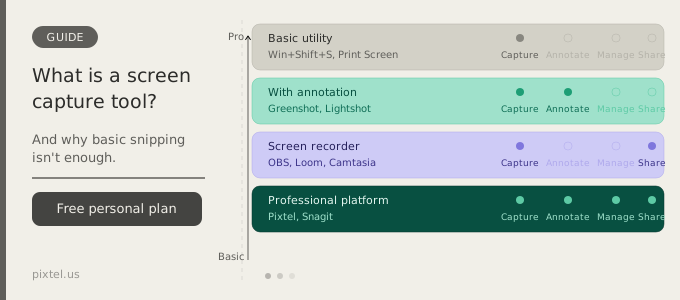
If you've ever pressed Win + Shift + S on Windows, you've used a screen capture tool. If you've ever pasted a screenshot into an email, a Slack message, or a bug report, you've experienced what screen capture makes possible. But if you've also ever felt the friction of capturing something, realizing you need to annotate it, opening a separate image editor, making your changes, saving the file, switching to email, attaching the file — you've experienced what basic screen capture doesn't solve.
This guide covers what screen capture tools are, how they work, the different types available, and what distinguishes a tool built for occasional personal use from one built for the way professionals actually work.
What is a screen capture tool?
A screen capture tool is software that records what's currently displayed on your screen as an image or video. The output can be a static screenshot (a still image of a moment in time), a screen recording (a video of what happened over a period of time), or in more advanced tools, both.
The concept is straightforward: the tool reads the pixel data from your display and saves it as a file — typically PNG, JPEG, WebP for images, or MP4/AVI for recordings. What distinguishes tools from each other is everything that happens around that capture: how precisely you can select what to capture, what you can do with the image immediately after, where you can send it, and how you manage it over time.
How does screen capture work?
At the technical level, screen capture works by accessing the display buffer — the data your graphics system uses to render what you see on screen. On Windows, this is done through the Graphics Device Interface (GDI) or more modern DirectX/DXGI APIs, which allow software to read pixel data from any part of the display.
Modern capture tools use these APIs to:
- Capture specific regions (defined by the user dragging a selection box)
- Capture specific windows (by identifying the active application's window handle)
- Capture the entire display (or multiple displays simultaneously)
- Capture web pages beyond the visible viewport (by programmatically scrolling and stitching)
- Record a sequence of frames over time for video output
The captured data is then processed, compressed, and saved in the chosen format. Quality tools also capture metadata at this stage — the source URL if a browser window was captured, the window title, the capture timestamp, and the capture mode used — preserving context that makes the screenshot useful beyond the moment it was taken.
Types of screen capture tools
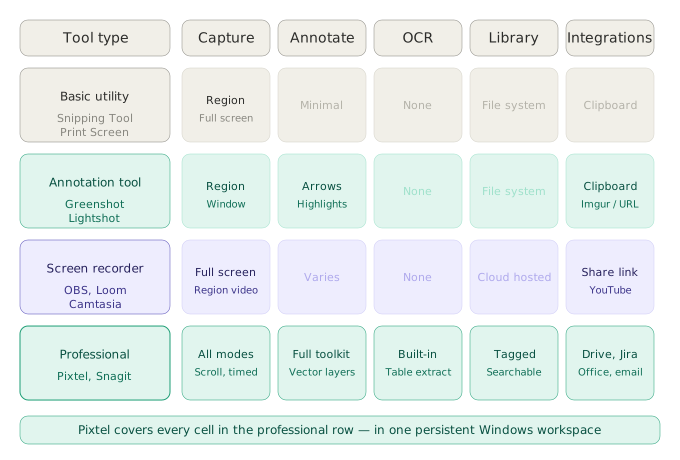
Not all screen capture tools do the same thing. They range from minimal single-purpose utilities to comprehensive platforms that combine capture, annotation, organization, and sharing.
Basic screenshot utilities
These are the simplest tools in the category — Windows Snipping Tool, Print Screen, Mac's built-in Shift+Command+4, and similar OS-native utilities. They capture a selected region and save it (or copy it to the clipboard), and that's essentially all they do. Annotation, if available, is rudimentary. Organization is whatever your file system provides. Sharing requires exiting the tool and using a separate application.
For capturing something once with no further intent — a quick reference, a personal note — basic utilities are sufficient. For anything that needs to be communicated, annotated, filed, or shared, they are starting points rather than complete solutions.
Screenshot tools with annotation
The next tier adds annotation capabilities on top of capture. Tools like Greenshot and Lightshot fall here. You can add arrows, text, and highlights to a screenshot before saving or sharing it. This covers a wide range of everyday needs — marking up a document, pointing out an element on a web page, adding a quick callout.
The limitation of annotation-only tools is that they treat each capture as a standalone event. There's no concept of managing multiple captures together, no media library, no persistent workspace, and typically limited sharing options beyond clipboard, email, or a single cloud service.
Screen recorders
Screen recorders capture video rather than still images — or both. OBS Studio is the most widely known free option, built for streaming and recording long sessions. Loom and similar tools are built for async video messaging: you record a clip and share a link. Camtasia is designed for professional-grade tutorial and course production with full video editing capabilities.
Screen recorders serve a different primary purpose from screenshot tools: they're optimized for communication that requires showing something happening over time, rather than documenting a specific state at a single moment.
Professional capture and media management platforms
At the professional end of the spectrum are tools that treat screen capture as one part of a larger workflow: capture, annotation, organization, multi-destination sharing, and media management in a single integrated platform. Snagit from TechSmith has historically been the most well-known in this tier. Pixtel is a Windows-native platform in this category, built with a persistent tabbed workspace, a comprehensive annotation toolkit, a searchable media library, and direct integrations with cloud storage services, Jira, Office applications, and more.
The defining characteristic of professional capture tools is that they hold the captured image in a persistent workspace — not a temporary clipboard or a saved file you have to find again — and provide the full range of tools to annotate, organize, and share it without leaving the application.
Key capabilities to understand
Region capture
The most fundamental capture mode beyond full-screen: the user draws a selection box over the area they want to capture. Quality tools provide a magnifier or crosshair for pixel-precise selection, and the capture snaps to window edges or specific UI elements on hover. This is the mode most people use most often.
Scrolling capture
A standard screenshot captures only what's visible on screen. Scrolling capture — sometimes called "long screenshot" or "full-page capture" — extends this by automatically scrolling the content and stitching the frames together into a single continuous image. This is essential for documenting web pages, long documents, dashboards, or any content that extends below the fold.
Window capture
Rather than selecting a region manually, window capture identifies the active application window and captures exactly that — clean, without any surrounding desktop elements. This is faster for capturing specific applications and produces cleaner results than a manually-drawn region over a window.
Timed and continuous capture
Timed capture fires after a configurable countdown, allowing the user to set up a state (open a dropdown menu, trigger a tooltip, position a cursor) before the capture happens. Continuous capture fires automatically at a set interval — every few seconds, every minute — useful for monitoring a changing state or creating a timestamped sequence of captures.
Annotation tools
Annotation is what transforms a raw screenshot into a communication tool. Core annotation capabilities in professional tools include:
- Arrows and lines for directing attention
- Highlight rectangles and ellipses for emphasizing regions
- Numbered callouts for step-by-step sequences
- Text boxes and speech bubbles for labels and comments
- Blur and pixelation for redacting sensitive information
- Sticky notes for contextual tips or metadata
- Freehand drawing for quick markup
Professional tools store annotations as separate vector layers until the user explicitly flattens them, preserving the original captured image beneath the markup.
OCR (Optical Character Recognition)
OCR extracts text from screenshot images, converting visual text into editable, searchable, copy-pasteable content. This is particularly valuable when working with legacy systems, PDFs, or any interface where text can't be selected and copied directly. Professional capture tools with OCR integration allow users to extract error codes, field labels, table data, and other text from any screen content without retyping.
Cloud and application integrations
Basic tools save to disk or clipboard. Professional tools integrate directly with cloud storage services (Google Drive, OneDrive, Dropbox, Box), communication platforms (email, Slack), project management tools (Jira), and office applications (Word, PowerPoint). The most capable tools in this tier support multiple accounts per service simultaneously — a significant differentiator for professionals who manage content across multiple clients, projects, or organizational contexts.
Media library and organization
Once you're capturing regularly, the volume of screenshots accumulates quickly. Professional capture tools include a built-in media library where captures are stored with metadata — source URL, capture date, capture mode, user-applied tags — and can be searched, filtered, and retrieved without navigating a file system. A well-organized capture library becomes a reusable knowledge asset rather than a folder of undifferentiated PNG files.
Screenshot vs screen recording: when to use each
The choice between a screenshot and a screen recording is a choice about what you're trying to communicate.
A screenshot works when the information exists at a single point in time: a UI state, an error message, a configuration screen, a piece of content you want to reference or share. Screenshots are faster to capture, easier to annotate, easier to include in documents and emails, and require no playback — the viewer sees everything instantly.
A screen recording works when the information is a process that happens over time: a workflow demonstration, a tutorial, a bug that only manifests as a series of interactions, or any situation where "watch what happens when I click this" communicates more clearly than "here's what it looked like before and after."
Many professional workflows use both: a sequence of annotated screenshots to document a bug's state and reproduction steps, and a short screen recording to show the exact interaction that triggers it.
What basic snipping doesn't solve
The Windows Snipping Tool and its equivalents handle the capture step competently. Where they fall short is everything that follows the capture — the work that turns a raw screenshot into something useful and shareable.
Multi-step workflows. A basic tool captures one image, which you save, then open elsewhere to annotate, then save again, then attach to whatever you're working in. Each handoff between tools introduces friction, file management overhead, and opportunities for version confusion.
Persistent workspace. Basic tools have no memory between captures. Each session starts fresh. There's no tabbed workspace where you can have fifteen captures open simultaneously, jump between them, maintain consistent annotation styling across a sequence, or review the full set before sending.
Annotation depth. Windows Snipping Tool's annotation features are minimal. For anything beyond a simple arrow or highlight, you need a separate image editor — which means another handoff and another application to manage.
Organization at scale. Captures saved directly to disk accumulate into folders of files named Screenshot (47).png with no metadata, no tags, no source URL, and no searchability. For anyone capturing regularly across multiple projects or contexts, this becomes unmanageable.
Direct sharing. Getting a screenshot to the right destination — a Jira ticket, a Google Drive folder, a specific email recipient — requires manual steps outside the capture tool. Professional tools eliminate those steps by routing the capture directly to its destination from the same workspace.
Scrolling and extended captures. The Snipping Tool captures only what's visible. Full-page web captures, long dashboard screenshots, and anything below the fold require either multiple overlapping screenshots or a different tool entirely.
Who uses screen capture tools professionally?
Screen capture has become a standard part of workflows across almost every knowledge-work profession. The most intensive users tend to be:
Software developers and QA engineers who capture bug states, annotate reproduction steps, and attach evidence to Jira tickets as part of every working day.
Customer support teams who capture, annotate, and share screenshots to document customer issues, communicate solutions, and escalate bugs to development teams.
Technical writers and trainers who build documentation, user guides, and onboarding materials from sequences of annotated screenshots.
Product managers who capture UI states for sprint reviews, stakeholder updates, and design feedback rounds.
UX and UI designers who annotate wireframes, mark up design reviews, and document competitive analysis through captured screenshots.
Compliance and legal professionals who document web evidence with timestamped, sourced captures for regulatory filings and litigation support.
What all of these workflows share is that screen capture isn't an occasional task — it's a recurring, high-volume activity that benefits enormously from a tool designed for professional use rather than occasional personal use.
How to choose the right screen capture tool
The right tool depends on how you use it. A few questions that help narrow it down:
How often do you capture? Once a week, a basic tool is fine. Multiple times a day, the friction of a basic tool adds up to hours per week — and a professional tool pays for itself quickly.
Do your captures need annotation? If you're sending screenshots to other people for any purpose — documentation, bug reports, customer support, design review — annotation is essential, not optional.
Do you need to capture full pages or dynamic states? If your work regularly involves web pages, long dashboards, dropdown menus, or transient states, you need scrolling capture and timed capture.
Where do the captures need to go? If they go to Jira, Google Drive, Dropbox, email, Word, or PowerPoint, a tool with direct integrations to those destinations will save significant time per capture.
Do you work across multiple accounts or clients? Multi-account cloud support — connecting several Google Drive or Dropbox accounts simultaneously — is available in very few tools and is a significant differentiator for agency and freelance workflows.
Do you need to find old captures later? If yes, a media library with metadata, tags, and search is worth prioritizing over a tool that just saves to a folder.
Pixtel: screen capture built for professionals on Windows
Pixtel is a Windows-native screen capture, annotation, and media management platform that addresses the full workflow — from initial capture to annotated, organized, and shared output — in a single persistent workspace.
Its capture modes cover every scenario: region capture with pixel-precise crosshair selection, scrolling web and application capture, active window capture, full-screen capture across multiple displays, timed capture for transient states, and continuous region capture for timestamped sequences.
Its annotation toolkit includes numbered callouts, arrows, highlights, blur redaction, sticky notes, text boxes, and speech bubbles — all stored as vector layers on top of the original image until explicitly flattened.
Its tabbed workspace keeps every capture accessible simultaneously, with Grid View for visual sequence review and Collage and Collate tools for combining multiple captures into layouts.
Its integrations connect directly to Google Drive, OneDrive, Dropbox, Box, FTP, Jira, Email, Evernote, OneNote, YouTube, and Vimeo — with multi-account support across all of them.
Its media library stores captures with source URLs, timestamps, tags, and metadata, making every capture searchable and retrievable months after it was taken.
Pixtel is available on the Microsoft Store with a free personal plan. For anyone who captures more than occasionally and needs their screenshots to actually do something — communicate clearly, reach the right destination, and be findable later — it's where basic snipping ends and professional capture begins.
Get started
👉 Download Pixtel
📘 Read the Documentation
🎥 Watch Tutorials
Related Articles
- Pixtel vs Snagit: The Complete Comparison for 2026 →
- Mastering Scrolling Captures in Pixtel: A Complete Guide →
- Unlocking Trapped Data: The Power of Advanced OCR in Screen Management →
- Pixtel's Multi-Account Cloud Support Explained: Why It Matters for Teams →
- How Customer Support Teams Cut Ticket Resolution Time with Pixtel →
'%3e%3cpath%20d='M6.49988%200.862305L0.380969%206.98121C-0.127315%207.4895%20-0.127315%208.31107%200.380969%208.81936C0.889253%209.32764%201.71083%209.32764%202.21911%208.81936L5.19992%205.83855V15.7C5.19992%2016.4176%205.781%2017%206.49988%2017C7.21875%2017%207.79984%2016.4176%207.79984%2015.7V5.83855L10.7806%208.81936C11.0341%209.07285%2011.3669%209.20024%2011.6997%209.20024C12.0325%209.20024%2012.3653%209.07285%2012.6188%208.81936C13.1271%208.31107%2013.1271%207.4895%2012.6188%206.98121L6.49988%200.862305Z'%20fill='white'/%3e%3c/g%3e%3cdefs%3e%3cclipPath%20id='clip0_1_2'%3e%3crect%20width='13.0002'%20height='16.8995'%20fill='white'%20transform='translate(-0.000244141%200.100533)'/%3e%3c/clipPath%3e%3c/defs%3e%3c/svg%3e)