

Arrange Annotations in Pixtel: Organize Your Image Elements Easily
When working with screenshots, tutorials, bug reports, or image documentation, multiple annotations help explain information clearly. However, managing arrows, text boxes, highlights, shapes, and embedded images individually can sometimes become difficult. Adjusting annotation positions manually again and again may slow down editing workflows.
Pixtel simplifies this process with Arrange Annotation options that help users organize image elements efficiently. Users can control annotation order, manage overlapping elements, and group annotations together to create cleaner and more professional visuals.
The Arrange tools improve image organization and help users work faster without repeatedly modifying annotation positions.
Getting Started
Upload an image into Pixtel or open an existing image and start adding annotations using the Draw tools. You can add arrows, text, highlights, shapes, embedded images, and other annotation elements based on your requirement.
Once any annotation or embedded image is added to the canvas, the Arrange option in the toolbar becomes enabled.
Open the Arrange dropdown to access available options that help organize, position, and group annotations efficiently for better image management.
The Arrange menu provides the following options:
- Bring Front
- Bring Forward
- Send Back
- Send Backward
- (Un)Group
- Group All
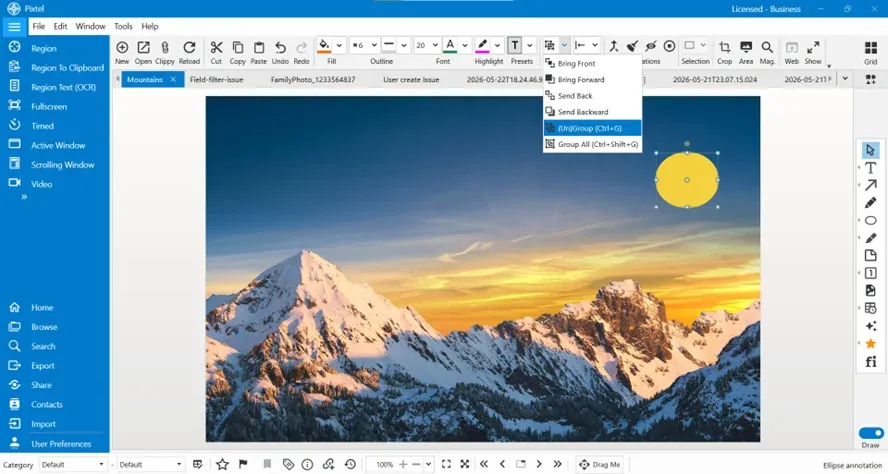
Bring Front
The Bring Front option moves the selected annotation completely to the top layer.
This helps keep important annotations visible when multiple elements overlap on the image.
Bring Forward
The Bring Forward option moves the selected annotation one level upward.
Instead of changing the entire annotation order, this option provides better control over annotation positioning. This helps users organize overlapping annotations efficiently.
Send Back
The Send Back option moves selected annotations backward.
This feature helps maintain proper annotation layering and keeps background elements positioned correctly.
Send Backward
The Send Backward feature moves selected annotations one layer backward.
This provides more precise annotation arrangement and better positioning control while working with multiple annotation elements.
(Un)Group
Managing multiple annotations individually may increase editing effort. Pixtel simplifies this using the (Un)Group option.
Shortcut: Ctrl + G
This feature combines selected annotations into a single editable object. Users can also ungroup annotations whenever individual editing is required.
Group All
The Group All feature combines all available annotations on the image into a single group.
Shortcut: Ctrl + Shift + G
This helps manage larger annotation collections efficiently and improves editing speed. Group All simplifies image organization and keeps annotations structured.
Conclusion
Pixtel's Arrange Annotation options help users organize image elements quickly and efficiently. Features like Bring Front, Bring Forward, Send Back, Send Backward, Group, and Group All improve annotation management and simplify editing workflows.
Whether creating tutorials, screenshots, documentation, or visual explanations, Arrange tools help users maintain cleaner image layouts and improve productivity inside Pixtel.
Related reading:
- Edit Features in Pixtel: Simplify Image Editing and Annotation Management →
- Flatten Annotations in Pixtel: A Complete Guide →
- How to Annotate Images in Pixtel →
Capture once and use it forever. It isn't just a tool — it's Pixtel.
'%3e%3cpath%20d='M6.49988%200.862305L0.380969%206.98121C-0.127315%207.4895%20-0.127315%208.31107%200.380969%208.81936C0.889253%209.32764%201.71083%209.32764%202.21911%208.81936L5.19992%205.83855V15.7C5.19992%2016.4176%205.781%2017%206.49988%2017C7.21875%2017%207.79984%2016.4176%207.79984%2015.7V5.83855L10.7806%208.81936C11.0341%209.07285%2011.3669%209.20024%2011.6997%209.20024C12.0325%209.20024%2012.3653%209.07285%2012.6188%208.81936C13.1271%208.31107%2013.1271%207.4895%2012.6188%206.98121L6.49988%200.862305Z'%20fill='white'/%3e%3c/g%3e%3cdefs%3e%3cclipPath%20id='clip0_1_2'%3e%3crect%20width='13.0002'%20height='16.8995'%20fill='white'%20transform='translate(-0.000244141%200.100533)'/%3e%3c/clipPath%3e%3c/defs%3e%3c/svg%3e)