

Magnifier: Zoom In on Details in Your Screenshots with Pixtel
The Detail Is There, but Nobody Can Read It
A full-page screenshot gives the whole picture, but the detail you care about is often tiny: a counter, a version number, a small icon or a line of fine print. Cropping makes it readable but throws away the context. Sending two pictures, one zoomed and one not, makes people match them up.
Magnifier in Pixtel does both at once. It shows the detail enlarged in a lens right beside it, on the same picture, with the original still in place.

Why It Helps
- Small things become readable. Text and icons too small to make out are shown at 1.25 to 8 times their size.
- Context stays. The detail is still in its place on the page, so people see where it is and what it says.
- No extra pictures. One screenshot carries both the overview and the close-up.
- Stays sharp. The lens is filled from the picture itself at its full resolution, not from a blurry screen copy.
Draw a Magnifier
Step 1: Choose the shape
- Open the Draw tab on the right of the editor.
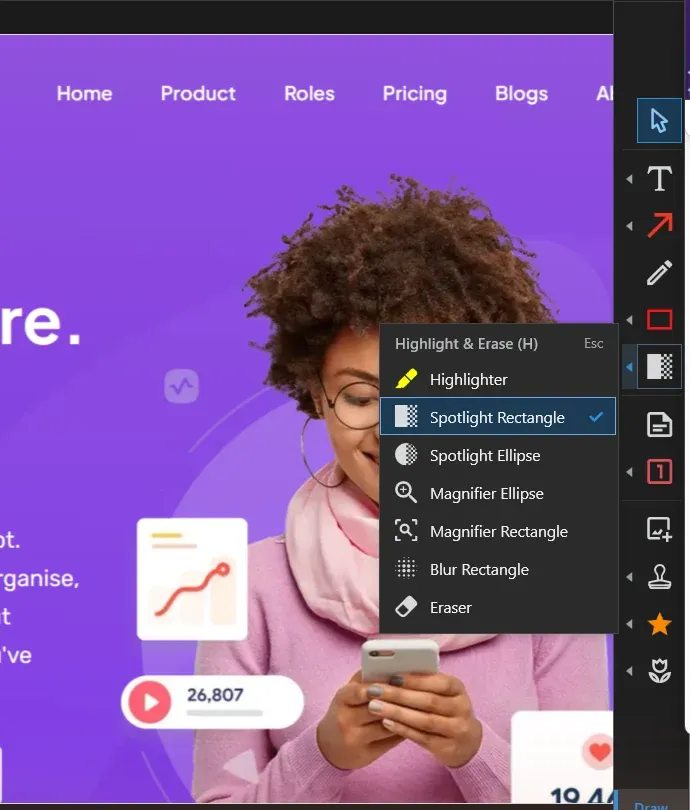
- Right-click the Highlight & Erase tool, or click the small arrow next to it, and choose Magnifier Ellipse or Magnifier Rectangle.
- Next time, press H to pick up the same tool again.
Step 2: Mark the detail
- Drag over the part you want to enlarge. This is the source.
- Hold Shift while you drag for a perfect circle or square.
- In a hurry? A single click marks a small square around the point you clicked.
Step 3: Let Pixtel place the lens
- When you let go, the lens appears beside the source, showing it enlarged. Pixtel tries above and to the right first, then the other corners, and keeps the lens inside the picture where there is room.
- The lens opens at the zoom you used last, so a series of screenshots gets the same look.
Adjust the Lens and the Source
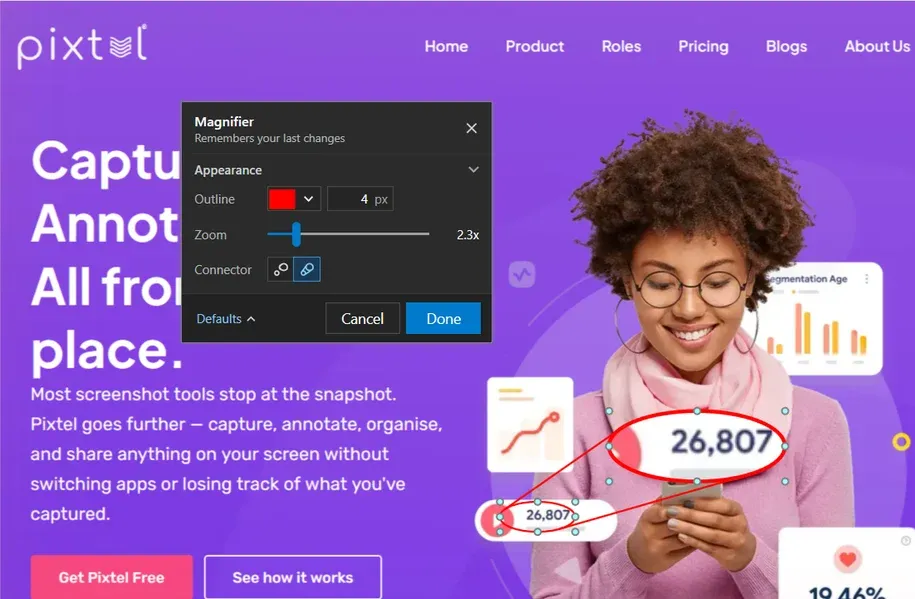
Click the lens or the source to select the Magnifier. The source shows as a dashed outline, and the lens and the source each get their own frame:
- Move the lens: drag it anywhere on the picture. It keeps showing the same detail.
- Resize the lens: drag a handle on its frame. The zoom stays the same, so a bigger lens shows a bigger area.
- Move the source: drag it to show a different part of the picture. The lens updates as you go.
- Resize the source: drag a handle on its frame. A smaller source means a stronger zoom, a larger one a gentler zoom.
- Remove: press Delete.
- Undo: drawing a Magnifier is one step, so Ctrl+Z takes it away in one go.

Set the Ring, the Zoom and the Connector
Double-click the lens to open its properties:
- Outline sets the color and width of the ring around the lens and the source. Red, 3 px, is where it starts.
- Zoom sets how many times the lens enlarges the source, from 1.25x to 8x. The lens keeps its size and the source shrinks or grows around its center. The slider follows along when you resize the source on the picture.
- Connector adds two lines in the ring color that join the source to the lens, so it is clear which spot is enlarged. Choose the plain button for no lines.
Pixtel Remembers Your Style
You do not have to set the ring and the zoom every time. Pixtel keeps the ring color, the ring width and the zoom of the last Magnifier you changed, and the next one starts with them, even after you close and reopen Pixtel.
- Changes made in the properties panel are remembered when you close it with Done. Cancel leaves your saved style as it was.
- Resizing the source on the picture remembers the new zoom straight away.
- Under Defaults in the panel, Save as default stores the current look, and Reset to default gives a Magnifier the saved look again.
Good to Know
- Only the picture is enlarged. Arrows, text and other annotations are never copied into the lens, so it always shows the original detail.
- Always under your annotations. An arrow or a label you draw over a Magnifier stays on top.
- Stays editable. The Magnifier is saved with the picture as an annotation, so you can come back later and move it, resize it or change the zoom.
- Not the same as Mag. The Mag. button on the toolbar is a loupe for looking closely while you work. It follows your mouse and is not saved. The Magnifier annotation is part of your picture and goes wherever the picture goes.
Tips
- Writing a how-to? Magnify the menu item or setting to click, then add a numbered Counter next to the lens.
- Reporting a bug? Enlarge the error code or version number so nobody has to squint.
- Combine it with Spotlight from the same menu: dim the page, then magnify the one detail that matters.
- Use a rectangle Magnifier for lines of text and an ellipse for icons and buttons.
✨ Capture once. Use it forever. It isn't just a tool—it's Pixtel.
🎯 Try Pixtel today and let the details speak for themselves.
Call-to-Action
Download Pixtel · Read Detailed Documentation
Related reading:
'%3e%3cpath%20d='M6.49988%200.862305L0.380969%206.98121C-0.127315%207.4895%20-0.127315%208.31107%200.380969%208.81936C0.889253%209.32764%201.71083%209.32764%202.21911%208.81936L5.19992%205.83855V15.7C5.19992%2016.4176%205.781%2017%206.49988%2017C7.21875%2017%207.79984%2016.4176%207.79984%2015.7V5.83855L10.7806%208.81936C11.0341%209.07285%2011.3669%209.20024%2011.6997%209.20024C12.0325%209.20024%2012.3653%209.07285%2012.6188%208.81936C13.1271%208.31107%2013.1271%207.4895%2012.6188%206.98121L6.49988%200.862305Z'%20fill='white'/%3e%3c/g%3e%3cdefs%3e%3cclipPath%20id='clip0_1_2'%3e%3crect%20width='13.0002'%20height='16.8995'%20fill='white'%20transform='translate(-0.000244141%200.100533)'/%3e%3c/clipPath%3e%3c/defs%3e%3c/svg%3e)