

Resize Images Easily with Pixtel
Managing image dimensions is an important part of image editing and optimization. Large images may consume more storage space, take longer to upload, or may not fit the required dimensions for websites, presentations, reports, or documentation. Similarly, images may sometimes need resizing to match specific platform requirements while maintaining their quality.
Traditional image resizing tools can involve multiple steps and technical settings that may become difficult for users. Pixtel simplifies this process with its built-in Image Resize feature, allowing users to quickly modify image dimensions while preserving image proportions and quality.
Whether you are working with screenshots, imported images, documentation, or shared visual content, Pixtel helps users resize images efficiently with simple controls.
How to Upload Images in Pixtel
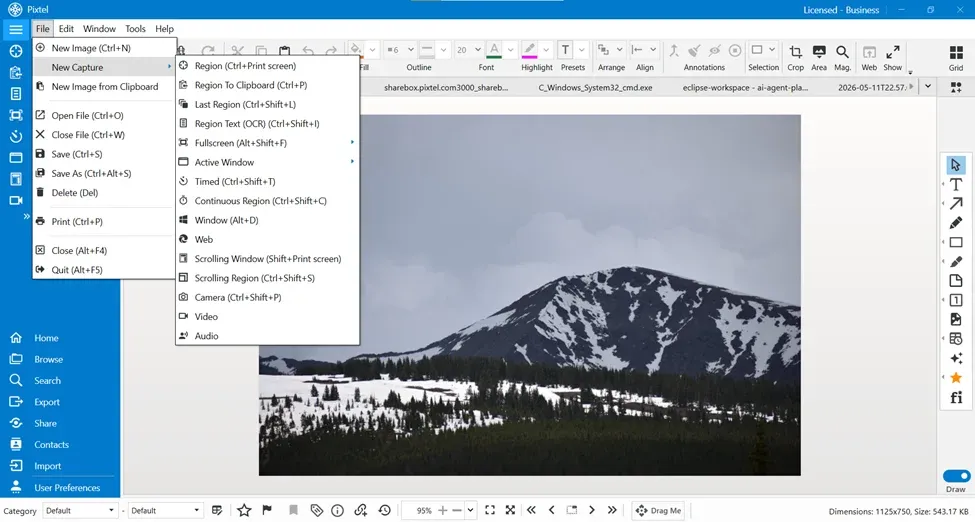
Getting started with image editing in Pixtel is simple. You can:
- Import images directly from your system
- Capture screenshots using Pixtel's built-in capture options
Once you capture or upload an image, it opens in a new Pixtel tab where you can start editing immediately.
Accessing the Image Resize Feature
To use the Image Resize feature in Pixtel:
- Switch to Image Mode
- Navigate to the image editing options
- Select Image Resize
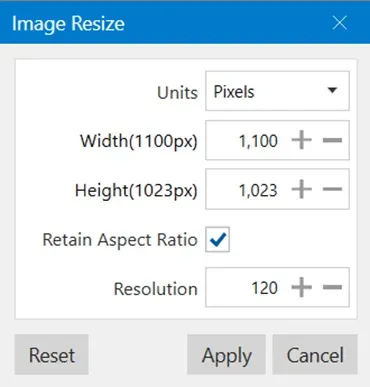
- The Image Resize dialog box opens
Users can then modify image dimensions and resize settings according to their requirements.
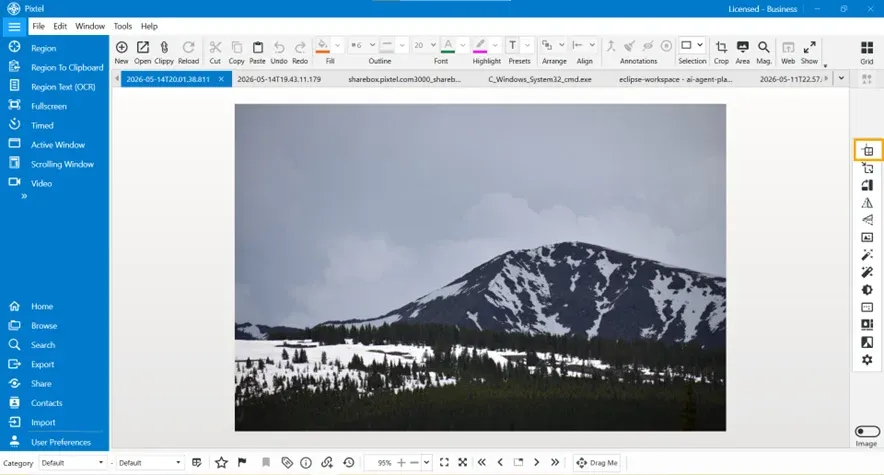
Image Resize Feature in Pixtel
The Image Resize feature helps users adjust image dimensions while maintaining visual quality and proper proportions.
This feature is useful for:
- Optimizing images for websites
- Reducing file size
- Preparing images for reports and presentations
- Adjusting dimensions for sharing
- Resizing screenshots and imported images
Units Option
Pixtel provides multiple unit options for resizing images.
Supported units include:
- Pixels
- Inches
- Millimeters
- Centimeters
This flexibility allows users to resize images according to different requirements.
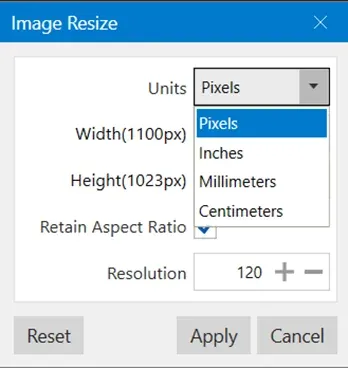
Pixels — mostly used for digital images and web content.
Inches — useful for printing purposes.
Millimeters — suitable for precise measurements.
Centimeters — commonly used for document and design requirements.
Width and Height Settings
Users can manually adjust:
- Width
- Height
These values determine the new image dimensions after resizing. Increasing values enlarges the image size, while decreasing values reduces the image dimensions.
Retain Aspect Ratio Option
Pixtel provides a Retain Aspect Ratio option that helps preserve the original proportions of the image.
Benefits of Retain Aspect Ratio:
- Prevents image distortion
- Maintains proper image proportions
- Keeps visuals natural and balanced
When enabled, changing either width or height automatically adjusts the other value proportionally. This helps avoid stretched or compressed images.
Resolution Option
The Resolution setting allows users to control image quality based on output requirements. Resolution is commonly measured in DPI (Dots Per Inch).
Higher resolution values generally provide:
- Better print quality
- Sharper image appearance
- More detailed output
Lower resolution values can:
- Reduce file size
- Improve upload speed
- Optimize web usage
Reset and Apply Buttons
The Reset button helps users quickly restore the original resize settings. Benefits include:
- Undoing unwanted changes
- Restoring default values
- Simplifying experimentation
Once the required dimensions and settings are configured, click the Apply button and the image resize changes will be applied immediately. This makes the editing process fast and simple.
Conclusion
Pixtel provides a simple and efficient way to resize images using the Image Resize feature. With multiple unit options, width and height controls, aspect ratio support, and resolution settings, users can easily resize images according to their needs without requiring advanced editing knowledge.
Combined with simple image uploading and screen capture capabilities, Pixtel helps users streamline image editing workflows and create optimized, professional-quality visuals with ease.
Related reading:
- Change Format and Resample Image Features in Pixtel →
- Resize Canvas Easily with Pixtel →
- How to Perform Image Operations in Pixtel →
Capture once and use it forever. It isn't just a tool — it's Pixtel.
'%3e%3cpath%20d='M6.49988%200.862305L0.380969%206.98121C-0.127315%207.4895%20-0.127315%208.31107%200.380969%208.81936C0.889253%209.32764%201.71083%209.32764%202.21911%208.81936L5.19992%205.83855V15.7C5.19992%2016.4176%205.781%2017%206.49988%2017C7.21875%2017%207.79984%2016.4176%207.79984%2015.7V5.83855L10.7806%208.81936C11.0341%209.07285%2011.3669%209.20024%2011.6997%209.20024C12.0325%209.20024%2012.3653%209.07285%2012.6188%208.81936C13.1271%208.31107%2013.1271%207.4895%2012.6188%206.98121L6.49988%200.862305Z'%20fill='white'/%3e%3c/g%3e%3cdefs%3e%3cclipPath%20id='clip0_1_2'%3e%3crect%20width='13.0002'%20height='16.8995'%20fill='white'%20transform='translate(-0.000244141%200.100533)'/%3e%3c/clipPath%3e%3c/defs%3e%3c/svg%3e)