

Simplify: Turn Any Screenshot into a Clean Mockup with Pixtel
Share the Layout, Not the Details
A real screenshot says too much. It shows customer names, email addresses, prices and half-finished copy. Reviewers start editing the words instead of looking at the layout. And redrawing the screen by hand in a design tool takes an hour you don't have.
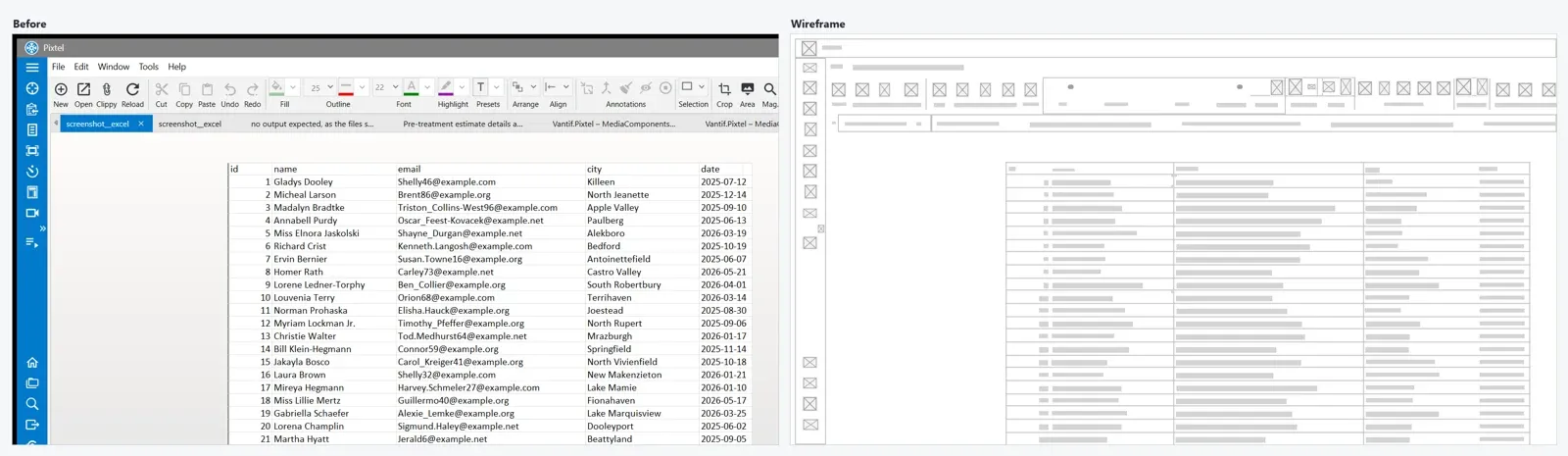
Simplify in Pixtel does it for you in one click. It reads the picture, finds every line of text, every icon and photo, every panel, box and table, and replaces them with simple shapes in the same places. You keep the structure and lose the noise.
Why It Helps
- One click instead of an hour. A full screen becomes a clean mockup in seconds, with nothing to redraw.
- Private details disappear. Names, emails, phone numbers and account numbers are covered, so the picture is safe to share.
- People look at the right thing. Without readable text, feedback is about layout, flow and hierarchy, not wording.
- Everything stays editable. Each bar, box and frame is an ordinary Pixtel annotation you can move, recolor or delete.
- It stays on your PC. The text is read with Windows' built-in text recognition, so the picture is never uploaded.
Two Looks: Bars and Wireframe
Simplify has two looks. Pick the one that fits who you are sending it to.
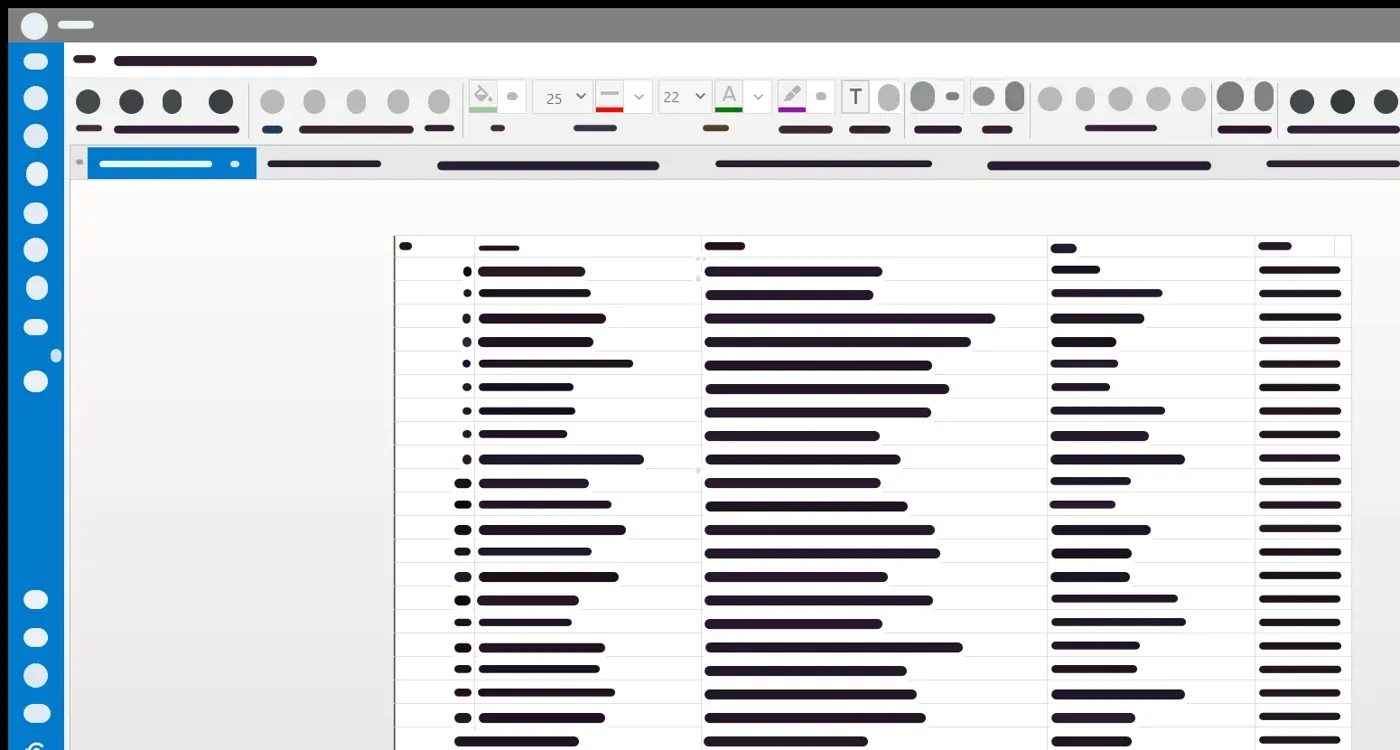
- Bars covers each line of text with a rounded bar in the text's own color, over the text's own background. The screen still looks like itself, with the words taken out.
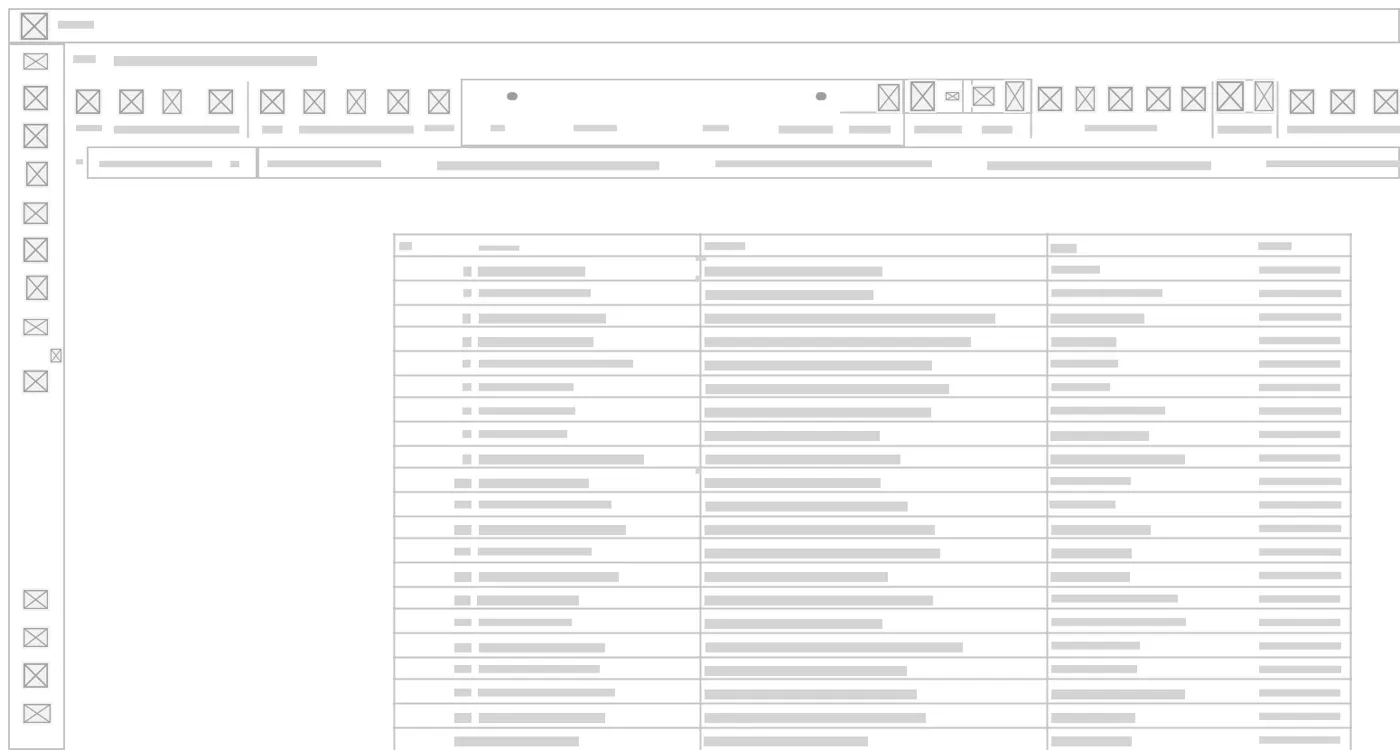
- Wireframe redraws the whole picture as a plain sketch on white: light gray bars for text (darker for headings), crossed boxes for pictures and icons, thin frames for panels, cards and buttons, and thin lines for separators and table grids.

The settings form above is a good example. With Bars, the name, email, phone number and IP address are gone, but anyone can still see it is a two-column form with three buttons. With Wireframe, it reads as a design sketch, ready to drop into a spec.
What Simplify Finds
Simplify does more than hide text. It looks at the whole screen:
- Text as words, lines or whole paragraphs. Headings are told apart from body text by their size.
- Icons and buttons, including those sitting on colored toolbars and sidebars.
- Photos, from product shots on a white page to wide advertising banners, each as one block.
- Panels and cards, whether filled with a color or a gradient, or drawn as a thin outline.
- Separators and tables. In a wireframe, the lines between sections and a table's rows and columns are drawn as thin gray lines, so a spreadsheet still looks like a spreadsheet.
- Bullets, drawn as small dots rather than boxes.
Simplify a Screenshot
Step 1: Open Simplify
- Open the picture in the Pixtel editor.
- Click Simplify on the toolbar under the picture. Pixtel reads the text and shows a preview.
Step 2: Choose the look
- Look: Bars or Wireframe.
- Bars for: Each word, Each line or Each paragraph. For paragraphs, Detail sets how close lines must be to join into one block.
- Bar shape: Rounded or Square, with Outline only to draw just the edge. Wireframe picks Square for you.
- Colors (Bars only): Match the text, Grays, One color, or a palette such as Blues, Pastels or Warm colors.
- Cover icons and pictures too adds a block over each icon, button and photo. A wireframe always does.
- Leave headings as they are keeps the headings readable. In a wireframe they are written out as plain text, so the sketch keeps its titles.
Step 3: Fine-tune the preview
- Click a bar to leave that text as it is, for example a page title or a button label you want people to read. Click it again to put the bar back.
- In a wireframe, click a crossed box to leave it out.
Step 4: Apply
- Click Simplify. The bars, boxes and frames are added to the picture as annotations, in one undo step.
Draw a Bar by Hand
If Simplify missed a bit of text, draw a bar over it yourself:
- Right-click the Highlight & Erase tool on the Draw tab and choose Simplify.
- Drag over the text. The bar shrinks to fit the text and takes its colors from the picture, or the wireframe's gray on a wireframe.
Make It Part of a Routine
Doing the same thing every week? Add a Simplify step to a Pixtel Routine, with the look and choices you want. Every capture that runs through the routine comes out simplified, ready to paste into a status report or a ticket.
How It Helps Product and Project Managers
Product and project managers share screens all day: in specs, roadmaps, sprint reviews, stakeholder updates and vendor calls. Simplify turns the screenshot you already have into the picture you actually need.
- Specs and PRDs. Capture the current screen, run Wireframe, and you have a "before" sketch to mark up with arrows and notes. No design tool, no waiting for a designer.
- Roadmaps and early concepts. A wireframe says "this is the idea, not the final design." It keeps the discussion on layout and flow instead of pixel-perfect polish.
- Stakeholder and executive updates. Show what shipped without exposing customer records or internal numbers. Bars keep the screen recognizable while the data stays private.
- Reviews with outside partners. Agencies, contractors and vendors can see the structure of an internal tool or admin page without seeing your data.
- Competitor and market teardowns. Simplify a competitor's page to compare layouts side by side, without their copy and branding pulling attention.
- Training and onboarding material. Show where things are on a screen without tying the guide to data that will change next week.
- Faster feedback. When the words are gone, reviewers comment on what you asked about: hierarchy, spacing, what's missing.
- Repeatable status reports. A Routine with a Simplify step turns a weekly capture into a ready-to-share picture with no extra work.
Good to Know
- Bars are annotations. You can move, resize, recolor or delete any of them, and select them all at once from the Properties panel.
- Before sharing a Pixtel file, burn them in. Tick Burn into the picture to draw the bars into the image itself, so the hidden text is no longer in the file. Exported PNG and JPEG files are always flattened.
- Lock the bars in place so they don't move while you annotate on top.
- Hide them for a moment with the eye button at the top of the editor, which shows the picture under all annotations.
Tips
- Use Each paragraph for long articles and Each line for forms and tables.
- For a spec, run Wireframe with Leave headings as they are, then add arrows and Counters to explain the changes.
- Combine Simplify with Spotlight to dim everything except the part you are discussing.
✨ Capture once. Use it forever. It isn't just a tool—it's Pixtel.
🎯 Try Pixtel today and turn any screenshot into a mockup in one click.
Call-to-Action
Download Pixtel · Read Detailed Documentation
Related reading:
'%3e%3cpath%20d='M6.49988%200.862305L0.380969%206.98121C-0.127315%207.4895%20-0.127315%208.31107%200.380969%208.81936C0.889253%209.32764%201.71083%209.32764%202.21911%208.81936L5.19992%205.83855V15.7C5.19992%2016.4176%205.781%2017%206.49988%2017C7.21875%2017%207.79984%2016.4176%207.79984%2015.7V5.83855L10.7806%208.81936C11.0341%209.07285%2011.3669%209.20024%2011.6997%209.20024C12.0325%209.20024%2012.3653%209.07285%2012.6188%208.81936C13.1271%208.31107%2013.1271%207.4895%2012.6188%206.98121L6.49988%200.862305Z'%20fill='white'/%3e%3c/g%3e%3cdefs%3e%3cclipPath%20id='clip0_1_2'%3e%3crect%20width='13.0002'%20height='16.8995'%20fill='white'%20transform='translate(-0.000244141%200.100533)'/%3e%3c/clipPath%3e%3c/defs%3e%3c/svg%3e)