

Image Filters in Pixtel for Quick and Easy Editing
Editing images in different styles usually requires advanced tools like Photoshop and a good amount of skill. From enhancing details to applying complex visual transformations, traditional editing can be time-consuming and technical.
Pixtel simplifies this entire process. With built-in image filters, you can quickly enhance and modify images in just a few clicks — no design expertise required. Whether you’re working on screenshots or imported images, Pixtel makes editing fast and efficient.
How to Upload Images in Pixtel?
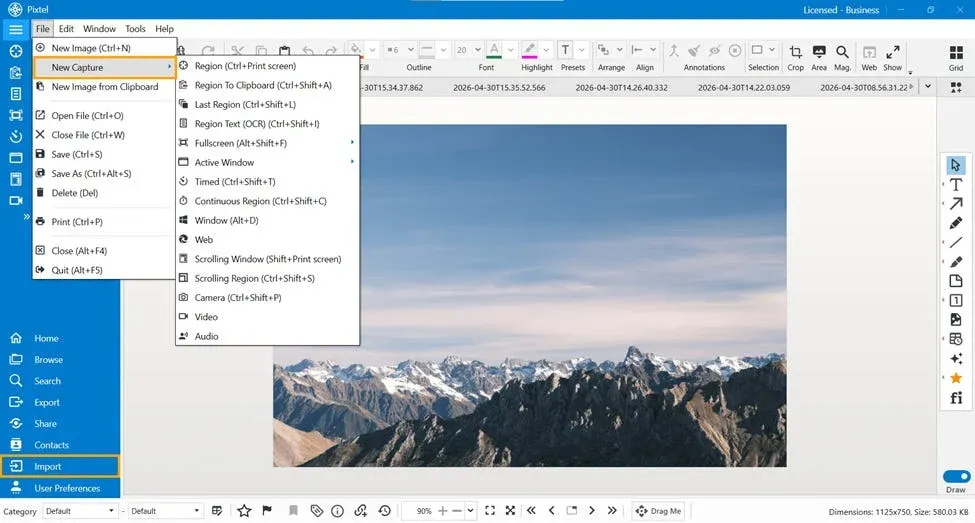
Getting started with image editing in Pixtel is simple. You can:
- Import images directly from your system
- Capture screenshots using Pixtel’s built-in capture options
Once you capture or upload an image, it opens in a a new Pixtel tab where you can start editing immediately.
Accessing Image Filters
To use image filters:
- Switch to Image Mode
- Navigate to the Image Filters option
- Click to open the filters panel
Pixtel provides multiple filters that can be applied instantly to improve or transform your images.
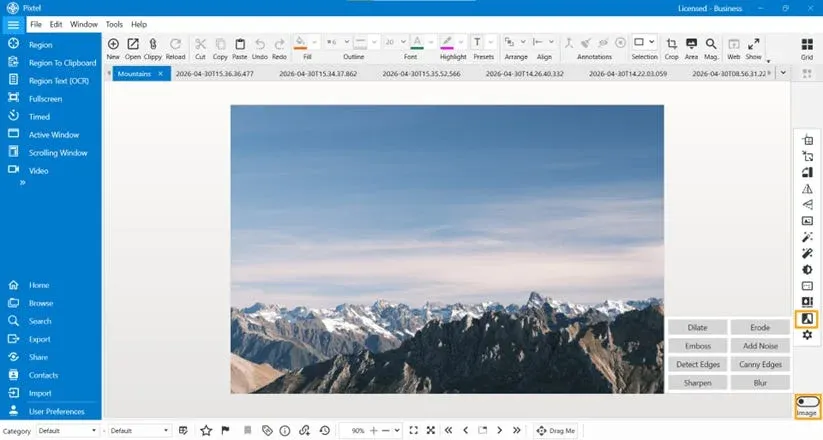
Image Filters in Pixtel
Detect Edges
Detect Edges helps identify the boundaries within an image by highlighting the edges. It works well on both colored and grayscale images, making shapes and outlines more visible.Best for: Understanding object structure and emphasizing outlines.

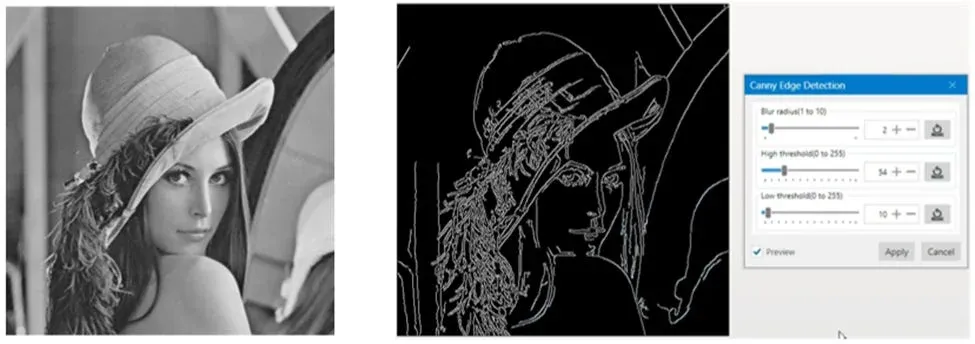
Canny Edge
Canny Edge is an advanced edge detection filter that provides more accurate and refined results. Before applying this filter, the image must be converted into Grayscale (8-bpp) using the Change Format option. If not, the application will show an error.Best for: Precise edge detection and detailed analysis.
Sharpen
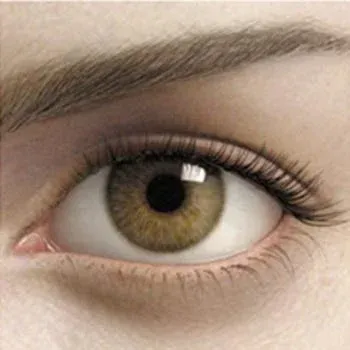
Sharpen improves the clarity of an image by enhancing edges and fine details. It is commonly used to fix slightly blurred images and make them look clearer.Best for: Improving image quality and restoring sharpness.
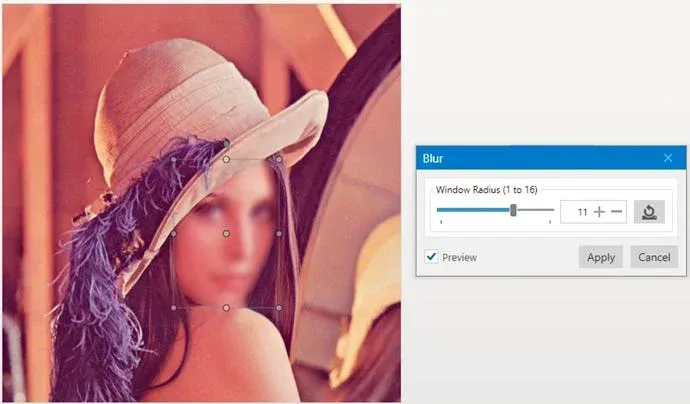
Blur
Blur softens the image by reducing detail and sharpness. It can be applied to the entire image or specific selected areas, such as hiding sensitive parts of an image.Best for: Reducing noise, background effects, or hiding details.
Why Use Pixtel for Image Filters?
Pixtel removes the complexity of traditional editing tools by providing ready-to-use filters.
- No technical skills required
- Quick and easy to use
- Multiple filters available in one place
- Perfect for screenshots and quick edits
With these additional filters like Detect Edges, Canny Edge, Sharpen, and Blur, Pixtel provides even more flexibility for image editing. Whether you want to highlight details, improve clarity, or hide information, these filters make it quick and easy.
Combined with the earlier filters, Pixtel offers a complete set of tools to enhance your images without needing advanced software.
Related reading:
- Image Filters in Pixtel: Enhance Images Effortlessly →
- Enhance Your Images Effortlessly with Pixtel Image Effects →
- Image Effects in Pixtel: Advanced Effects Made Simple →
Capture once and use it forever. It isn’t just a tool — it’s Pixtel.
👉 Download Pixtel · 🎥 Follow us on YouTube · 📘 Read Detailed Documentation
'%3e%3cpath%20d='M6.49988%200.862305L0.380969%206.98121C-0.127315%207.4895%20-0.127315%208.31107%200.380969%208.81936C0.889253%209.32764%201.71083%209.32764%202.21911%208.81936L5.19992%205.83855V15.7C5.19992%2016.4176%205.781%2017%206.49988%2017C7.21875%2017%207.79984%2016.4176%207.79984%2015.7V5.83855L10.7806%208.81936C11.0341%209.07285%2011.3669%209.20024%2011.6997%209.20024C12.0325%209.20024%2012.3653%209.07285%2012.6188%208.81936C13.1271%208.31107%2013.1271%207.4895%2012.6188%206.98121L6.49988%200.862305Z'%20fill='white'/%3e%3c/g%3e%3cdefs%3e%3cclipPath%20id='clip0_1_2'%3e%3crect%20width='13.0002'%20height='16.8995'%20fill='white'%20transform='translate(-0.000244141%200.100533)'/%3e%3c/clipPath%3e%3c/defs%3e%3c/svg%3e)