

Image Filters in Pixtel: Enhance Images Effortlessly
Editing images in different styles usually requires advanced tools like Photoshop and a good amount of skill. From enhancing details to applying complex visual transformations, traditional editing can be time-consuming and technical.
Pixtel simplifies this entire process. With built-in image filters, you can quickly enhance and modify images in just a few clicks — no design expertise required. Whether you’re working on screenshots or imported images, Pixtel makes editing fast and efficient.
How to Upload Images in Pixtel?
Getting started with image editing in Pixtel is simple. You can:
- Import images directly from your system
- Capture screenshots using Pixtel’s built-in capture options
Once you capture or upload an image, it opens in a a new Pixtel tab where you can start editing immediately.
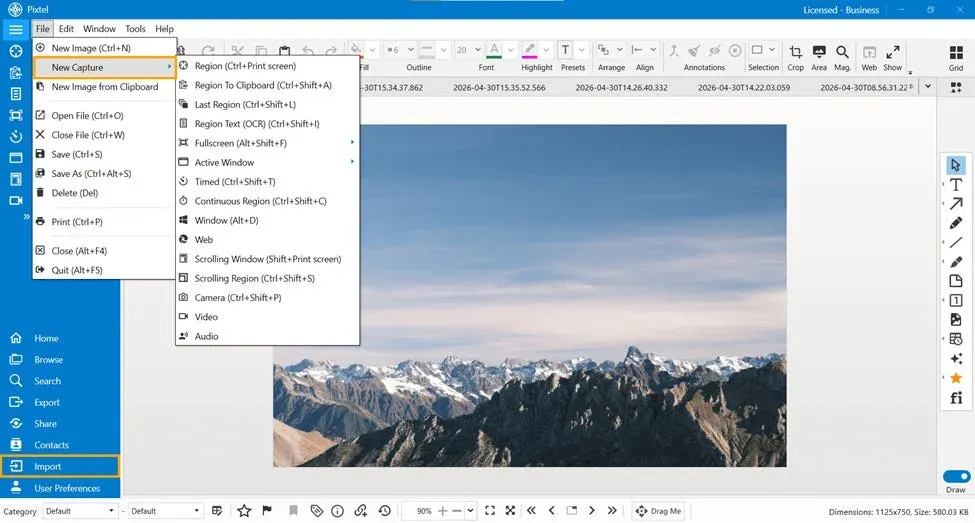
Accessing Image Filters
To use image filters:
- Switch to Image Mode
- Navigate to the Image Filters option
- Click to open the filters panel
Pixtel provides multiple filters that can be applied instantly to improve or transform your images.
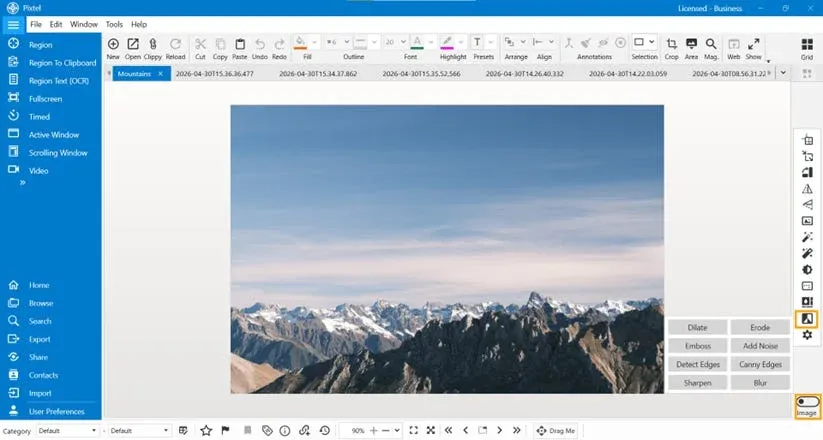
Image Filters in Pixtel
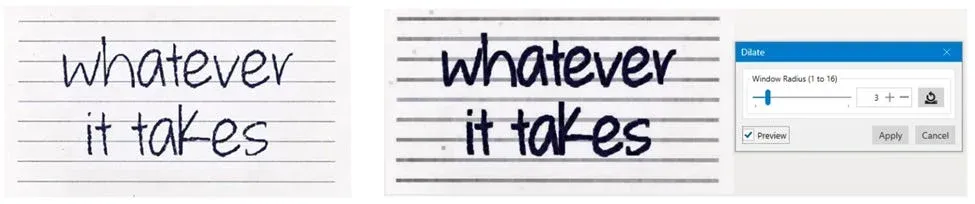
Dilate
Dilate expands or thickens features in an image or a selected region. It is especially useful for enhancing details like handwritten text or thin lines.Best for: Highlighting and strengthening image features.
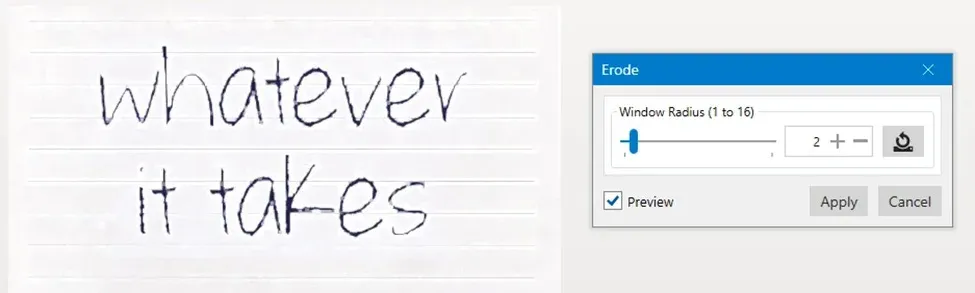
Erode
Erode reduces or shrinks features in an image. It works opposite to Dilate and helps in minimizing details.Best for: Cleaning up images or reducing unwanted elements.
Emboss
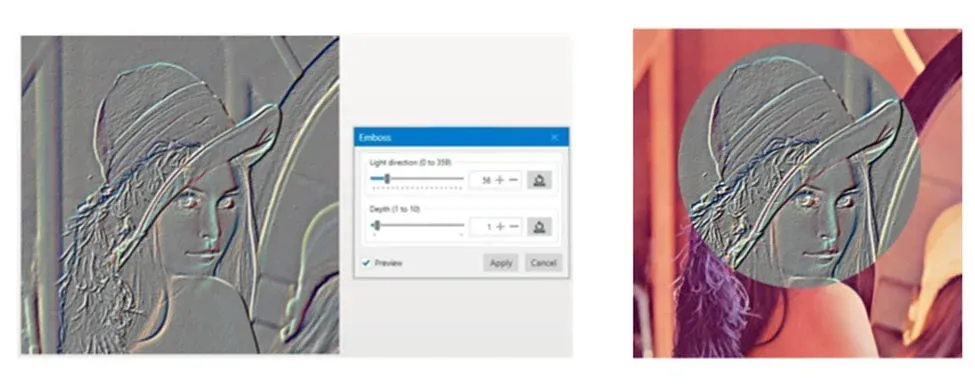
Emboss gives the image a raised or 3D metallic look by replacing pixels with highlights and shadows. It can be applied to the full image or selected areas.Best for: Creating artistic and textured effects.
Add Noise
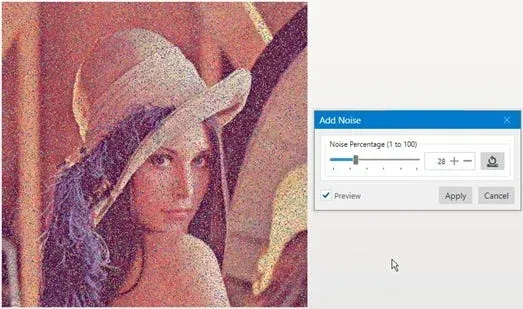
Add Noise introduces random variations into the image. You can control the noise percentage to achieve subtle or strong grain effects.Best for: Adding texture or simulating grainy visuals.
Why Use Pixtel for Image Filters?
Pixtel removes the complexity of traditional editing tools by providing ready-to-use filters.
- No technical skills required
- Quick and easy to use
- Multiple filters available in one place
- Perfect for screenshots and quick edits
Pixtel makes image editing simple and efficient. With filters like Dilate, Erode, Emboss, and Add Noise, you can enhance and transform images effortlessly.
These tools help you achieve better visuals without needing advanced software, making Pixtel a powerful solution for everyday image editing.
Related reading:
- Image Filters in Pixtel for Quick and Easy Editing →
- Image Effects in Pixtel: Edit Images Instantly Without Photoshop →
- Color Effects in Pixtel: Easily Transform Image Colors →
Capture once and use it forever. It isn’t just a tool — it’s Pixtel.
👉 Download Pixtel · 🎥 Follow us on YouTube · 📘 Read Detailed Documentation
'%3e%3cpath%20d='M6.49988%200.862305L0.380969%206.98121C-0.127315%207.4895%20-0.127315%208.31107%200.380969%208.81936C0.889253%209.32764%201.71083%209.32764%202.21911%208.81936L5.19992%205.83855V15.7C5.19992%2016.4176%205.781%2017%206.49988%2017C7.21875%2017%207.79984%2016.4176%207.79984%2015.7V5.83855L10.7806%208.81936C11.0341%209.07285%2011.3669%209.20024%2011.6997%209.20024C12.0325%209.20024%2012.3653%209.07285%2012.6188%208.81936C13.1271%208.31107%2013.1271%207.4895%2012.6188%206.98121L6.49988%200.862305Z'%20fill='white'/%3e%3c/g%3e%3cdefs%3e%3cclipPath%20id='clip0_1_2'%3e%3crect%20width='13.0002'%20height='16.8995'%20fill='white'%20transform='translate(-0.000244141%200.100533)'/%3e%3c/clipPath%3e%3c/defs%3e%3c/svg%3e)