

Image Effects in Pixtel: Edit Images Instantly Without Photoshop
Editing images in different styles usually requires advanced tools like Photoshop and a good amount of skill. From adding shadows to applying artistic filters, traditional editing can be time-consuming and complex.
Pixtel simplifies this entire process. With built-in image effects, you can transform your images in just a few clicks — no design expertise required. Whether you’re enhancing screenshots or styling imported images, Pixtel provides quick and effective editing options.
How to Upload Images in Pixtel?
Getting started with image editing in Pixtel is simple. You can:
- Import images directly from your system
- Capture screenshots using Pixtel’s built-in capture options
Once you capture or upload an image, it automatically opens in a new Pixtel tab. From there, you can begin editing immediately.
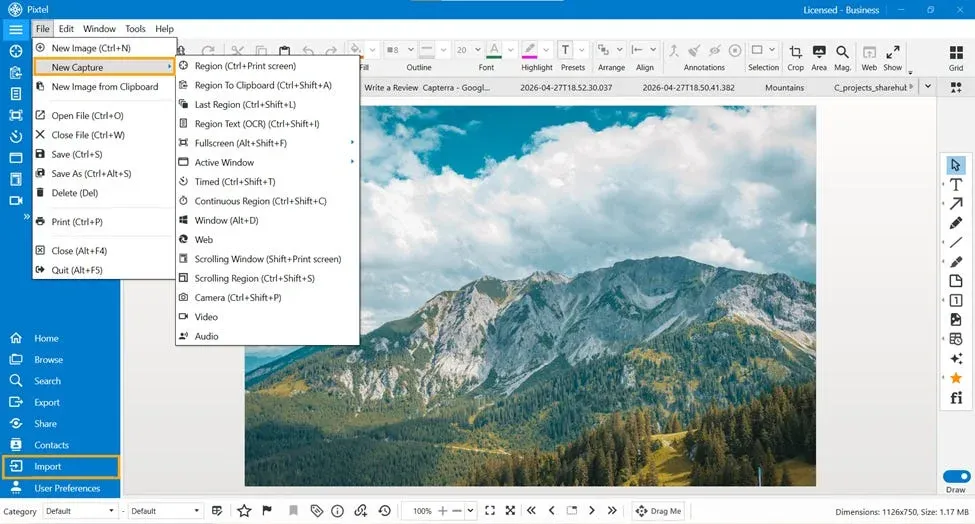
Accessing Image Effects
To use image effects:
- Switch to Image Mode
- Navigate to the Image Effects option
- Click on it to open a panel with multiple effect options
Pixtel supports a wide range of effects that can instantly change the look and feel of your image.
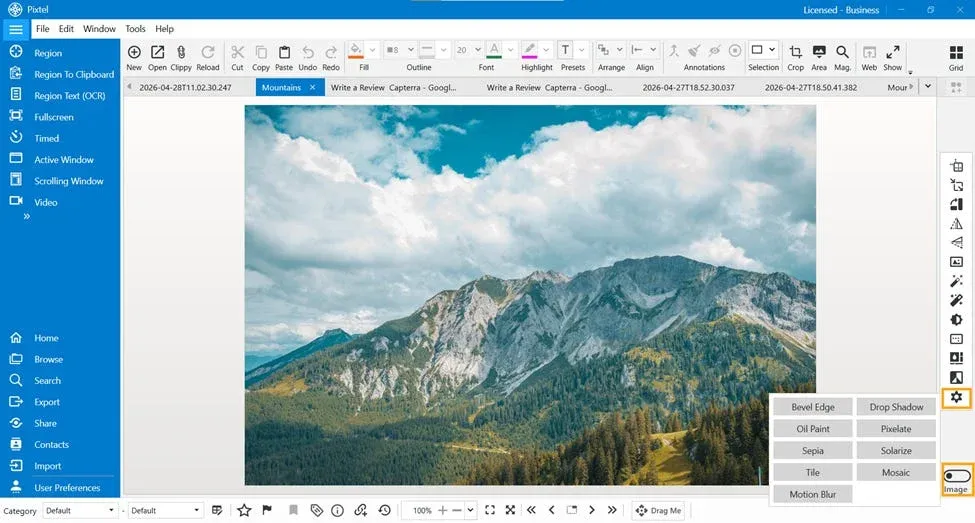
Image Effects in Pixtel
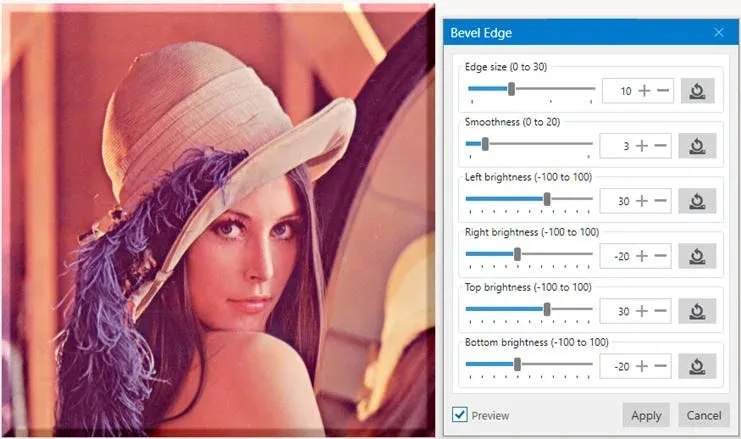
1. Bevel Edge
This effect adds a raised or 3D-like border around your image. It gives a polished and slightly embossed look. You can adjust parameters like depth and smoothness to control the appearance.Best for: Highlighting images or giving them a framed look.
2. Drop Shadow
Drop Shadow adds a shadow behind the image, creating a sense of depth. You can control shadow position, blur, and opacity to match your design needs.Best for: Making images stand out on presentations or documents.
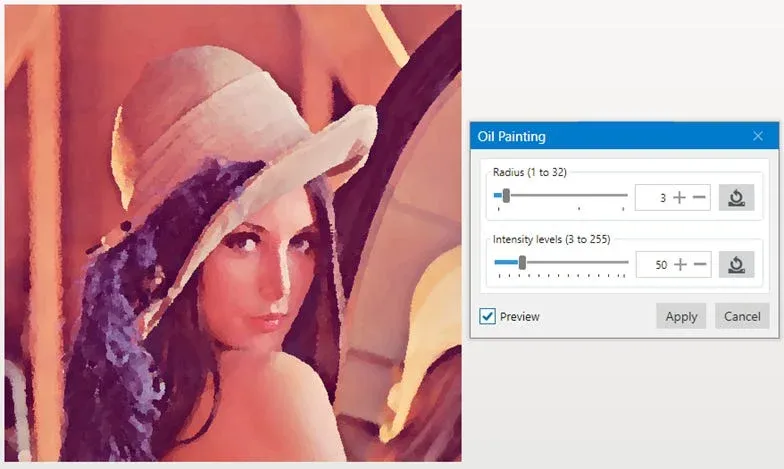
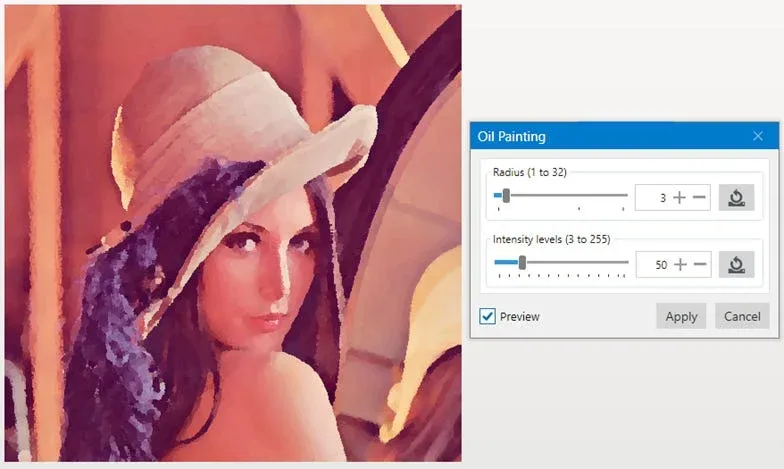
3. Oil Paint
This effect transforms your image into a painting-style visual. You can adjust radius and intensity to control how artistic the output looks.Best for: Creative visuals and stylized content.
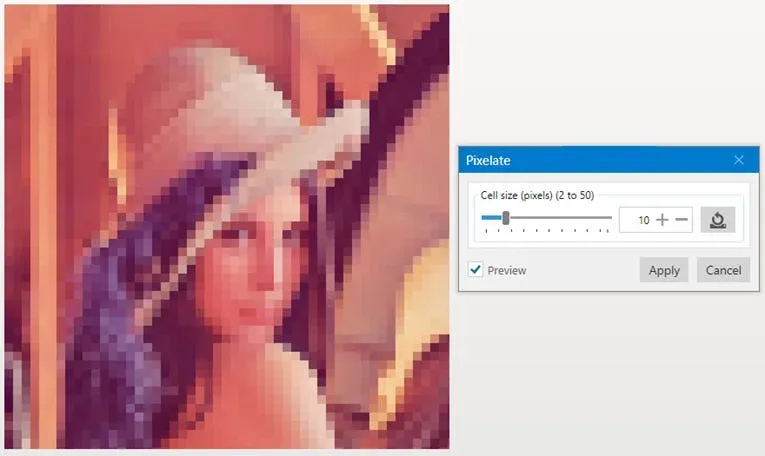
4. Pixelate
Pixelate reduces image clarity by enlarging pixels, effectively hiding details.Best for: Blurring sensitive information or creating a retro effect.
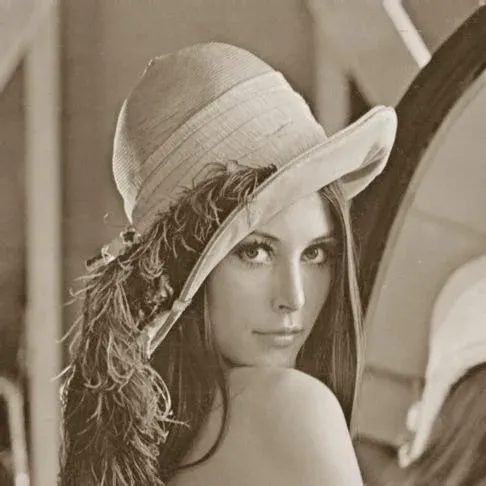
5. Sepia
Sepia converts your image into a warm brown tone, giving it a vintage feel.Best for: Classic or old-style visuals.
Why Use Pixtel for Image Effects?
Pixtel removes the complexity of traditional image editing tools. Instead of spending time learning advanced software, you can apply professional-looking effects instantly.
- No technical skills required
- Quick and easy interface
- Multiple effects in one place
- Perfect for screenshots and quick edits
Pixtel makes image editing simple, fast, and accessible. With just a few clicks, you can apply powerful effects like Bevel Edge, Drop Shadow, Oil Paint, Pixelate, and Sepia without needing advanced tools.
If you regularly work with images or screenshots, Pixtel’s image effects can save time while still delivering great results.
Related reading:
- Image Effects in Pixtel: Advanced Effects Made Simple →
- Enhance Your Images Effortlessly with Pixtel Image Effects →
- Color Effects in Pixtel: Easily Transform Image Colors →
Capture once and use it forever. It isn’t just a tool — it’s Pixtel.
👉 Download Pixtel · 🎥 Follow us on YouTube · 📘 Read Detailed Documentation
'%3e%3cpath%20d='M6.49988%200.862305L0.380969%206.98121C-0.127315%207.4895%20-0.127315%208.31107%200.380969%208.81936C0.889253%209.32764%201.71083%209.32764%202.21911%208.81936L5.19992%205.83855V15.7C5.19992%2016.4176%205.781%2017%206.49988%2017C7.21875%2017%207.79984%2016.4176%207.79984%2015.7V5.83855L10.7806%208.81936C11.0341%209.07285%2011.3669%209.20024%2011.6997%209.20024C12.0325%209.20024%2012.3653%209.07285%2012.6188%208.81936C13.1271%208.31107%2013.1271%207.4895%2012.6188%206.98121L6.49988%200.862305Z'%20fill='white'/%3e%3c/g%3e%3cdefs%3e%3cclipPath%20id='clip0_1_2'%3e%3crect%20width='13.0002'%20height='16.8995'%20fill='white'%20transform='translate(-0.000244141%200.100533)'/%3e%3c/clipPath%3e%3c/defs%3e%3c/svg%3e)