

How to Capture a Scrolling Window Using Pixtel — Complete Guide
Capturing long webpages, extensive PDFs, or continuous chat threads can be time-consuming if you rely on multiple screenshots. With Pixtel Capture, you can automatically capture full-page content in seconds. In this guide, we’ll show you how to capture scrolling windows, configure settings, use shortcut keys, and revisit the original website directly from your screenshot
What is Scrolling Window Capture?
Scrolling window capture allows you to screenshot the entire contents of a window, whether it’s a long webpage, PDF, or chat. Pixtel automates scrolling and stitching, producing a single seamless screenshot without extra effort.
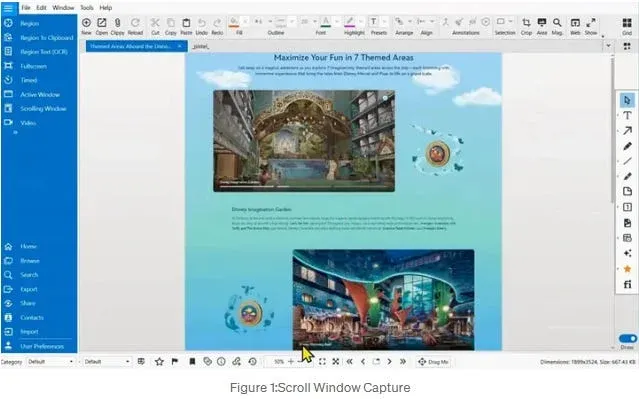
📹Watch the tutorial: https://youtu.be/yXXNOlsLrAk
How to Capture a Scrolling Window Using Pixtel
Step 1: Select the Capture Area
- Open Pixtel and choose Scrolling Window Capture from the home bar.
- Navigate to the webpage or document you want to capture.
Step 2: Start the Capture
- Click on the window.
- Pixtel automatically scrolls and captures the full content into one continuous screenshot.
Step 3: Edit and Enhance the Capture
- Use Pixtel’s tools to edit, annotate, highlight, or crop your screenshot.
- Export your screenshot in your preferred format (PNG, JPG, PDF).
Configure Maximum Page Size
If you need to limit the size of your screenshot
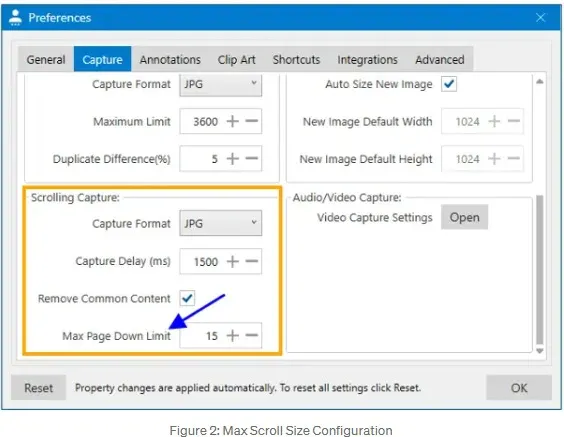
- Open User Preferences in Pixtel.
- Go to Capture → Scrolling Capture → Max Page Down Limit.
- Set your desired limit. Pixtel will stop capturing automatically once it is reached.
Stop Scrolling Capture Midway
If you want to interrupt the capture:
- Press Esc during the process.
- Pixtel will save the screenshot up to that point automatically.
Capture Using Shortcut Keys
Avoid switching between apps:
- Ensure Pixtel is running in the background.
- Navigate to the window or area you want to capture.
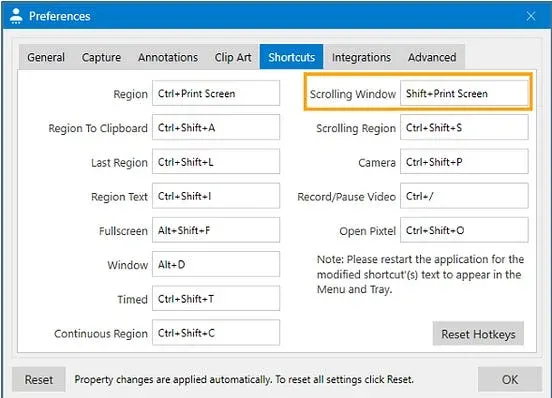
- Press Shift + PrtScr to start the scrolling window capture.
- To customize the shortcut: Go to User Preferences → Shortcuts, select your preferred key combination, and click OK.
Revisit the Original Website from Captured Image
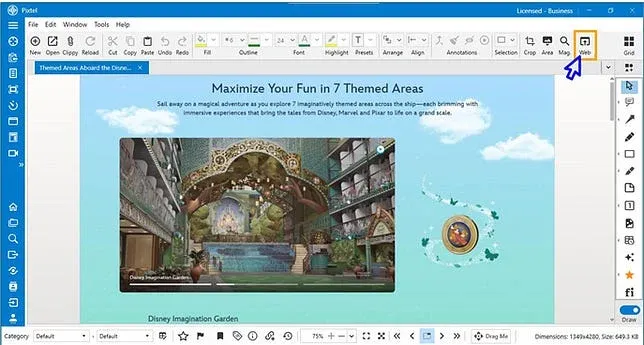
- Pixtel automatically saves the original webpage URL in the screenshot metadata.
- Open your captured image → click the Web option in the toolbar → Pixtel opens the original webpage in your browser.
Pixtel makes scrolling screenshot capture fast, precise, and seamless. With shortcut keys, configurable page limits, and saved webpage URLs, documenting full-page content is effortless. Spot it. Snap it. Just Pixtel it.
Related reading:
- How to Capture Scrolling Region Using Pixtel →
- How to Capture a Web Page Using Pixtel →
- Window Capture in Pixtel: Capture Only What You're Working On →
Capture once and use it forever. It isn’t just a tool — it’s Pixtel.
👉 Download Pixtel · 🎥 Follow us on YouTube · 📘 Read Detailed Documentation
'%3e%3cpath%20d='M6.49988%200.862305L0.380969%206.98121C-0.127315%207.4895%20-0.127315%208.31107%200.380969%208.81936C0.889253%209.32764%201.71083%209.32764%202.21911%208.81936L5.19992%205.83855V15.7C5.19992%2016.4176%205.781%2017%206.49988%2017C7.21875%2017%207.79984%2016.4176%207.79984%2015.7V5.83855L10.7806%208.81936C11.0341%209.07285%2011.3669%209.20024%2011.6997%209.20024C12.0325%209.20024%2012.3653%209.07285%2012.6188%208.81936C13.1271%208.31107%2013.1271%207.4895%2012.6188%206.98121L6.49988%200.862305Z'%20fill='white'/%3e%3c/g%3e%3cdefs%3e%3cclipPath%20id='clip0_1_2'%3e%3crect%20width='13.0002'%20height='16.8995'%20fill='white'%20transform='translate(-0.000244141%200.100533)'/%3e%3c/clipPath%3e%3c/defs%3e%3c/svg%3e)