

How Many Ways Are Available to Upload or Add Files into Pixtel
When working with images or visual content, we often need to edit, annotate, or share screenshots quickly. Instead of opening another application or manually importing files, Pixtel provides multiple ways to capture or upload images directly into the editor.
Whether you want to take a screenshot, capture a scrolling page, record video, or import an existing file, Pixtel makes the process simple and fast.
Let’s explore all the ways you can add files into Pixtel.
1. Capture Screenshots Using Pixtel Capture Modes
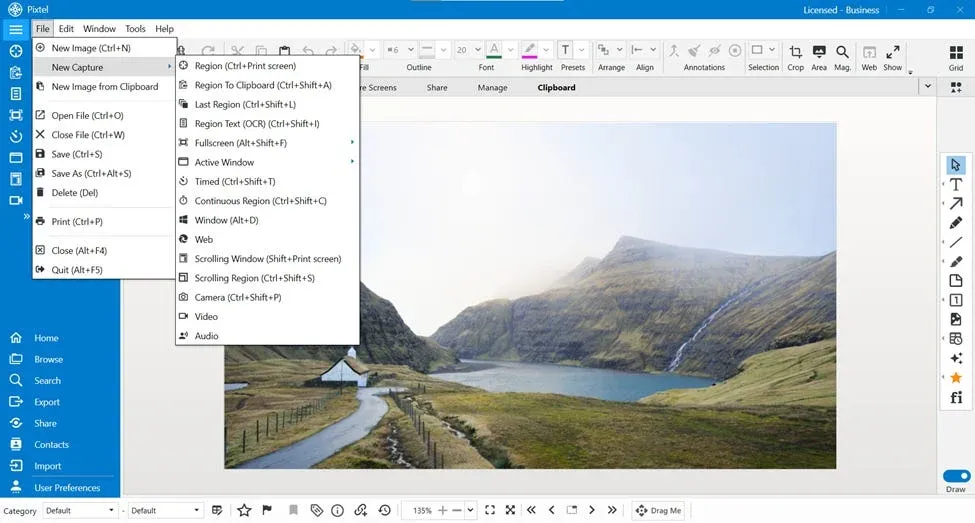
One of the easiest ways to add an image into Pixtel is by capturing it directly using the available capture modes. Once captured, the image automatically opens in a new Pixtel tab where you can edit, annotate, or share it.
Pixtel provides several capture options depending on your needs.
Available Capture Modes in Pixtel
• Region (Ctrl + Print Screen) Capture a selected area of your screen.
• Region to Clipboard (Ctrl + Shift + A) Capture a selected region and copy it directly to the clipboard.
• Last Region (Ctrl + Shift + L) Quickly capture the previously selected region again.
• Region Text (OCR) (Ctrl + Shift + I) Capture a region and extract text from the image using OCR.
• Fullscreen (Alt + Shift + F) Capture the entire screen in one click.
• Active Window Capture only the currently active application window.
• Timed Capture (Ctrl + Shift + T) Capture the screen after a delay.
• Continuous Region (Ctrl + Shift + C) Capture multiple screenshots continuously within the same region.
• Window (Alt + D) Select and capture a specific window.
• Web Capture Capture web page content.
• Scrolling Window (Shift + Print Screen) Capture the entire scrolling window.
• Scrolling Region (Ctrl + Shift + S) Capture a scrolling portion of the screen.
• Camera (Ctrl + Shift + P) Capture an image using your device camera.
• Video Capture Record screen activity as a video.
• Audio Capture Record audio directly within Pixtel.
All captured files automatically open inside the Pixtel editor for further editing or sharing.
2. Import Images from Your System
If you already have images saved on your computer, you can easily import them into Pixtel.
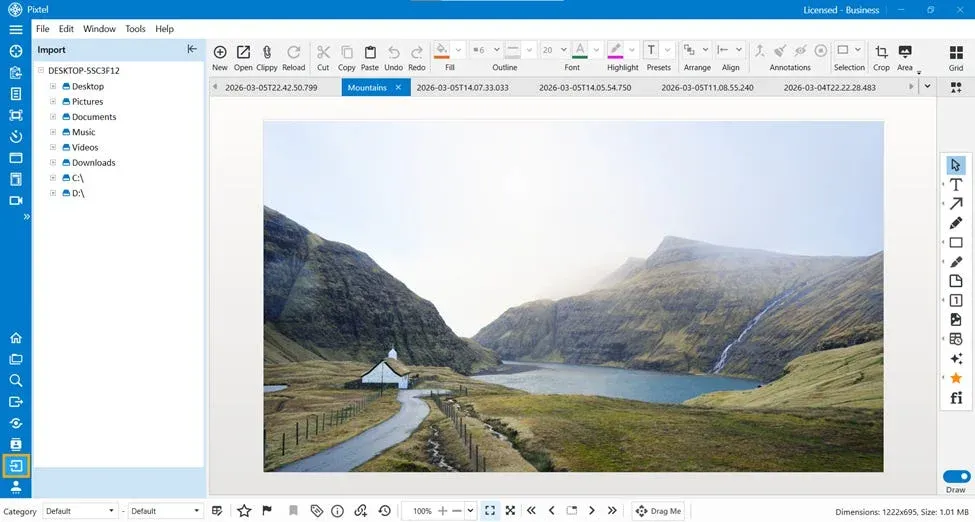
Steps to Import Files
- Open Pixtel.
- Click Import from the Home Bar.
- Your system drives will open.
- Select the image you want to upload.
The selected image will open in a new Pixtel editing tab, ready for editing or sharing.
3. Open Files from the Toolbar
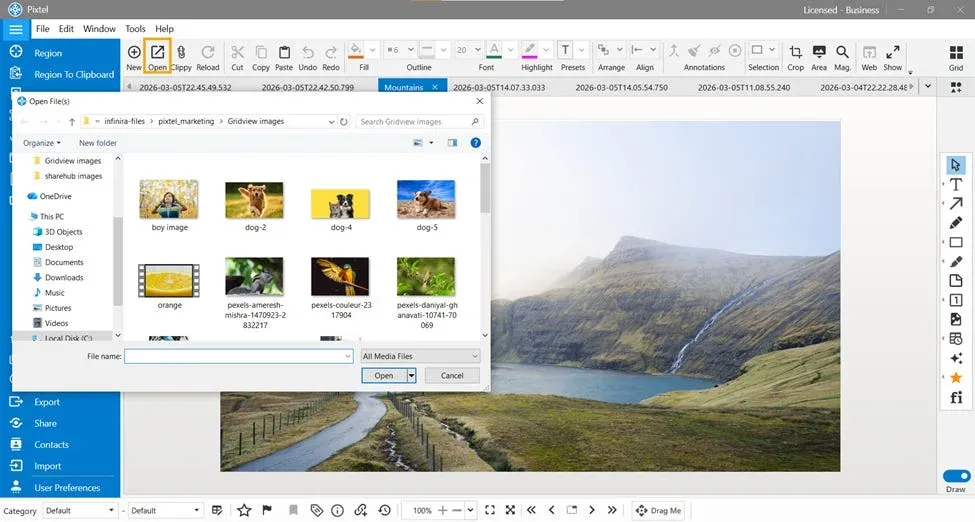
Another quick method is using the Open icon from the Pixtel toolbar.
Steps
- Click the Open icon in the toolbar.
- Browse your system files.
- Select the image you want to open.
The file will load directly into the Pixtel editor workspace.
Pixtel provides multiple flexible ways to upload or add files, making it easy to start editing instantly. You can either capture new screenshots using various capture modes or import existing images from your system.
With these options, Pixtel ensures that capturing, editing, and sharing visual content is fast, simple, and efficient.
Related reading:
- Copy & Paste Images into Pixtel — No Download Needed →
- How to Import and Export Captures in One Place with Pixtel →
- From Screenshot to Cloud: Uploading to Dropbox with Pixtel →
Capture once and use it forever. It isn’t just a tool — it’s Pixtel.
👉 Download Pixtel · 🎥 Follow us on YouTube · 📘 Read Detailed Documentation
'%3e%3cpath%20d='M6.49988%200.862305L0.380969%206.98121C-0.127315%207.4895%20-0.127315%208.31107%200.380969%208.81936C0.889253%209.32764%201.71083%209.32764%202.21911%208.81936L5.19992%205.83855V15.7C5.19992%2016.4176%205.781%2017%206.49988%2017C7.21875%2017%207.79984%2016.4176%207.79984%2015.7V5.83855L10.7806%208.81936C11.0341%209.07285%2011.3669%209.20024%2011.6997%209.20024C12.0325%209.20024%2012.3653%209.07285%2012.6188%208.81936C13.1271%208.31107%2013.1271%207.4895%2012.6188%206.98121L6.49988%200.862305Z'%20fill='white'/%3e%3c/g%3e%3cdefs%3e%3cclipPath%20id='clip0_1_2'%3e%3crect%20width='13.0002'%20height='16.8995'%20fill='white'%20transform='translate(-0.000244141%200.100533)'/%3e%3c/clipPath%3e%3c/defs%3e%3c/svg%3e)