

The QA Engineer's Playbook: Documenting Bugs Visually with Pixtel
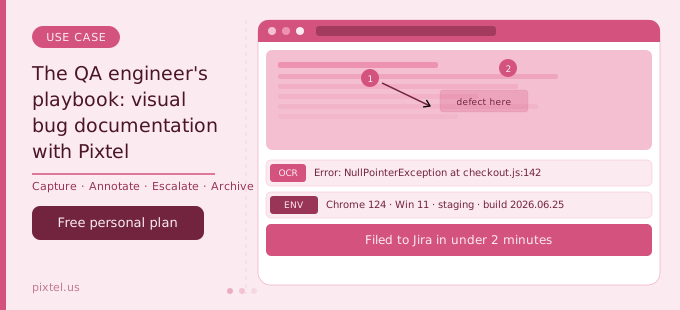
The visual quality of bug documentation directly affects resolution speed. A report with a precisely captured defect, numbered reproduction steps annotated on the image, extracted error codes, and a sticky note recording the environment details is one a developer can act on immediately. The difference between these two outcomes isn't QA skill — it's tooling. Most QA engineers use whatever screenshot utility is on their system, open a separate image editor to annotate, save the file, navigate to Jira, create the ticket, and attach the file. Each handoff in that chain introduces friction and encourages shortcuts. The annotation gets skipped. The environment details get left out. The reproduction path isn't numbered.
Pixtel closes that chain. Capture, annotation, OCR, and Jira upload happen in a single persistent workspace, without exiting the tool. This playbook covers how QA engineers use Pixtel across the full span of their work — not just for bug capture, but for acceptance testing evidence, regression documentation, and building a sprint QA library that serves the whole team.
Matching the capture mode to the bug type
Not every bug looks the same, and not every capture mode serves every bug type equally well. Using the right mode from the start produces a cleaner, more complete capture and saves annotation time.
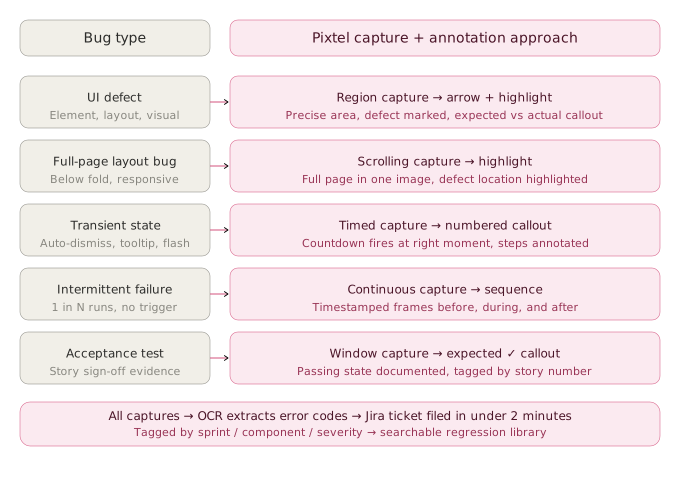
Region capture for UI defects
Most visual bugs live in a specific element: a misaligned button, an incorrectly rendered label, an input field that accepts invalid data. For these, region capture is the right tool. Pixtel's region capture uses a precision crosshair with a magnifier for pixel-level selection, snapping to window edges automatically on hover.
The goal is to select the affected element with enough surrounding context to make the application state legible — enough to show which panel it's in, what the adjacent controls are, and what state the rest of the UI is in — without including unrelated screen content that adds noise. A tightly cropped region capture immediately tells the developer where to look without requiring them to orient themselves in a full-screen dump.
Scrolling capture for full-page and layout bugs
Layout issues frequently don't fit within a single viewport. A responsive design break that only appears below the fold, a form that renders correctly at the top but has validation errors halfway down, a navigation element that obscures content when the page scrolls — all of these require a capture that goes beyond what's visible on screen.
Pixtel's scrolling capture auto-scrolls the page or application window and stitches the frames into a single continuous image. For web applications, this means the entire page state — header, navigation, content, and footer — is captured in one shot, making layout bugs immediately reproducible from the image alone. No developer needs to scroll a sequence of overlapping partial screenshots to understand what was on screen.
Window capture for application state documentation
When a bug involves a specific application window or dialog — a modal that doesn't dismiss correctly, a panel that fails to load its content, a settings window that shows incorrect state — window capture grabs the exact active window clean, without desktop clutter in the frame. This is the fastest mode for documenting application-level defects: trigger the state, switch to Pixtel, select the window.
Timed capture for transient and intermittent states
Some of the most important bugs to document are the hardest to capture: a validation message that disappears on the next keystroke, an error toast that auto-dismisses after two seconds, a loading spinner that gets stuck briefly before the page resolves. These are the bugs most likely to be marked "cannot reproduce" — because by the time a standard screenshot tool is opened, the state is gone.
Pixtel's timed capture fires after a configurable countdown. Set it to three seconds, trigger the transient state, step away, and Pixtel captures it at the right moment. For test cycles where transient states need to be systematically documented as part of acceptance criteria evidence, timed capture makes the difference between a documented defect and a verbal description no one can act on.
Continuous capture for intermittent failures
Intermittent bugs — the ones that appear once every ten test runs, or only under specific load conditions, or only on specific browser versions — are the hardest to reproduce on demand. A QA engineer who can't reliably trigger a bug on command can't produce a single screenshot that documents it.
Pixtel's continuous region capture fires automatically at a configured interval — every few seconds, every minute, or any custom interval. Running continuous capture during a test session involving intermittent failures produces a timestamped sequence of the application state over time. When the failure appears in the sequence, the captures immediately before, during, and after it provide the full context — what was on screen when it happened, and what the state looked like in the moments preceding it.
This kind of sequential visual record is often the only evidence that convinces a developer that an intermittent bug is real and reproducible under specific conditions rather than a one-off anomaly.
Annotation standards for reproducible bug reports
The annotation choices made on a bug capture determine how quickly a developer can act on the report. Inconsistent annotation — sometimes a red circle, sometimes a text note, sometimes nothing at all — produces inconsistent reports that require follow-up for clarification. A consistent annotation standard, applied across all bug captures in a sprint, produces reports that developers can action on first read.
Numbered callout sequences for reproduction paths
The most useful single annotation decision a QA team can make is to standardise on numbered callouts for reproduction steps. Pixtel's counter-based callout tool places sequenced numbered circles on a screenshot. A bug report that shows ① click the dropdown, ② select "Monthly billing", ③ error appears here communicates the reproduction path visually without requiring the developer to match a numbered text list against an unannotated image.
For bugs that require three or more steps to reproduce, this format is significantly clearer than any text-only reproduction description, because the spatial relationship between the steps is visible on the image itself.
Arrows and highlights for defect location
When the reproduction steps are straightforward and the bug is a visual defect at a specific element, a directional arrow pointing directly at the affected element — or a highlight rectangle marking the affected region — is faster to parse than any text description. Pixtel's arrow and highlight annotations are vector-based, remaining crisp at any export size. A red arrow on a clean region capture makes the defect location unambiguous in under a second of reading.
Expected vs actual callout pattern
For functional defects where the visual difference between expected and actual behaviour needs to be explicit, Pixtel's text callout boxes support a consistent annotation pattern: a text box on or near the affected element reading "Expected: behaviour" and "Actual: behaviour". This provides the pass/fail criteria directly on the image, so the developer has the acceptance condition without cross-referencing a separate ticket description.
This format is also useful for acceptance testing: a QA engineer documenting that a story passed can annotate the capture with "Expected: form submits and redirects to confirmation → Actual: ✓" as a signed-off visual evidence record.
Sticky notes for environment context
Environment details — browser version, operating system, screen resolution, user account type, feature flag state, API version, build number — are the most commonly omitted element of bug reports and the most commonly requested by developers when a bug is marked "cannot reproduce."
Pixtel's sticky notes attach this context directly to the capture, so it travels with the image wherever the ticket goes. A developer opening the Jira attachment sees not just the screenshot but the sticky note that records "Chrome 124 / Windows 11 / 1440px viewport / feature flag: payments_v2 enabled / build: 2026.06.24-03" without having to ask for any of it. The note is visible in the Pixtel workspace and exportable with the image.
Blur for sensitive data in production captures
QA work frequently involves production or staging environments where real user data, account numbers, or internal pricing is visible on screen. Sharing a bug capture that includes this data — even within the team — is a data governance concern in regulated industries and a privacy hygiene issue everywhere.
Pixtel's blur tool allows precise region-specific blurring before the capture is shared or uploaded. The blur is applied as an annotation layer, so it can be targeted to specific fields without obscuring the surrounding UI context that makes the bug legible.
OCR for accurate error code extraction
Error messages, exception codes, stack trace fragments, and system status labels are the most information-dense part of any bug report — and the most likely to be misquoted when typed manually. A single character error in an exception code can make it unsearchable in the development team's error tracking system, misdirect the investigation, and cost hours of unnecessary debugging.
Pixtel's OCR captures text from any screenshot or screen region and converts it to editable, copy-pasteable text. For QA workflows this means:
An error modal captured during testing can have its full message extracted and pasted verbatim into the Jira ticket description. A stack trace partially visible on screen can be extracted and formatted without retyping. A validation error message containing a specific error code can be pulled directly into the "Actual result" field of the bug report with no transcription risk.
OCR is particularly significant for QA engineers working with legacy enterprise systems — older ERPs, industry-specific platforms, or internal tools built before modern web standards — where text cannot be selected and copied from the UI directly. These systems generate error codes and status labels that are critical for bug identification but inaccessible by any means other than reading and retyping from the screen. Pixtel's OCR makes exact extraction from these surfaces as fast as extraction from any modern web interface.
Direct Jira integration: from capture to ticket in under two minutes
The Jira integration is where Pixtel's QA workflow pays off most visibly. Most QA engineers who don't use Pixtel follow a multi-step Jira escalation path: save the annotated image to disk, open Jira in a browser, create a new issue, fill in the fields, attach the image, set the component, environment, and priority, submit. In a high-volume testing day, this overhead accumulates to significant lost time — and creates consistent pressure to file fewer, less detailed reports to keep pace.
Pixtel's Jira integration uploads annotated screenshots directly from the capture workspace to a new or existing Jira ticket without opening a browser.
Pre-configured ticket fields
For each Jira project, Pixtel allows teams to configure default values for common fields: Component, Environment, Issue Type, Affects Version, Priority, Sprint, and any custom fields the team uses. A QA engineer escalating bugs from a specific product area sets these defaults once. On every subsequent escalation to that project, the recurring fields are pre-populated and only the fields that vary per ticket — Summary, Steps to Reproduce, Actual Result — need to be completed.
For teams running structured test cycles where many bugs share the same component, environment, and sprint, this pre-configuration turns a five-minute form-filling exercise into a thirty-second operation.
Multiple Jira project configurations
QA engineers working across multiple products, client accounts, or microservices can configure multiple Jira project connections simultaneously. Escalating to the right project is a dropdown selection, not a context switch. This matters for teams where a single QA engineer's scope spans multiple projects — a common structure in smaller engineering organisations where QA coverage is consolidated.
Attaching multiple captures per ticket
Complex bugs frequently require more than one capture to document completely: the initial error state, an annotated capture of the reproduction steps, and a before/after comparison showing what the state looks like correctly versus in the bug state. Pixtel's Grid View lets QA engineers select multiple captures and attach them to a single Jira ticket in one operation, producing a complete visual record rather than a single decontextualised image.
Building a sprint QA library
Individual bug reports document point-in-time defects. A systematically tagged capture library documents the quality state of a product across sprints — and serves functions that individual bug reports cannot.
Pixtel's media library stores all captures with metadata including source URL, capture timestamp, capture mode, and user-applied tags. A QA engineer who tags captures consistently — by sprint, component, severity, and issue type — builds a searchable visual record that serves multiple purposes beyond the immediate bug report.
Regression evidence
When a bug reported in sprint 40 is closed as "fixed" and the same defect reappears in sprint 44, the QA engineer needs to demonstrate that this is a regression rather than a newly reported issue. A searchable capture library that includes the original bug capture (tagged with the Jira ticket number), the fix-confirmation capture, and the new recurrence capture tells the complete story — and makes the case for treating the issue as a regression with higher priority than a first-occurrence report.
Without a systematic capture library, this evidence trail exists only in Jira comments and individual team members' memories. With it, the regression history is reconstructable in minutes.
Acceptance testing evidence
Many QA workflows require documented evidence that specific acceptance criteria have been met before a story is closed. A QA engineer using Pixtel can capture the "passing" state of each criterion, annotate it with the "Expected: ✓" callout pattern, and tag the capture with the relevant Jira story number. This creates a lightweight but auditable visual acceptance record stored in the Pixtel library, accessible throughout the sprint and beyond.
For teams in regulated industries where test evidence is subject to audit, this visual record is a meaningful artefact — particularly combined with Pixtel's source URL preservation, which records the URL of the application state at the time of capture.
Knowledge base for new team members
When a new QA engineer joins a team, their ramp-up time is heavily determined by how much documented knowledge about the product they can access without one-on-one walkthroughs. A well-tagged Pixtel capture library functions as a visual knowledge base — searchable by component, sorted by date, showing the kinds of defects each part of the product is prone to and how they have been documented and resolved in the past.
This is the kind of institutional knowledge that normally lives in experienced team members' heads and leaks out whenever someone leaves. A capture library doesn't replace that knowledge, but it makes a meaningful portion of it persistent and accessible.
Severity-matched documentation depth
Not every bug warrants the same documentation investment. A P0 blocker stopping a release needs the most complete documentation possible; a P4 cosmetic issue in a low-traffic edge case needs a clear capture and enough context to reproduce. Calibrating documentation depth to bug severity makes a QA engineer's time allocation appropriate without creating gaps in the record.
P0 / Critical — blocking release: Full capture sequence. Multiple modes if needed (region for the error state, timed for transient elements, continuous if intermittent). Complete annotation with numbered callouts, expected vs actual callout, environment sticky note. OCR for all visible error codes. All captures attached to the Jira ticket. Comment with exact reproduction path.
P1 / High — significant functional defect: Region or window capture. Numbered callout sequence for reproduction steps. Arrow pointing to the defect location. Environment sticky note. OCR for any error codes present. Single Jira attachment with supporting captures as needed.
P2 / Medium — functional defect, workaround exists: Region capture. Arrow or highlight marking the defect. Brief text callout with expected vs actual. Standard Jira ticket without extended capture sequence.
P3 / Low — minor functional or visual defect: Region capture. Highlight or arrow. Minimal annotation. Jira ticket with a single capture attachment.
P4 / Cosmetic — visual inconsistency: Region capture. No annotation required beyond a highlight marking the affected area. Jira ticket with capture attached and a brief description.
This graduated approach ensures that documentation overhead scales with bug priority, keeping the QA engineer's time proportional to impact without sacrificing completeness at the high-priority end.
A QA engineer's day during acceptance testing
To make this concrete, here's how Pixtel integrates across a structured acceptance testing session for a sprint delivering six stories:
Story 1 — passes. QA engineer captures the final state with window capture. Annotates with "Expected: form submits and redirects to confirmation → ✓". Tags with sprint-46 / payments / accepted. No Jira action needed.
Story 2 — has a P1 bug. Checkout total displays incorrectly when a discount code is applied. Region capture of the order summary panel. Numbered callout: ① enter discount code SUMMER20 → ② click Apply → ③ total shows $89.00 (expected $72.00). OCR extracts the error-adjacent status message. Sticky note records Chrome 124, staging environment, build 2026.06.23-07. Jira ticket filed in under two minutes with all captures attached. Default Field Config pre-populates Component: Payments, Sprint: 46, Priority: High.
Story 3 — intermittent bug found. File upload occasionally gets stuck at 94% completion. Continuous capture set to fire every 5 seconds during repeated upload tests. After eight attempts, the failure appears in the capture sequence. The captures before, during, and after the stuck state are attached to the Jira ticket with a note: "failure appears approximately 1 in 8 uploads, captured in the sequence below."
Story 4 — passes. Captured and tagged.
Story 5 — has a P3 visual defect. Button label truncates at 1280px viewport. Region capture at that resolution. Highlight on the truncated label. Jira ticket filed.
Story 6 — regression identified. Error handling message for invalid email format is identical to a bug fixed in sprint 42. QA engineer searches the Pixtel library for sprint-42 / validation / email. Original capture and fix-confirmation capture retrieved. New capture attached alongside previous evidence. Jira ticket filed as regression with the sprint-42 ticket number referenced.
End of session: six stories tested, two bugs filed, one regression identified, all passing stories documented with acceptance evidence, all captures tagged and searchable.
The compounding value of consistent documentation
The case for a structured visual documentation practice is strongest when considered over multiple sprints rather than a single testing session. A QA engineer who files thirty bugs a sprint with consistent annotation, environment context, and systematic tagging produces a capture library that grows in value over time.
By sprint ten, the library contains the visual history of what has been tested, what has failed, how it was fixed, and what has recurred. Regression identification that once required searching Jira comments and relying on memory becomes a library search. Onboarding new QA team members accelerates because the documented knowledge is accessible. Stakeholder questions about quality trends can be answered visually rather than described from memory.
Pixtel doesn't change what QA engineers need to do — capture, annotate, file, and track. It removes the friction that makes each of those steps slower than it should be, and it provides the library that makes all of those steps compound in value over time.
Get started
Pixtel is available on the Microsoft Store with a free personal plan. Features relevant to QA engineers — region, scrolling, timed, and continuous capture modes; numbered callout annotation; OCR; Jira integration with pre-configured fields; and the searchable media library — are all available across plans.
👉 Download Pixtel
📘 Jira Integration Setup Guide
🎥 Watch Tutorials
Related Articles
- Master Bug Reporting: Best Practices with Pixtel & Jira →
- Unlocking Trapped Data: The Power of Advanced OCR in Screen Management →
- How Customer Support Teams Cut Ticket Resolution Time with Pixtel →
- How Product Managers Use Screenshots to Move Faster in Agile Sprints →
- Mastering Scrolling Captures in Pixtel: A Complete Guide →
'%3e%3cpath%20d='M6.49988%200.862305L0.380969%206.98121C-0.127315%207.4895%20-0.127315%208.31107%200.380969%208.81936C0.889253%209.32764%201.71083%209.32764%202.21911%208.81936L5.19992%205.83855V15.7C5.19992%2016.4176%205.781%2017%206.49988%2017C7.21875%2017%207.79984%2016.4176%207.79984%2015.7V5.83855L10.7806%208.81936C11.0341%209.07285%2011.3669%209.20024%2011.6997%209.20024C12.0325%209.20024%2012.3653%209.07285%2012.6188%208.81936C13.1271%208.31107%2013.1271%207.4895%2012.6188%206.98121L6.49988%200.862305Z'%20fill='white'/%3e%3c/g%3e%3cdefs%3e%3cclipPath%20id='clip0_1_2'%3e%3crect%20width='13.0002'%20height='16.8995'%20fill='white'%20transform='translate(-0.000244141%200.100533)'/%3e%3c/clipPath%3e%3c/defs%3e%3c/svg%3e)