

5 Ways Screenshots Save Time in Daily Developer Workflows
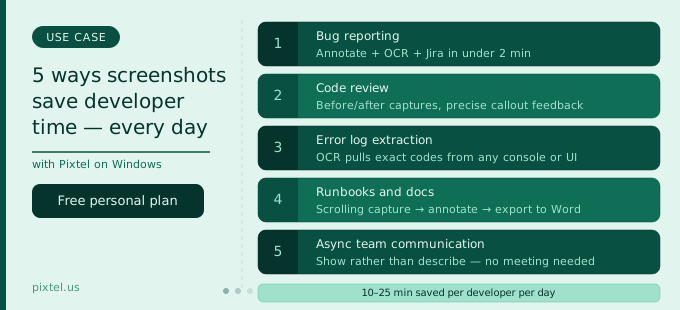
The common thread is that visual communication is often both faster to produce and faster to understand than its text equivalent — but only when the tooling makes it fast. The standard developer screenshot workflow — Win+Shift+S, paste into Paint or an image editor, annotate, save, navigate to Jira or Slack, attach the file — is slow enough that most developers skip steps. The annotation doesn't happen. The error code gets mistyped. The context goes in a separate message that doesn't travel with the image. The recipient has to ask for more information, and the cycle starts again.
Pixtel replaces that chain with a single persistent workspace: capture, annotate, OCR, and share without switching applications. For developers who take screenshots multiple times a day, that compression pays off in meaningful time savings and consistently better communication across the five most common developer screenshot scenarios.
1. Bug reporting and Jira escalation
Bug reporting is the highest-frequency screenshot task for most developers. Whether you're filing a defect you found during development, documenting an issue a colleague reported, or capturing a CI environment failure, the output is the same: a Jira ticket needs a visual record of what went wrong, with enough context for whoever picks it up to reproduce and fix it without a back-and-forth.
The friction in the standard workflow — save the screenshot, open Jira, create a ticket, fill in the fields, attach the image — adds two to four minutes to every bug filed. Across a development day that involves filing five or six bugs, that's a meaningful overhead. More significantly, it's the kind of overhead that creates pressure to file less detailed reports: skip the annotation, leave out the environment details, file without a reproduction path.
Pixtel collapses this into a single operation. Region capture selects the exact affected area. Annotation adds a numbered callout sequence directly on the screenshot marking the reproduction steps. A sticky note records the browser version, OS, feature flag state, and build number. The Jira integration uploads the annotated capture to a new ticket with pre-configured default fields — Component, Environment, Priority, Affects Version — so only the Summary and reproduction description need to be written from scratch.
The full workflow: capture, annotate, file to Jira. Under two minutes for a complete, reproducible bug report with an annotated screenshot attached.
OCR for exact error codes
The most valuable detail in a bug report is often an error code, exception message, or HTTP status that appears on screen at the moment of failure. Mistyping it — transposing two characters in a hex identifier, or getting one digit wrong in a status code — can make the error unsearchable in the team's error tracking system and send the investigation down the wrong path.
Pixtel's OCR captures text from any screen region and converts it to editable, copy-pasteable text. Capture the error state, run OCR on the error message or console output, paste the exact string into the Jira ticket description. No retyping, no transcription errors, no "that's not quite what the error said" comment from the developer who picks up the ticket.
For developers working with legacy systems, older enterprise applications, or terminal output where text can't be selected directly, OCR is the difference between exact error extraction and an approximation.
2. Code review and UI change documentation
Code review is primarily a text activity — diffs, comments, suggested changes. But for any ticket that involves a UI change, the text diff doesn't tell the complete story. A component that renders correctly in isolation may have spacing issues in context. A layout change that looks right at 1440px may break at 1280px. A colour change that passes accessibility contrast checks in isolation may not read correctly against the page's actual background.
Screenshots before and after the change close this gap. A developer submitting a PR that includes UI changes can attach annotated before/after captures directly to the PR or the linked Jira ticket, giving reviewers the visual context they need without having to check out the branch and run the app locally.
Annotating specific concerns on a capture
Pixtel's annotation toolkit is the right tool for the reviewer side of this too. A developer reviewing a PR who notices a specific UI issue — a misalignment, a truncated label, an incorrect interactive state — can capture the rendered component, draw a highlight rectangle around the problem area, add a text callout reading "label truncates at 1280px viewport — needs overflow handling", and attach it as a Jira comment or PR comment image. The feedback is precise, visual, and immediately actionable.
This format also eliminates a class of review comment ambiguity. "The button is slightly off" with no image is a comment the PR author has to decode. "The button is 4px too far right — see highlighted area" with a captured screenshot is a comment they can fix in five minutes.
Before/after comparison for design sign-off
For UI changes that need designer or PM sign-off alongside engineering review, Pixtel's Collage tool combines a before capture and an after capture into a single side-by-side layout. This makes the visual delta immediately legible without requiring the reviewer to toggle between two separate images or open two browser tabs.
A before/after collage attached to the Jira ticket as part of a "ready for review" status change turns a multi-step visual review into a single-image comparison that can be approved or questioned in seconds.
3. Error log and console output extraction
Developer workflows regularly involve surfaces where text can't be easily selected: older admin panels, legacy ERP interfaces, embedded systems consoles, native Windows application error dialogs, and browser console outputs that are too long to copy without losing formatting.
The traditional solution is to retype the relevant portion — which introduces transcription errors — or to take a screenshot and hope the recipient can read small console text — which is rarely legible after compression or in a Jira thumbnail.
Pixtel's OCR solves this directly. Capture the console output, the error dialog, or the terminal window, run OCR on the region containing the relevant text, and extract the content as editable text. Paste it verbatim into a Jira ticket description, a Slack message, or an internal incident log. The text is exact, properly formatted, and immediately searchable.
Continuous capture for crash sequences
Some of the most important error states are the ones that only appear for a fraction of a second before an application crashes, resets, or redirects. These are the error messages that get reported as "I saw something about a NullPointerException but it disappeared" — useful as a starting point but incomplete as a bug report.
Pixtel's continuous region capture fires automatically at configurable intervals during a test or debugging session. When a crash occurs, the captures from the seconds immediately before and during the crash are already in the Pixtel workspace — the last-known good state and the crash state, timestamped, without having to reproduce the crash again. For intermittent crashes or race condition failures that are hard to trigger reliably, this kind of passive capture during debugging sessions is often the only way to capture the exact error state.
4. Internal documentation, runbooks, and deployment records
Developer documentation is chronically underproduced relative to its value, and the friction of producing it is a primary reason why. Writing a runbook that includes step-by-step configuration instructions for a deployment pipeline, an admin dashboard, or a staging environment setup typically means alternating between performing each step and writing about it — a workflow that interrupts both the doing and the documenting.
Screenshots eliminate a significant part of that friction. A developer performing a deployment or configuration task can capture each step with Pixtel's region or window capture as they go, annotate the captures with callout numbers and brief notes, and export the resulting sequence as a PowerPoint slide deck or Word document in one operation. The visual record of the process is produced during the process, not after it from memory.
Scrolling capture for full dashboard and configuration documentation
Configuration screens, deployment dashboards, and system monitoring panels frequently have more content than fits in a single viewport. A Kubernetes dashboard with multiple services, a CI/CD pipeline view with multiple stages, an infrastructure monitoring panel with dozens of metrics — all of these require either multiple overlapping screenshots or a scrolling capture to document completely.
Pixtel's scrolling capture stitches the full view into a single continuous image, however long the page or panel is. A complete Prometheus dashboard, a full Datadog infrastructure view, or a Terraform plan output that spans hundreds of lines can be captured in one shot and included in a runbook without requiring the reader to mentally assemble a sequence of partial screenshots.
Tagging captures by system and date
For teams that maintain infrastructure documentation across multiple environments and services, Pixtel's media library keeps captures organised by source URL, capture date, and user-applied tags. An infrastructure runbook that was accurate six months ago may be inaccurate today because a dashboard was updated or a configuration screen changed.
Tagging captures with the system name and environment allows quick retrieval of all documentation captures for a specific service — and quick identification of which ones are stale and need refreshing. Updating a runbook when a dashboard changes means finding the relevant capture by tag and retaking only that specific screenshot, rather than rebuilding the documentation from scratch.
5. Async team communication replacing synchronous explanation
The most pervasive time cost in developer workflows isn't any single task — it's the accumulated overhead of explaining things to other people. A colleague asks how a feature works. A PM wants to understand why something is complex. A support agent needs to know how to reproduce an environment condition. A new team member needs to understand a system they've never touched.
The reflex in all of these situations is to schedule a call or screenshare. The call takes 30 minutes. The explanation that needed to happen could have taken five. The follow-up questions could have been answered asynchronously. The screenshare ends, and the person who was shown the thing has no record of what they saw.
An annotated screenshot sent via Pixtel's email integration, uploaded to a shared Drive folder, or attached to a Confluence page replaces the synchronous explanation with an async one that's faster to produce, faster to consume, and leaves a persistent record.
Showing rather than describing
Consider the difference between two responses to "why is the API response taking so long?":
Text: "The latency is mainly coming from the third database query in the checkout service — it's doing a full table scan because the index on the order_items table doesn't cover the date range filter we added last sprint. We need to add a composite index."
Annotated screenshot: A capture of the database query explain output with a red highlight on the scan rows count, a numbered callout ① pointing to the index condition that doesn't match the query predicate, and a text callout reading "this full scan → add composite index on (customer_id, created_at)."
Both convey the same information. The screenshot conveys it in a form the recipient can look at, understand spatially, share further, and return to later. It doesn't require the sender to be online when the recipient reads it. It doesn't get buried in a Slack thread where someone has to scroll to find the relevant message.
Direct email and cloud share for immediate delivery
Pixtel's email integration sends annotated screenshots directly to any email address from the workspace. For developers in teams where the simplest communication channel is email — rather than Jira, Slack, or Confluence — this removes the save-and-attach step entirely.
For teams using Google Drive, OneDrive, Dropbox, or Box as shared documentation repositories, Pixtel uploads directly to the right folder without opening a browser. Multiple accounts per service can be connected simultaneously, so sharing to the correct client or project folder is a dropdown selection rather than a login sequence.
The compounding math
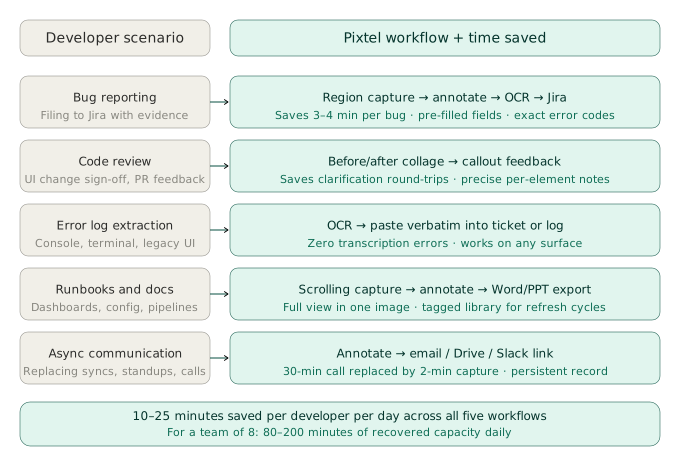
Five workflows, each individually saving two to five minutes per occurrence. A developer who files three bug reports, reviews one PR with UI changes, extracts one error log, updates one runbook screenshot, and sends one async visual explanation in a day has saved somewhere between ten and twenty-five minutes — without changing what they're doing, just removing the friction from how they communicate it.
Across a team of eight developers, that's one to three hours of recovered capacity per day. Across a sprint, it's meaningful — and it compounds, because the time saved from clearer communication (fewer back-and-forth clarification cycles, fewer "cannot reproduce" bounces, fewer runbook errors that require incident investigation) adds further on top of the direct time savings.
The case for a professional screenshot tool in a developer workflow isn't that screenshots are especially important. It's that developers communicate visually all the time regardless — and when the tool that handles that communication is frictionless, every instance of it gets done better and faster than it would have been otherwise.
Get started
Pixtel is available on the Microsoft Store with a free personal plan. Features relevant to developers — region, scrolling, window, timed, and continuous capture; OCR; numbered callout annotation; Jira integration; multi-account cloud sharing; email integration; and the searchable media library — are all available across plans.
👉 Download Pixtel
📘 Read the Documentation
🎥 Watch Tutorials
Related Articles
- The QA Engineer's Playbook: Documenting Bugs Visually with Pixtel →
- Master Bug Reporting: Best Practices with Pixtel & Jira →
- Unlocking Trapped Data: The Power of Advanced OCR in Screen Management →
- How Product Managers Use Screenshots to Move Faster in Agile Sprints →
- Remote Teams Communicate Better Visually — Here's How Pixtel Helps →
'%3e%3cpath%20d='M6.49988%200.862305L0.380969%206.98121C-0.127315%207.4895%20-0.127315%208.31107%200.380969%208.81936C0.889253%209.32764%201.71083%209.32764%202.21911%208.81936L5.19992%205.83855V15.7C5.19992%2016.4176%205.781%2017%206.49988%2017C7.21875%2017%207.79984%2016.4176%207.79984%2015.7V5.83855L10.7806%208.81936C11.0341%209.07285%2011.3669%209.20024%2011.6997%209.20024C12.0325%209.20024%2012.3653%209.07285%2012.6188%208.81936C13.1271%208.31107%2013.1271%207.4895%2012.6188%206.98121L6.49988%200.862305Z'%20fill='white'/%3e%3c/g%3e%3cdefs%3e%3cclipPath%20id='clip0_1_2'%3e%3crect%20width='13.0002'%20height='16.8995'%20fill='white'%20transform='translate(-0.000244141%200.100533)'/%3e%3c/clipPath%3e%3c/defs%3e%3c/svg%3e)