

Edit Text in Screenshots with Pixtel
The Screenshot Is Right, Except for One Line
The price changed. The version number moved on. There's a typo in a label, or a real customer's name that shouldn't be in a training guide. The rest of the screenshot is fine, but to fix one line you'd have to capture it again, or paint over the words and guess the font.
With Edit Text, you click the words in the picture and type new ones. Pixtel covers the old words with the background around them and writes yours in the same font, size, weight and colour, so the picture looks as if it was captured that way.

The screenshots in this post show a made-up product page.
Why It Helps
- Keep screenshots up to date. Change a price, a date, a version or a label without capturing the screen again.
- The text matches. Pixtel works out the font, size, weight, italic and colour from the picture itself, and keeps one font across a picture.
- The background matches too. Plain backgrounds and gradients are rebuilt exactly. On a photo or a texture, Pixtel keeps the picture and fills in only where the letters were.
- Nothing is lost. Each change is an ordinary text annotation, so you can move it, restyle it, or take it back later.
- It stays on your PC. The text is read with Windows' built-in text recognition. Nothing is uploaded.
Edit Text Step by Step
Step 1: Turn on Edit Text
- Open a picture in the editor and click Edit Text in the bottom bar, beside Simplify.
- Or right-click the picture and choose Edit Text in Picture.
- The pointer changes to Edit Text's own cursor, and a bar at the top right of the picture says Click the text you want to change.
Step 2: Click the text
- Click the line you want to change. Pixtel reads that part of the picture, covers the old words and opens them in a box, in the matched font, with the cursor where you clicked.
- The other lines it read show dashed outlines, so you can see what else can be changed.
Step 3: Type, then press Enter
- Type the new words. Enter, or a click outside the box, keeps the change.
- Click other text to change that too. Each change you finish is one undo step, Edit Text.
Step 4: Finish
- Done keeps every change.
- Esc takes back every change made since you turned Edit Text on, and turns it off. You can redo them.
Text on a Photo or a Busy Background
Text isn't always on a plain background. Headlines sit on photos, and buttons sit on gradients. Pixtel looks at the background around the words:
- Plain or gradient: the background is drawn again, exactly.
- A photo, a texture or a pattern: Pixtel keeps the picture's own pixels and fills in only the letters from what's around them, so the photo still shows through.
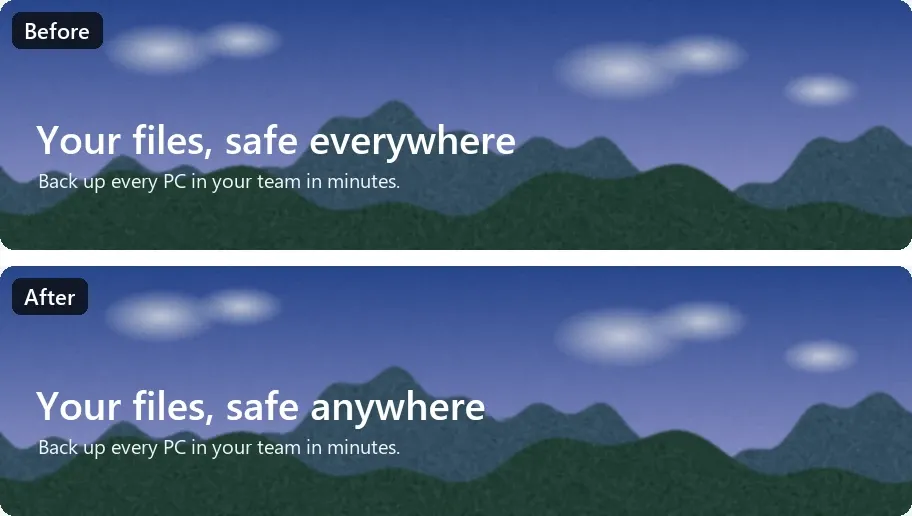
On a very busy background Pixtel may not be able to tell the letters apart. Then it covers them with the nearest shading and says the old text may show at the edges.
Change One Word or Many
Edit Text matches each line in the font most of the picture is in, so a price, a date and a sentence all come out the way the page drew them:

New words can be longer or shorter than the old ones. Left-aligned text grows to the right, text centred in a button stays centred, and numbers lined up on the right stay lined up.
Afterwards: Move, Restyle or Restore
The new words are an ordinary text annotation:
- Move or restyle it like any other text. You can even move it while Edit Text is on.
- Remove text by deleting the new words. The cover stays, so the old words stay hidden.
- Restore the original: right-click the edited text and choose Restore Original Text. The new words and the cover go, and the picture is as it was.
Make It Permanent
Tick Make permanent on the Edit Text bar to draw each change into the picture itself, as Flatten Annotations does. The old words are then gone from the file, even when you share it, and the new ones can no longer be edited.
Without Make permanent, the old words are still in the picture under their cover. That's what lets you restore them, but it means Edit Text is not a way to hide information. To hide something for good, use Make permanent, or Blur, Pixelate or Redact.
Replace the Same Words Everywhere
To change a word everywhere it appears, use the find bar instead:
- Press Ctrl+H, or choose Edit → Replace Text in Picture.
- Type the words to find and the words to replace them with, then choose Replace or Replace All.
- Each place becomes an Edit Text change in that line's own font, and Replace All is one undo step.
See Find Any Screenshot by the Text in It with Pixtel for the find bar.
How Teams Use It
- Documentation and training. Update a guide's screenshots when a label, a menu or a version changes, without setting the screen up again.
- Product and marketing. Try a new headline, price or button label on a real screen before anyone builds it.
- Support and QA. Swap a real customer's name or email for a sample one before a screenshot goes into a ticket or a slide.
- Sales. Put a prospect's name or the right plan on a demo screenshot.
Tips
- Edit Text works on Windows 10 and later, with a text recognition language installed in Windows.
- Click on the words themselves: Pixtel reads the band of the picture around the click, so it reads only what it needs.
- A line that starts with a bold lead-in, like Note: followed by plain text, is retyped in the plain weight.
- To change a whole picture's worth of text for a layout mockup, try Simplify instead.
✨ Capture once. Use it forever. It isn't just a tool—it's Pixtel.
🎯 Try Pixtel today and fix a screenshot in seconds.
Call-to-Action
Download Pixtel · Read Detailed Documentation
Related reading:
