

Clear Up Your Email Inbox: A Better Way to Share Screenshots
A screenshot is supposed to make a conversation clearer. But when several images are scattered across email replies, finding the right capture can take longer than understanding the issue.
To reduce that clutter, give each screenshot a clear purpose, choose how the recipient will access it, and keep the original somewhere you can find again. Pixtel Capture brings those steps into one Windows workspace: capture, annotate, organize, and share.
Choose How to Share Before You Send
An attachment is useful when someone needs a copy of the image. A link can keep a conversation lighter when they only need to view it. For an ongoing project, your team's cloud storage may be the better destination.
| What the recipient needs | A practical option |
|---|---|
| One image to read alongside your message | Drop the annotated screenshot into the email or attach it. |
| A screenshot to open in a browser | Create a share link and include a short explanation. |
| Captures that belong with project files | Upload to the appropriate cloud folder and check its access settings. |
The goal is to make the next step obvious. Instead of sending several unexplained files, write something specific: “The highlighted field shows the error after I select Save.”
Create a Screenshot Link in Pixtel
For a quick review, Pixtel's Create Share Link feature gives you a URL you can paste into your message.
- Capture or open the image in Pixtel.
- Add an arrow, highlight, or callout to show what matters.
- Click Create Share Link in the status bar at the bottom of the image tab.
- Review the generated link and expiration information. Pixtel copies the Web URL to your clipboard.
- Paste the link into your email with a sentence explaining what the recipient should check.
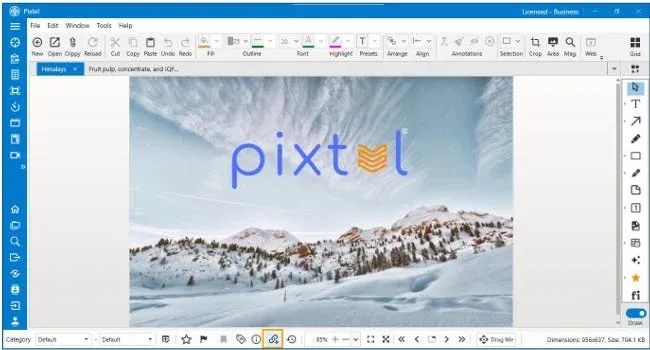
The Web Link opens a Pixtel-hosted viewer; the Image Link points directly to the image file. Right-click the image and choose Create Share Link to access the auto-delete options.
Choose an expiration that gives the recipient time to review the capture. For material that needs to remain available with project records, use a suitable long-term destination instead. See the Share Link guide for the available settings.
Send an Image Without Hunting Through Folders
Sometimes the image itself belongs in the conversation. Pixtel's Drag Me option lets you drag a capture into an application that accepts dropped files without first saving and locating an export.
Open the image, finish your annotations, then drag it from Drag Me in the status bar into the email or application. Whether it appears inline or as an attachment depends on the receiving application.
This removes a file-handling step; it does not reduce the size of the image or bypass attachment limits. For several large captures, consider a share link or an approved cloud destination. The Drag Me guide also covers sharing multiple files from Grid View.
Keep Project Captures Together
Pixtel can upload captures to services including Google Drive, OneDrive, Dropbox, and Box. Pick the account and destination that belong to the project, then check who can access the shared files.
In your Pixtel library, give important captures meaningful names or descriptions. “Checkout error after Save” is easier to recognize later than an unexplained file name. Keep related captures organized so you can reuse them in a support reply, guide, or review without searching old email threads.
For a walkthrough, see uploading files to Google Drive from Pixtel.
Check the Screenshot Before Sharing
Look for customer information, credentials, internal URLs, and unrelated content around the area you captured. Use Pixtel's Redact workflow when sensitive information needs to be removed, and inspect the result before sending it.
Use your organization's approved sharing service for confidential material. A link's expiration does not recall copies a recipient has already downloaded.
Email can remain the conversation without becoming your screenshot archive. A clear annotation, the right sharing method, and an organized original make the capture easier to understand now and easier to reuse later.
Try Pixtel Capture or explore its capture, annotation, and sharing features.
