

Top 10 Screen Capture Tools for Better Productivity in 2026
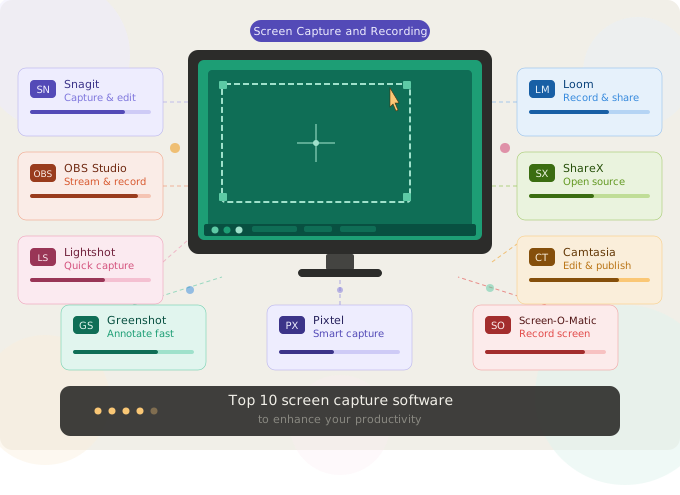
Unlock your productivity with our top 10 screen capture software tools! Discover how these essential apps can streamline your workflows and enhance collaboration.
Importance of Screen Capture in Productivity
Screen capture software has become an indispensable tool for both personal and professional use. The ability to quickly capture and share what’s on your screen can dramatically improve communication and workflow efficiency. Whether you are a teacher creating instructional materials, a developer debugging an application, or a business professional prepari/ng a presentation, screen capture tools can save you a significant amount of time and effort.
In the fast-paced digital world, visual content is often more effective than text. A well-placed screenshot or video tutorial can convey complex information more clearly and quickly than written instructions. This immediacy is essential in collaborative environments where speed and clarity can make the difference between a successful project and one that lags behind.
Moreover, screen capture software can help in maintaining a record of important processes and interactions. This can be particularly useful for training new employees, ensuring compliance with standard procedures, and documenting issues that need to be addressed. By integrating screen capture into your daily workflows, you can enhance productivity and foster a more efficient and collaborative work environment.
Criteria for Choosing the Right Screen Capture Software
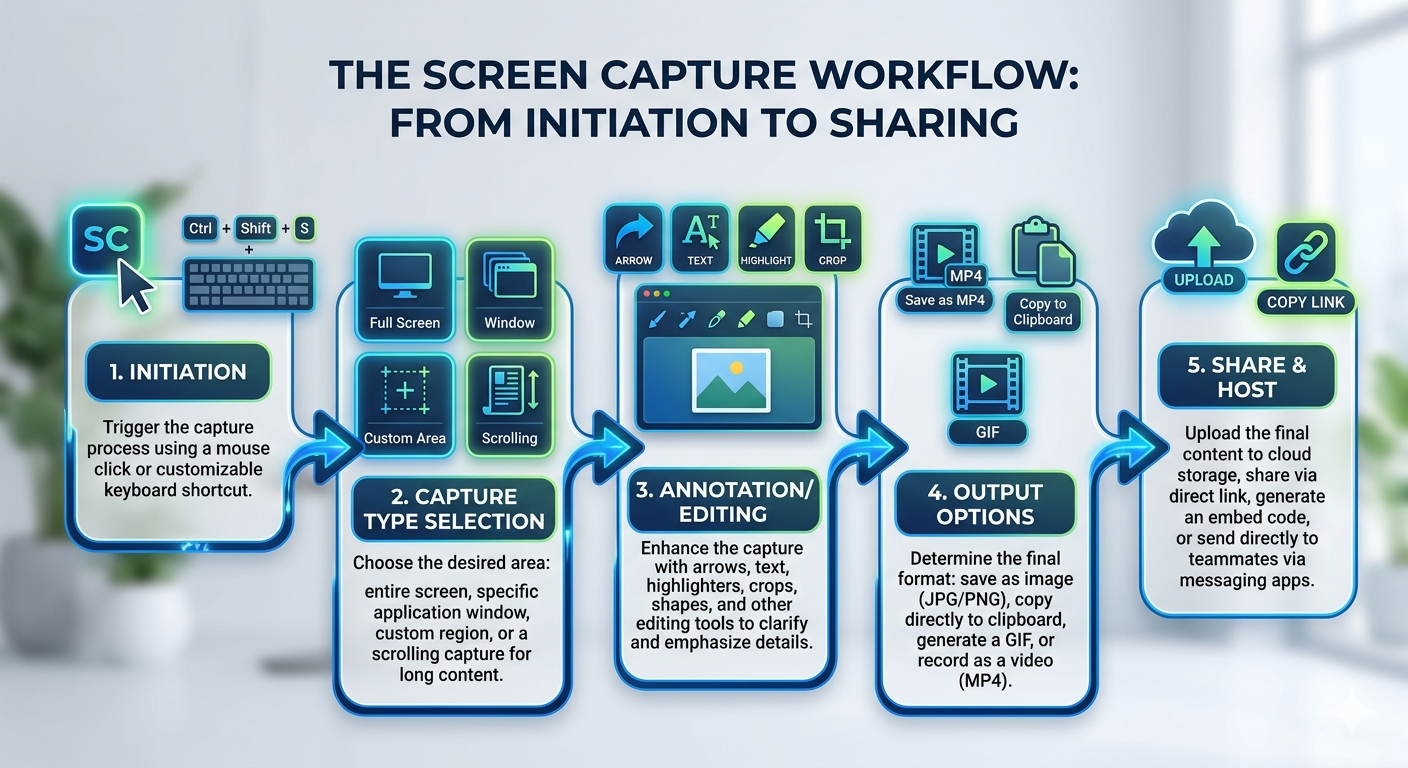
Choosing the right screen capture software requires careful consideration of several factors. First and foremost, ease of use is paramount. The software should have an intuitive interface that allows users to capture screens with minimal effort. Complex or cumbersome tools can hinder productivity rather than enhance it.
Another crucial criterion is the range of features offered. Basic screen capture functionalities may suffice for simple tasks, but more advanced needs might require features such as video recording, annotation tools, and integration with other software applications. The ability to edit captured content within the software can also be a significant advantage, allowing users to polish their captures before sharing them.
Lastly, pricing is an important consideration. While there are many free screen capture tools available, they may come with limitations in functionality or include watermarks. Paid software often provides a more comprehensive set of features and better customer support, but it's essential to evaluate whether the additional cost justifies the benefits. By weighing these criteria, you can select the screen capture software that best meets your needs and budget.
Top 10 Screen Capture Software Overview
In a market flooded with options, finding the right screen capture software can be overwhelming. To help you navigate this landscape, we've curated a list of the top 10 screen capture tools that stand out for their features, usability, and value. These tools cater to a wide range of needs, from basic screenshot capabilities to advanced video recording and editing functions.
- Snagit (Focus: Screen capture, Video recording)
- Loom (Focus: Video recording)
- Pixtel (Focus: Screen capture, Video recording, Audio recording)
- ScreePal (Focus: Video recording)
- Greenshot (Focus: Screen capture)
- Lightshot (Focus: Screen capture)
- Camtasia (Focus: Video capture)
- ShareX (Focus: Screen capture)
- OBS Studio (Focus: Video capture)
- TinyTake (Focus: Screen capture, Video recording)
Each of these tools offers unique features that can enhance your productivity. Whether you need simple screen captures or comprehensive video tutorials, there is a tool on this list that can meet your requirements. In the following sections, we'll delve into a detailed review of each software, comparing their features, pricing, and overall value to help you make an informed decision.
Detailed Review of Each Screen Capture Software
Snagit
Snagit is a premium desktop screen capture and image editing powerhouse developed by TechSmith, specifically engineered to transform standard screenshots into clear, actionable communication. Operating as a robust Windows and macOS application, it provides a specialized environment where users can capture, refine, and organize visual content with professional precision. It is widely recognized for its all-in-one capture approach, allowing professionals to toggle between image and video recording seamlessly within a single, intuitive dashboard.
The software is distinguished by its advanced editing canvas, which offers a "Smart Move" feature that makes objects in your screen captures movable—effectively allowing users to rearrange UI elements or redact sensitive information after the shot is taken. Beyond simple annotations, Snagit includes a library of pre-made templates to create visual guides and "how-to" documents in seconds. Its focus on high-fidelity output makes it a staple for technical writers and educators who require pixel-perfect clarity for complex documentation.
Loom
Loom is a screen recording tool designed with simplicity and ease of use in mind. It allows users to quickly capture their screen, webcam, or both, and instantly share the recordings via a unique URL. This makes Loom an excellent choice for remote teams and educators who need to create and share video content on the fly. The software's intuitive interface ensures that even users with minimal technical expertise can start recording in minutes.
Loom offers several useful features, such as the ability to trim videos, add call-to-action buttons, and generate transcription for recorded content. The software is available in both free and premium versions, with the latter offering additional features such as HD recording, advanced editing tools, and enhanced security options. Loom's focus on speed and simplicity, combined with its collaborative features, makes it a valuable tool for enhancing productivity.
Pixtel
Pixtel is a high-performance desktop screen capture and management suite available on the Microsoft Store, specifically optimized for the Windows ecosystem. It serves as a comprehensive workspace that integrates capturing, editing, and professional image management into a single, tabbed interface. Unlike traditional tools that focus on one-off snips, Pixtel is designed for power users—such as developers, QA engineers, and designers—who need to handle large volumes of visual data without switching between multiple applications.
The software stands out for its versatility, offering over 12 capture modes, including region, timed, scrolling, and video/audio recording. Its professional-grade editing suite features a Virtual Canvas, which allows users to add annotations, geometries, and sticky notes even outside the boundaries of the original capture. Furthermore, Pixtel includes advanced OCR (Optical Character Recognition) capabilities that can extract structured table data or plain text directly from the screen, significantly speeding up data entry and documentation workflows.
One of Pixtel’s most unique advantages is its intuitive management system, which organizes screenshots automatically based on the application or website being captured. With built-in integrations for tools like Jira, Microsoft Office, and various cloud services, users can transition from a screen capture to a bug report or a presentation in seconds. By providing a "web-browser-like" experience for managing images locally, Pixtel offers a powerful, privacy-focused solution for professionals who require both speed and high-level organization in their daily visual communication.
ScreenPal
ScreenPal is a versatile screen capture and video editing tool that caters to both individual and business users. It offers a range of features, including screen recording, webcam capture, and video editing capabilities. Users can annotate their recordings with text, shapes, and narration, making it a powerful tool for creating instructional videos, presentations, and product demos.
One of ScreenPal's standout features is its green screen effect, which allows users to replace their background with any image or video. This feature is particularly useful for creating professional-looking videos without the need for expensive equipment. ScreenPal is available in both free and paid versions, with the latter offering additional features such as longer recording times, advanced editing tools, and cloud storage options. Its combination of functionality and affordability makes it a popular choice among content creators and educators.
Greenshot
Greenshot is a lightweight, open-source screen capture tool that is perfect for users who need a simple and efficient way to capture and annotate screenshots. It offers a range of capture options, including full screen, window, and region captures, as well as the ability to capture scrolling web pages. Greenshot's built-in editor allows users to annotate their captures with text, shapes, and highlights, making it easy to create informative and visually appealing screenshots.
One of Greenshot's key advantages is its integration with popular cloud storage and productivity tools, such as Dropbox, Google Drive, and Microsoft Office. This makes it easy to save and share captures directly from the application. As a free tool, Greenshot offers an impressive range of features and is an excellent choice for users who need a reliable and straightforward screen capture solution without the need for advanced editing capabilities.
Lightshot
Lightshot is another lightweight and easy-to-use screen capture tool that focuses on simplicity and speed. It allows users to quickly capture any part of their screen and edit the capture with basic annotation tools. Lightshot's intuitive interface ensures that users can start capturing and sharing screenshots within seconds, making it an ideal tool for those who need a fast and efficient way to capture visual content.
One of Lightshot's standout features is its ability to perform reverse image searches, allowing users to find similar images on the web with a single click. This can be particularly useful for research and content creation purposes. Lightshot is available as a free download and offers browser extensions for Chrome and Firefox, making it a versatile and accessible tool for users across different platforms.
Camtasia
Camtasia, also developed by TechSmith, is powerful screen recording and video editing software designed for professional use. It offers a comprehensive set of features, including screen and webcam recording, multi-track video editing, and a wide range of effects and transitions. Camtasia's intuitive drag-and-drop interface makes it easy for users to create polished and professional-looking videos without the need for advanced technical skills.
One of Camtasia's key strengths is its extensive library of templates and assets, which can help users quickly create engaging and visually appealing content. The software also offers advanced features such as interactive quizzes, closed captioning, and the ability to import PowerPoint presentations. While Camtasia comes with a higher price tag compared to other screen capture tools, its robust feature set and ease of use make it a valuable investment for professionals who need to create high-quality video content.
ShareX
ShareX is a free, open-source screen capture and file-sharing tool that offers a wide range of features for both basic and advanced users. It supports various capture methods, including full screen, window, region, and scrolling captures, as well as video recording and GIF creation. ShareX's built-in editor allows users to annotate their captures with text, shapes, and highlights, making it a versatile tool for creating informative visual content.
One of ShareX's standout features is its extensive customization options, allowing users to configure hotkeys, workflows, and output settings to suit their specific needs. The software also integrates with a wide range of cloud storage and file-sharing services, making it easy to save and share captures directly from the application. With its impressive range of features and flexibility, ShareX is an excellent choice for users who need a powerful and customizable screen capture solution.
OBS Studio
OBS Studio, or Open Broadcaster Software, is a free and open-source screen recording and live streaming tool that is popular among gamers, content creators, and professionals. It offers a range of advanced features, including multi-source recording, scene transitions, and real-time audio and video mixing. OBS Studio's powerful and flexible interface allows users to create professional-quality recordings and live streams with ease.
One of OBS Studio's key strengths is its extensive community support and active development, ensuring that users have access to a wealth of tutorials, plugins, and updates. While the software's advanced features and customization options may have a steeper learning curve compared to other screen capture tools, its versatility and powerful capabilities make it a valuable tool for users who need to create high-quality recordings and live streams.
TinyTake
TinyTake is a screen capture and video recording tool developed by MangoApps that is designed for both personal and professional use. It offers a range of capture options, including full screen, window, region, and webcam captures, as well as video recording capabilities. TinyTake's built-in editor allows users to annotate their captures with text, shapes, and highlights, making it easy to create informative and visually appealing content.
One of TinyTake's key strengths is its integration with cloud storage and file-sharing services, such as Dropbox, Google Drive, and OneDrive. This makes it easy to save and share captures directly from the application. TinyTake is available in both free and paid versions, with the latter offering additional features such as longer recording times, advanced editing tools, and enhanced security options. Its combination of functionality and affordability makes it a popular choice among users who need a reliable and versatile screen capture tool.
Comparison of Features and Pricing
When comparing screen capture software, it is essential to consider the features and pricing to determine which tool offers the best value for your needs. Here is a comparison of the top 10 screen capture tools based on their key features and pricing:
Snagit: Offers comprehensive capture and editing features, including scrolling screenshots and integration with productivity tools. Subscription Pricing: $38/year for personal use and $48/year for business use.
Loom: Easy-to-use screen recording tool with instant sharing capabilities and collaborative features. Subscription Pricing: Free (Basic), $10/month (Pro).
Pixtel: A professional-grade screen capture and recording tool built for power users—developers, QA engineers, and designers—featuring advanced productivity tools for faster workflows. Pricing: Free for personal use; $50/year for business use.
ScreenPal: Versatile screen capture and video editing tool with green screen effect and cloud storage options. Subscription Pricing: Free (Basic), $1.65/month (Deluxe), $4/month (Premier).
Greenshot: Lightweight and open-source screen capture tool with annotation and cloud integration. Pricing: Free.
Lightshot: Simple and fast screen capture tool with basic annotation and reverse image search capabilities. Pricing: Free.
Camtasia: Powerful screen recording and video editing software with extensive templates and assets. Subscription Pricing: Basic: $39/year and Essentials: $180/year.
ShareX: Free, open-source screen capture and file-sharing tool with extensive customization options. Pricing: Free.
OBS Studio: Free and open-source screen recording and live streaming tool with advanced features and community support. Pricing: Free.
TinyTake: Reliable screen capture and video recording tool with cloud integration and sharing options. Subscription Pricing: Free (Basic), $29.95/year (Standard), $99.95/year (Jumbo).
By comparing the features and pricing of these tools, you can identify the screen capture software that offers the best balance of functionality and affordability for your needs.
How Screen Capture Software Can Improve Collaboration
Screen capture software can significantly enhance collaboration within teams, enabling more effective communication and knowledge sharing. Visual content, such as screenshots and video recordings, can convey complex information more clearly and quickly than text alone. This is particularly useful in remote work environments, where face-to-face communication is limited.
For example, a developer can use screen capture software to record a bug in an application and share the video with the team, providing a clear and concise explanation of the issue. Similarly, a project manager can create a video tutorial to onboard new team members, ensuring that everyone has access to consistent and accurate information. By using screen capture tools, team members can quickly share their insights, feedback, and solutions, fostering a more collaborative and efficient work environment.
Additionally, screen capture software can facilitate asynchronous communication, allowing team members to share updates and feedback at their convenience. This is particularly beneficial for teams working across different time zones, as it enables them to collaborate effectively without the need for real-time meetings. By integrating screen capture tools into their workflows, teams can improve their communication, streamline their processes, and enhance their overall productivity.
Tips for Maximizing the Use of Screen Capture Tools
To get the most out of your screen capture software, consider the following tips:
Familiarize Yourself with the Features: Take the time to explore the features and capabilities of your screen capture tool. Understanding how to use annotations, editing tools, and sharing options can help you create more effective and professional content.
Use Keyboard Shortcuts: Many screen capture tools offer customizable keyboard shortcuts, allowing you to capture screens quickly and efficiently. Set up and memorize these shortcuts to streamline your workflow and save time.
Organize Your Captures: Keeping your screen captures organized can help you find and share content more easily. Use folders, tags, and naming conventions to categorize your captures and maintain a tidy workspace.
Edit and Annotate: Enhance your captures by adding annotations, such as text, shapes, and highlights. This can help you convey your message more clearly and make your content more engaging.
Leverage Integrations: Many screen capture tools integrate with productivity and collaboration platforms, such as Microsoft Office, Google Drive, and Slack. Take advantage of these integrations to streamline your workflows and improve collaboration with your team.
Share and Collaborate: Share your captures with team members and stakeholders to facilitate communication and collaboration. Use cloud storage and sharing options to ensure that your content is easily accessible to everyone involved.
Stay Updated: Screen capture software is continually evolving, with new features and updates being released regularly. Stay informed about the latest developments and updates to ensure that you are using the most up-to-date tools and features.
By following these tips, you can maximize the use of your screen capture software and enhance your productivity and collaboration.
Common Use Cases for Screen Capture Software
Screen capture software is incredibly versatile and can be used in a wide range of scenarios. Here are some common use cases:
Creating Tutorials and Training Materials: Screen capture tools are ideal for creating instructional content, such as tutorials and training videos. Educators and trainers can use these tools to demonstrate processes, explain concepts, and provide step-by-step guidance.
Reporting Bugs and Issues: Developers and QA testers can use screen capture software to document and report bugs and issues in applications. By providing visual evidence of the problem, they can help the development team understand and address the issue more effectively.
Preparing Presentations and Reports: Business professionals can use screen capture tools to create visual content for presentations and reports. Screenshots and video recordings can help illustrate key points, showcase data, and provide context for discussions.
Enhancing Remote Collaboration: Screen capture software can facilitate communication and collaboration among remote teams. By sharing visual content, team members can provide feedback, share insights, and collaborate more effectively.
Documenting Processes and Procedures: Screen capture tools can be used to document standard operating procedures and workflows. This can help ensure consistency and compliance, as well as provide a valuable resource for training new employees.
Creating Marketing and Promotional Content: Marketers can use screen capture software to create promotional videos, product demos, and social media content. Visual content can help engage audiences and showcase products and services more effectively.
Providing Customer Support: Customer support teams can use screen capture tools to create visual guides and troubleshooting videos for customers. This can help resolve issues more quickly and improve customer satisfaction.
By leveraging screen capture software in these common use cases, you can enhance your productivity, improve communication, and create more engaging and effective content.
Conclusion and Final Recommendations
In conclusion, screen capture software is an essential tool for enhancing productivity and collaboration in various professional and personal contexts. Our top 10 screen capture tools offer a range of features and pricing options, ensuring that there is a solution to meet every need and budget.
To choose the right screen capture software, consider factors such as ease of use, feature set, and pricing. Whether you need a simple tool for capturing screenshots or a comprehensive solution for recording and editing videos, there is a tool on our list that can help you achieve your goals.
Both Pixtel and SnagIt are top-tier, all-in-one powerhouses for those who need deep integrations and a massive feature set. If you're more focused on video, specialized tools like Loom, ScreenPal, Camtasia, and OBS Studio are your best bets. For something simpler, TinyTake fits perfectly in the mid-range, while free alternatives like Greenshot, ShareX, and Lightshot prove you don't have to spend a dime to get high-quality basic features.
By integrating screen capture software into your workflows, you can improve communication, streamline processes, and create more engaging and effective content. Follow our tips for maximizing the use of these tools, and explore the common use cases to discover new ways to leverage screen capture software in your daily tasks.
Ultimately, the right screen capture software can make a significant difference in your productivity and collaboration, helping you achieve better results in less time. Evaluate your needs, explore the options, and choose the tool that best aligns with your objectives. With the right screen capture software, you can unlock new levels of efficiency and creativity in your work. If you are looking for high end comprehensive product that is free for personal use, you may look at Pixtel. You can download Pixtel and give it a try. It is free.
Call-to-Action
Capture once and use it forever. It isn’t just a tool — it’s Pixtel.
👉 Download Pixtel
🎥 Follow us on YouTube
📘 Read Detailed Documentation
'%3e%3cpath%20d='M6.49988%200.862305L0.380969%206.98121C-0.127315%207.4895%20-0.127315%208.31107%200.380969%208.81936C0.889253%209.32764%201.71083%209.32764%202.21911%208.81936L5.19992%205.83855V15.7C5.19992%2016.4176%205.781%2017%206.49988%2017C7.21875%2017%207.79984%2016.4176%207.79984%2015.7V5.83855L10.7806%208.81936C11.0341%209.07285%2011.3669%209.20024%2011.6997%209.20024C12.0325%209.20024%2012.3653%209.07285%2012.6188%208.81936C13.1271%208.31107%2013.1271%207.4895%2012.6188%206.98121L6.49988%200.862305Z'%20fill='white'/%3e%3c/g%3e%3cdefs%3e%3cclipPath%20id='clip0_1_2'%3e%3crect%20width='13.0002'%20height='16.8995'%20fill='white'%20transform='translate(-0.000244141%200.100533)'/%3e%3c/clipPath%3e%3c/defs%3e%3c/svg%3e)