

Share Screenshots with the Windows Share Sheet in Pixtel
Share With Any App, Not Just the Ones Pixtel Knows
Pixtel already sends captures straight to Google Drive, OneDrive, Slack, Teams, Jira, Confluence, Mail and more. But the app you want right now might not be on that list: WhatsApp on your PC, a design tool, a messaging app your team just adopted, or the laptop sitting next to you.
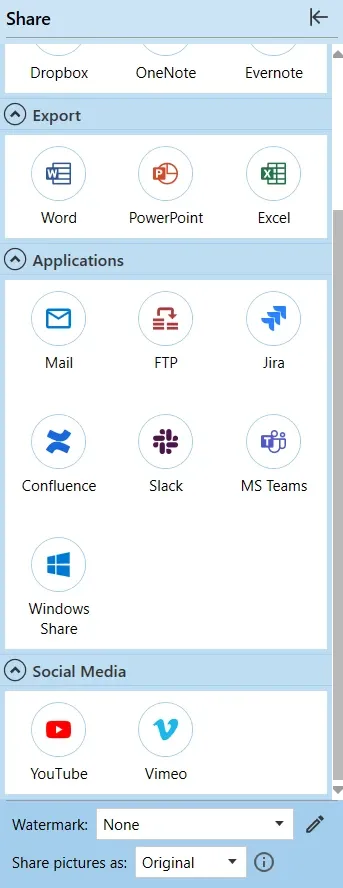
Windows already has a way to reach all of them: the share sheet, the window that opens when you right-click a file in File Explorer and choose Share. Pixtel's Windows Share tile opens that same window for the pictures, recordings and videos you have selected, so any app that accepts shared files is one click away.
How to Share a Capture Through Windows
- Open the picture in the editor, or select one or more captures in the grid. Videos and screen recordings work too.
- Open the Share panel from the left toolbar.
- Optional: pick a Watermark and a format under Share pictures as at the bottom of the panel.
- Click Windows Share in the Applications section.
- In the Windows share window, choose where the files go: an app such as Outlook, Teams, WhatsApp or Paint, one of your contacts, Nearby Sharing to another PC, or the copy button.
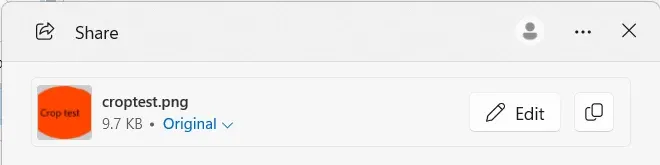
That's it. The app you picked takes it from there, and Pixtel marks the pictures as shared once it has them.
What Gets Shared
The files are the finished pictures, not the raw captures:
- Annotations are drawn in. Arrows, highlights, callouts, blur and text appear exactly as they do in the editor, so the person you send it to sees what you meant.
- Your watermark is added when you choose one in the Share panel.
- The format you chose is used. Pick JPEG for a small file to send by message, PNG for crisp text, or PDF for a document. If you choose Pixtel, each picture goes in its own format instead, because other apps can't open Pixtel files.
- Names make sense. Each file is named after the picture, such as
Login error.png, not a random temporary name. - Your originals stay untouched. Pixtel hands Windows a copy, so nothing the receiving app does changes the picture in your library.
You can share up to 50 files at a time, and you don't need an internet connection: Nearby Sharing, copy and the apps on your PC work offline.
Good to Know
- Running Pixtel as administrator? Windows doesn't open its share window for apps running as administrator, so the tile is greyed out and its tooltip says why. Start Pixtel normally to use it.
- Which apps appear depends on what's installed on your PC. Apps that accept shared files from Windows show up in the share window automatically.
- Nearby Sharing must be turned on in Windows Settings (System > Nearby sharing) on both PCs to send to a device near you.
- In an organization? IT can turn Windows Share off along with the other destinations through Pixtel's Group Policy settings.
When to Use Windows Share and When to Use the Other Tiles
| You want to... | Use |
|---|---|
| Post to a Slack channel, Teams chat, Jira issue or Confluence page with a message | The Slack, MS Teams, Jira or Confluence tile: Pixtel posts it for you |
| Save to a specific cloud folder | Google Drive, OneDrive, Box or Dropbox |
| Send to an app Pixtel has no tile for, a contact, or a nearby PC | Windows Share |
| Give someone a link instead of a file | Create Share Link in the image tab's status bar |
Windows Share fills the gap between Pixtel's built-in destinations and everything else on your PC, without saving files to a folder first and finding them again in File Explorer.
